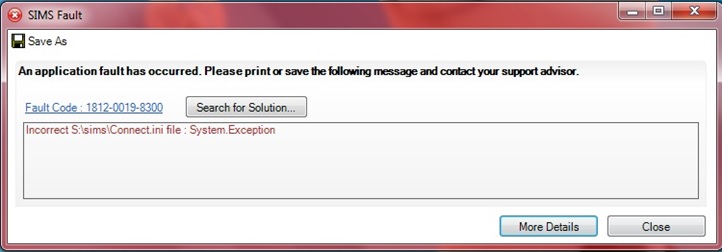
There are a number of reasons why SIMS may not be working. For SIMS to function, a user must have access to the S drive. If the connection is lost then the following error message is usually shown when attempting to run SIMS:
How Do I know If I Have Connection to the S Drive?
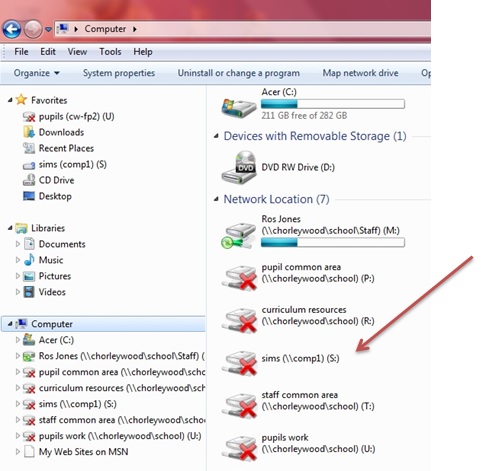
Click Start > Computer
You may see that the S drive has a red cross through it
How Can I Get Access to the S Drive Again?
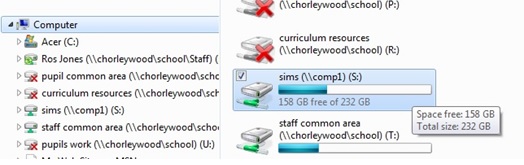
In most cases, simply double-clicking the S drive will activate it, and SIMS should load up fine.
I Can’t See the S Drive At All
If you cannot see the S drive at all, try logging off and back in. Failing that, restarting your machine may solve the issue.
It is worth checking to see that you have got access to other network drives – if not, then either:
- You are not connected to the school network (check wireless switch is turned on and connected to the school’s wireless network, or that the network cable is plugged in)
- There is an issue with the school network.
If you are still experiencing issues, get in touch with Con Ed using the helpdesk.