27 years of trusted school IT support across Hertfordshire and Buckinghamshire

Category: Chromebooks

  • Google’s New Improvements to Accessibility

    Google’s New Improvements to Accessibility

    Recently, Google have made some improvements to their accessibility features. These updates are designed to help people with disabilities to use Google features more easily.

    More colours for cursors on Chromebooks

    Six new colours have been added to the list of available cursor colours for Chromebook users. With additional new option to change cursor size, you can now make the mouse pointer much more visible. The new colours are red, yellow, green, cyan, blue, magenta and pink

    Select-to-speak and ChromeVox improvements

    Chromebooks feature the Select-to-speak tool, which reads on-screen text aloud. Now, the tool has been improved by including the option to shade the screen behind the selected text. This will help people with impaired vision, as well as those who have learning difficulties, such as dyslexia. To enable this select-to-speak feature, search for “Select-to-speak settings” within Settings.
    Accessible test-taking for students on Chromebooks

    You may be familiar with kiosk mode on Chromebooks, which temporarily prevents the device from being used for anything except a designated application. This is commonly used to prevent pupils from accessing resources while they are taking tests on the Chromebooks. Accessibility features have now become more available, allowing tools such as screen-readers and magnifiers to be used. There are also plans for Google to add personalised setting profiles, so that each pupil can easily save and apply all the accessibility tools they require.

    More support for braille in Google Docs

    Students can use a braille display to read and edit documents, spreadsheets, presentations, and drawings. There have now been several improvements to braille support in Google Docs, which include new keyboard shortcuts, faster navigation, improvements to punctuation and spaces, and more.

    Live captioning in Google Meet

    Live captions can be used in classes to reduce barriers among students who are deaf or hard of hearing, regardless of whether they’re participating remotely or in person. Now, the option to use captions in Spanish, French, German and Portuguese is being made available.

    Smart to do’s in Google Docs, Sheets, and Slides

    In Google Docs, Sheets, and Slides, when you use comments to assign tasks or action items, suggested action items will appear based on the content in your file. This is helpful for working quickly and making sure follow ups are noted.

    Work hands-free in G Suite for Education

    Students can now use voice commands to carry out actions on the Chromebooks such as navigating, selecting, and editing in Google Docs and joining or leaving Google Meets.

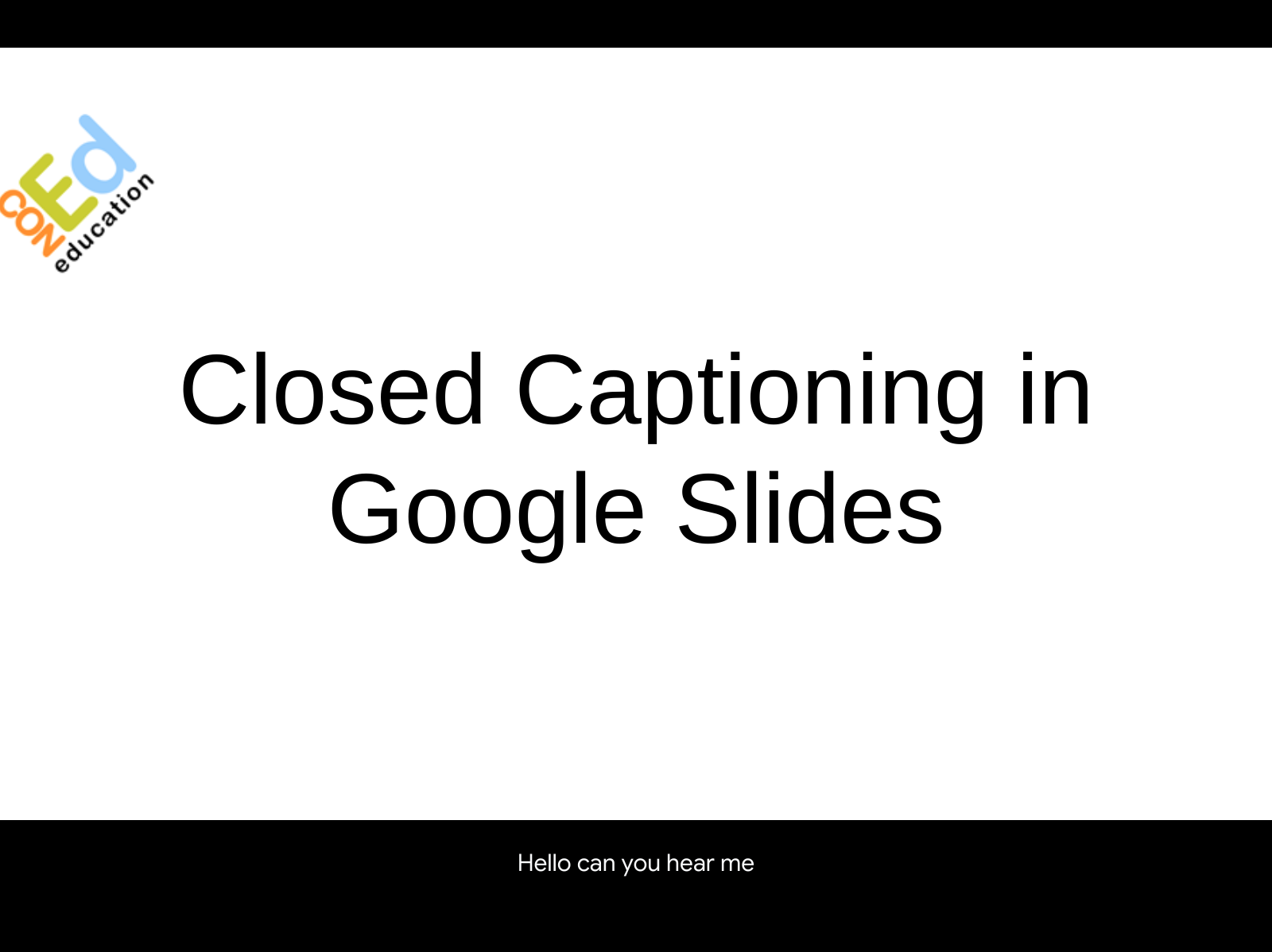
    Closed captions in Google Slides

    Captioning has been made available in Google Slides. The option is now available to display at the bottom of the viewers’ screen anything that is said while a presentation is in progress. This is a very helpful tool for those who are hearing impaired.
    Live edits in Google Docs

    When editing a shared document in Google Docs, it can be helpful to know who else is working on the document, as well as what changes are being made. Now. These live edits are accessible through screen readers, which will help those who use Google Docs with impaired vision.

  • Selecting the Right Chromebook for Your School, Staff and Students


    Finding the Right Chromebook

    In 2020 the pandemic changed the way schools use Chromebooks. To meet the existing, and new needs of schools, Google developed a wayfinding guide to help you find the right Chromebook for your use case.

    1 Identify the primary use case, or how the device will be used. 2 Map out the device specifications required for these use cases.
    3 Make recommendations for devices that meet these needs. 4 Compare across the device ecosystem and find the right device.

    Discover the right Chromebook for your school, staff and students based on your primary use case

    Basic Classroom Use Learning Anywhere Advanced Use
    Shared student devices – Web browsing, Email, Google Workspace or browser based classwork, Assignments and testing Classroom and distance learning devices – Supports multiple browser tabs, Google Workspace, concurrently with video conferencing with 15+ participants Teachers, staff, higher education, high school devices – Recommended for heavy workloads including content creation/editing, coding, running apps in virtualised environments. Supports heavy multitasking (large video calls with 15+ participants, multiple browser tabs, Google Workspace, external monitors/displays)

    Finding the Right Device

    Identify the specifications you need. Find the right device that matches your required specs and suits your needs.

    Supported peripherals:

    Works With Chromebook is a peripherals certification programme ensuring compatibility across all makes of Chromebook devices. Here is the list of certified peripherals across various categories including Headsets, webcams, mice, external storage, cables & adapters, wall hangers and others.

    AUE: Auto-update expiration:

    You can find information about Auto-update expiration for your devices here. Devices listed on the following pages have AUE of 2026 or more

    Connected devices

    Devices with LTE/5G SKUs have been marked with an icon

    Zero-touch enrollment

    For the most updated list of devices enabled for zero-touch enrollment, reference here

    Devices that support Parallels

    The recommended hardware specifications for Parallels are available here. Devices eligible for Parallels is available to reference here

  • Find the Right Chromebook for Your Students

    Place the Right Cutting-Edge Technology in the Right Hands

    A study by the Department of Education discovered that only 1% of primary schools and 2% of secondary schools were able to provide 1:1 access to laptops or tablets for pupils. With students back in the classroom after the global pandemic, schools are reassessing their own technology and researching what they can do to put high-quality technology in the hands of each student.

    Many schools are on the hunt for additional devices that they can distribute to students, while some schools are planning to refresh their fleet of devices completely. The tech requirements for each school depend on the school years included. For instance, a student in primary school has very different needs than a student in secondary school.

    Fortunately, Google’s Wayfinding Guide offers a look at the best devices available for students today. So, how would a school begin the journey to update the technology for its students?

    Four Steps to Help You Choose the Right Device For Students

    • Determine the main use case and exactly how the device will be utilised. Will these devices be used remotely? Is video learning a key player in the classroom? Talk with students about their biggest needs and use that data to drive your decision.
    • Walk through specifications required for students. Are there classes that would benefit from larger screen sizes, more storage space, or a lighter device?
    • Meet with your school’s leadership team to discuss your recommendations based on student needs. Explain your primary use cases and why these devices are best for these uses.
    • Do your research by comparing Chromebooks within the device ecosystem. Look at things like multiple browser tabs, Google Workspace, and advanced video conferencing features that will help students learn both in-person and remotely.

    What Software and Apps Do Students Need?

    To set your school’s students up for success, it’s imperative that they have the right tools and resources in place. A recent study showed that 57% of UK schools involve students in the planning of technology use in the classroom. This is a great opportunity to talk with your students about what would make them feel prepared to learn and collaborate.

    Google Workspace for Education

    This suite of easy-to-use tools offers students a flexible and secure foundation for learning, collaborating, and communicating with teachers and other students. Using Workspace, one UK-based school was able to transform its student learning experience, increasing sharing and enabling 1:1 learning for each student which saw overall student engagement skyrocket.

    Google Meet/Google Classroom

    These two tools are essential for distance learning. Google Meet offers easy-to-use video conferencing that allows students to join classroom sessions from anywhere, on any device. For an all-in-one solution for students, Google Classroom enhances the student learning experiences with simple learning tools and an emphasis on collaboration.

    Recommendations & Requirements for Students

    Students require different tech specifications based on their use cases. For example, a young primary school student wouldn’t need the same EdTech as a student about to graduate from secondary school. Here’s a look at what the students in your school might benefit from so you can help find the right Chromebook.

    Reception-Year 9

    • 10-12″ touch-enabled clamshell screen
    • Lightweight tablets (detachable)
    • Ruggedised for durability

    Year 7-Year 13

    • 11-15″ touch-enabled clamshell
    • Convertibles
    • Lightweight and ruggedised
    • Garaged stylus
    • Dual cameras
    • 8GB RAM, 64GB+ Storage

    Google’s Wayfinding Guide provides dozens of Chromebooks to fit your student’s specific needs. No matter what your specifications are, this guide is a powerful resource to help you during your decision-making process.

  • 5 Factors to Help Select the Right Devices for Your School

    In today’s classroom, technology is an extension of teaching. Like any good educator, the best devices can support a variety of learning styles, environments, and activities. But choosing from the sheer volume of available laptops, detachables, and tablets takes time and discernment.

    This article is designed to help you identify and evaluate the most critical factors in selecting devices that work for the entire school.

    1. Consider performance.

    The needs of your users, particularly students, and teachers, are the most appropriate place to start. What types of programs do they need to run? What are their primary activities? Where will the learning day take place? At minimum, ensure to select a device that can support:

    • Video, collaboration, and remote learning tools
    • Touch screen and web-based activities
    • Data analysis, coding, and content generation tasks
    • Higher functions like graphic design and esports

    2. Choose an appropriate form factor.

    Once you know what the devices will be used for, you can move on to selecting the appropriate size, configuration, or physical arrangement of a computing device, otherwise known as its form factor. According to Intel, “ChromeOS devices are also a popular choice for [students and educators], with a wide range of available form factors. All Chrome devices run the Chrome operating system created by Google and can support powerful configurations of memory, storage, and security.”

    When in doubt, a Chromebook offers the hybrid teaching and learning capabilities that are most appropriate for the modern classroom.

    3. Assess compatibility with the wider ecosystem.

    There are a number of external devices your edtech will need to be capable of supporting if classroom activities are to run smoothly. Be it a second monitor, earbuds, or external hard drive, you want devices that pair with as many peripherals, softwares, and current tools as possible.

    Open ecosystems, like those used in ChromeOS devices, provide unmatched flexibility, so learning isn’t limited by brand loyalty.

    4. Evaluate security and privacy capabilities.

    Ensuring the school’s proprietary info and your student and staff’s sensitive data stay safe is essential for learning continuity. That means investing in devices that operate with a built-in suite of security tools and features.

    To stay protected from an alarming rise in cyberattacks like ransomware, schools need comprehensive hardware and software protections like the automatic software updates and virus protections included with every Chromebook.

    5. Weigh the cost options.

    Anytime you’re investing in a fleet of devices, cost will be a key consideration. It will be easiest to justify your budget if you’re spending for devices that are durable, scalable, and high-performing. Techonology can be replaced more often if funds are available on a recurring basis but don’t forget to consider and budget for professional development, technology support, infrastructure, retrofitting classrooms and installations, before introducing new classroom tech.

    As technology continues to be a critical component of modern learning environments, decision makers will need to be well-versed in the device selection factors that best support learning successes.

  • Arm Your Educators With the Best Technology

    A Reassessment of School Technology

    A 2022 study revealed that nearly two-thirds of schools in the UK are using technology in everyday teaching practices. A separate study by The 21st Century Teachers report revealed that 48% of teachers use a variety of digital technologies with their students.

    The use of technology in schools is only expected to increase in the coming years, meaning schools should start thinking now about how they can arm their teachers with the best tools to do their job well and collaborate with students both in-person and remotely.

    Key Benefits of EdTech for Teachers

    The Department of Education interviewed 17 schools that had successfully implemented new technology within the last two years to find out what benefits and challenges they now faced. They discovered that the teachers benefited heavily from the introduction of devices in their schools.

    Benefits included:

    • Lightened workload
    • Reduced time spent on lesson-planning
    • Improved grading process
    • Enhanced creativity
    • Increased collaboration
    • Boost in confidence
    • Ability to better track how learners are progressing

    Use Cases for Teacher Devices

    While many of the uses are similar, students and teachers have very different needs when it comes to their EdTech. Most teachers have heavy workloads that include content creation and editing, and running apps in virtualised environments.

    It’s important to find devices that support heavy multitasking – i.e., large video calls with dozens of participants, multiple browser tabs, and Google Workspace. Because they’re often sharing lessons with the entire class, external monitors and displays are important as well.

    How to Support Your Staff With the Right Software

    Investing in teachers is one of the best ways schools can directly impact and improve the student experience. For teachers to feel successful in their role, they need the right tools in place. Here’s a peek at some of the Google for Education Software recommended specifically for teachers.

    Easy-To-Use Tools

    Providing your teachers with easy-to-use tools not only helps them simplify tasks, but it improves efficiency and saves time. With Google Workspace for Education, educators can build to-do lists, schedule meetings, read and respond to emails, and seamlessly collaborate with everyone in the school.

    Apps That Support Communications

    Applications like Google Meet and Google Classroom help teachers communicate with students and other staff members while managing multiple classes in one central destination.

    Why Chromebooks Are the Best Choice for Educators

    With 50 million students and educators using them to create, collaborate, and communicate, Chromebooks are the number one device in primary and secondary education worldwide. Here are just a few reasons why Chromebooks are a great option for teachers:

    • They’re fast and reliable: Thanks to quick boot-up, rapid charging, and a battery life that lasts 10.5 hours, Chromebooks allow teachers to focus on educating instead of worrying about their devices.
    • They foster collaboration: Tools like Screencast and Cast Moderator let educators share their screens, while built-in accessibility features remove barriers so everyone can work together.
    • They encourage productivity: Chromebooks help teachers manage classes, create and grade assignments, and communicate with students – all in one place, and from the convenience of anywhere.
    • They are safe and secure: With automatic updates every 4 weeks and built-in security that keeps personal data safe from cybercriminals (without antivirus software), Chromebooks offer peace of mind for educators.
    • There’s a Chromebooks for every educator: From garaged stylus, to 1080p+ camera, to a convertible screen – Chromebooks offer valuable features for every educator no matter what specifications they require.

    Transform Virtual Learning With These Two Tech Tools

    To help make key workflows easier for educators, Google created Screencast and Cast Moderator – two powerful tools that are changing the way teachers conduct virtual classes and engage with their students. With Screencast, teachers can easily record and share their screen with students, making it an ideal tool for creating instructional video presentations or walkthroughs. Cast Moderator allows teachers to manage and control the screens of all the devices in their classroom to ensure students stay focused and on task.

    Using these resources, teachers can create a more interactive and engaging virtual classroom experience for students in the classroom and remotely. Learn more about both resources HERE.