What is BitLocker?
BitLocker is a Microsoft official encryption program for Windows operating systems, it is used to protect the data on your storage devices (e.g. Hard Drives and USB Sticks).
BitLocker will be able to detect if the drive has been tampered with, e.g. physically connected to a different machine, or an unauthorised change to the boot files. The data on the drive will be protected from being accessed without authorisation. To access the data, you will need to enter a password.
How To Enable BitLocker via Control Panel
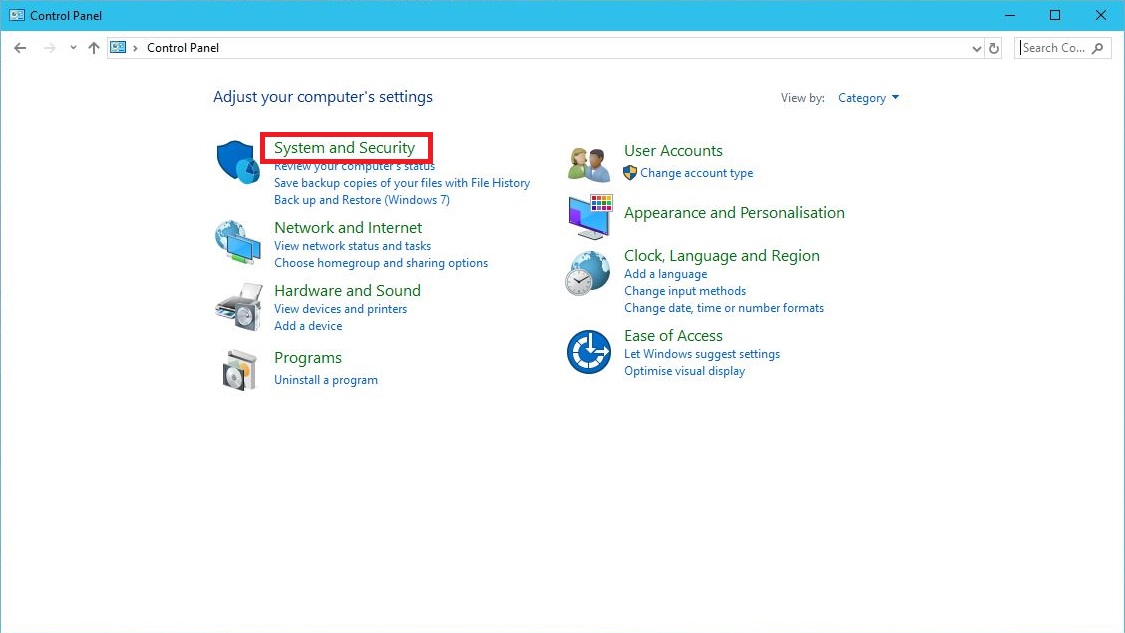
System and Security
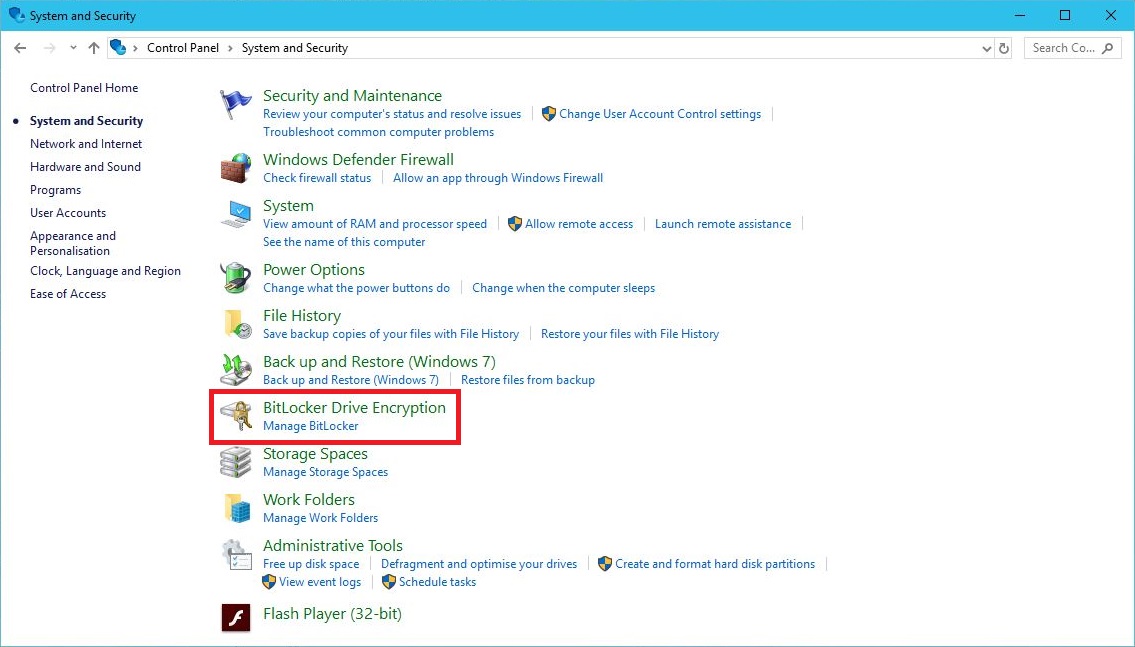
BitLocker Drive Encrpytion
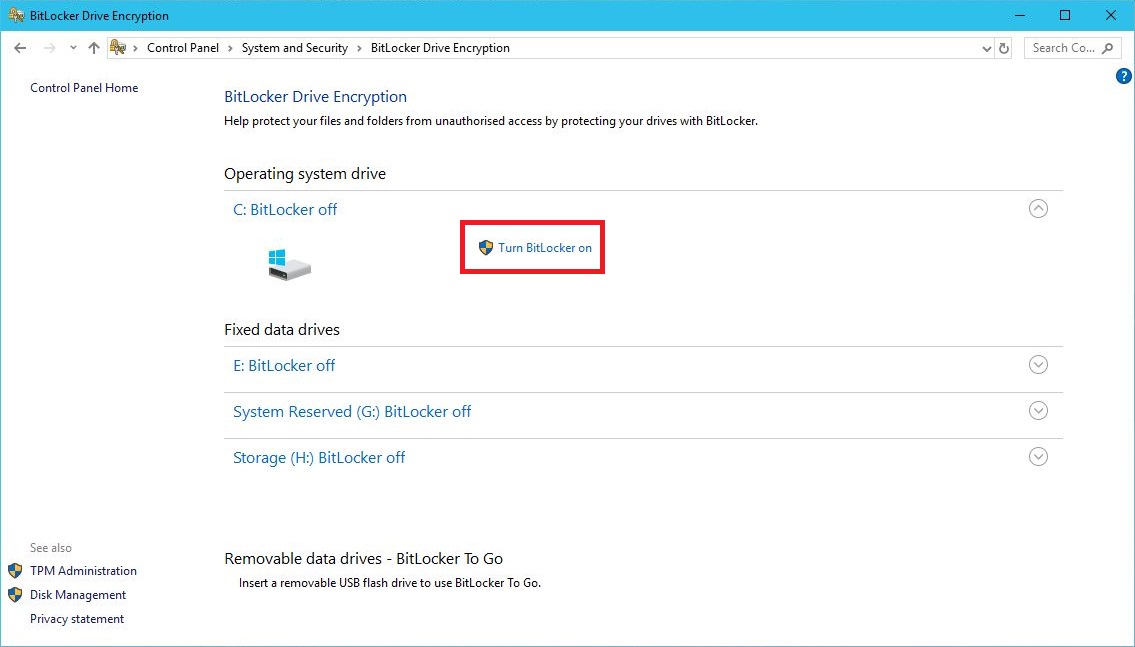
Enable BitLocker
Follow the on-screen wizard to finish encrypting your selected drive. During the process it will generate a decryption key, which needs to be kept safe and secure if the drive ever needs to be unlocked or decrypted. Please Backup the key to another device or the cloud, in the event the password is lost or forgotten.
For additional information on how to setup Bitlocker, please follow this Guide:
https://www.howtogeek.com/192894/how-to-set-up-bitlocker-encryption-on-windows
Decrypting the Drive
One flaw of BitLocker is not that of the program, but safeguarding the decryption key, making sure its stored in a safe place and possibly backed-up. When the machine’s hardware fails, or your looking to upgrade, the decryption key will be needed to access the data on the drive when it notices a change in hardware.
If the decryption key has been lost, unfortunately you can no longer access the drive and it will have to be wiped for further use. There are various ways to save and backup your recovery decryption key.
It is very important to secure and backup your decryption key.
Thanks for Reading!
BitLocker Uses TPM Encryption Devices (The Techy Bit)
Once applied it will encrypt your selected drives to ensure the integrity of the boot path.
If your system is compatible, you first may need to enable your ‘Trusted Platform Module’ or ‘TPM’ in the computers BIOS settings (this may already be turned on automatically). Once enabled, navigate to ‘Device Manager’ and under ‘Security devices’, ‘Trusted Platform Module’ will be active.
BitLocker co-operates with TPM to generate the encryption key, in which is stored on the motherboard. This is how the storage device protects itself from booting on another machine without authorisation.
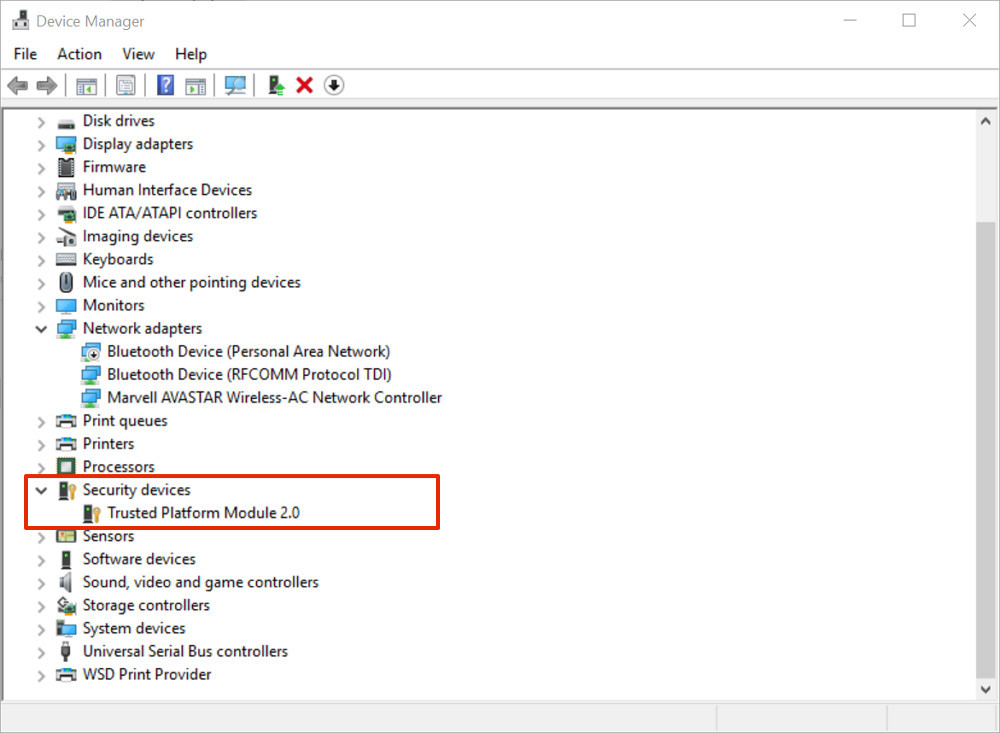
Check BitLocker compatibility, BitLocker is compatible with TPM devices of 2.0 or Higher