27 years of trusted school IT support across Hertfordshire and Buckinghamshire

Category: Blog

  • Mindfulness Tech, Tools and Benefits for the Entire School

    Mindfulness is having a major moment in schools. This positive state of being is achieved by simply paying non-judgemental attention to our feelings, thoughts and sensations in the body as they change from moment to moment. In the classroom and beyond, it’s been shown to increase focus on learning, improve overall well-being and reduce stress in students and teachers alike.

    And though the concept has been around for ages, technology has given it a renewed interest. Ironically, mindfulness has also become somewhat of a refuge for the influx of technology in learning and life.

    Curious if it’s worth all the hype? See what regular practice using these techniques and tools could do for your youth.

    What is mindfulness, and why is it important for students?

    Mindfulness deals in the present. The idea is to note, without judgement, the changing experience of this exact moment. That includes one’s emotional and physical state as well as what’s going on around you in your environment. Usually, that involves sitting quietly and intentionally breathing as you simply observe.

    Coming at mindfulness from all angles could be the key to creating a more academically and emotionally healthier school.

    Three apps for students

    At this point, the majority of schools have engaged in some form of remote learning, which has deepened the relationship students have with their devices. Encouraging them to check out these mindfulness apps can help them stay grounded and focused on their schoolwork.

    • Headspace for Kids: As one of the most popular mindfulness apps in the world, Headspace can be accessed on any device and guides users to learn the basics of meditation in just ten-daily, ten-minute lessons. Headspace for Kids is their newest launch designed specifically for younger generations.
    • Buddhify: This guided meditation and mindfulness app deals with everything from intense emotions to sleep. Its optional Buddhify Membership unlocks features like kid-friendly, ‘karaoke-style’ meditations, which can be read aloud, as well as weekly video courses.
    • GoNoodle: A free website that utilises “brain breaks” for elementary and middle school students. Helps kids transition between activities, invite a little movement or simply breathe intentionally. They made getting started easy with this designated teaching guide.

    Tech tools for educators

    The stress of COVID-19 is taking its toll on teacher’s too, “driving many to consider quitting and even self-harm”, according to The Guardian. But these tools may be able to release some of that pressure.

    The meditation and mindfulness app, Calm, provides teachers with a daily dose of guided meditation and inspiration. There are also “sleep stories” to help them get better rest. The best part? It’s free for educators.

    Professional development courses and guides like those offered from Mindful schools provide teachers with a tech solution to increase their mindfulness. There are courses designed to help them build a practice, and teach their students how to do the same.

    Analogue ways to practice mindfulness

    Need some time offscreen? Try these three non-tech tools.

    1. Box breathing. Hold one nostril, slowly breathe in and hold for a few seconds. Close the opposite nostril and slowly breathe out. Repeat for a few minutes.
    2. Body scan. Start at the top of the head and focus on each subsequent muscle group until you reach the toes. Students can do this on their own or as guided by their instructor.
    3. Colouring. As with many forms of art therapy, colouring has been shown to reduce stress and improve focus. It’s great for adults too and can be implemented anytime a mindful break is needed.

    Mindfulness is an essential resource for the modern classroom, one that doesn’t require any additional teaching credentials to master. Simply sit, breathe and be.

  • Learn How to Use Google for Education to Its Full Potential

    Any technology is only as beneficial as the user’s ability to use it effectively. That’s why Google continually works to empower educators and support lifelong learning via free-of-charge online training for the classroom.

    Educators can find an individual trainer or certified professional development partner in their area for in-person or virtual training and support.


    Recordings & Resources

    Check out recordings from these in-depth, hands-on training sessions led by members of the Google Workspace for Education team. In these videos, we demo critical use-cases to help you get the most out of your purchase.

    How to manage your Google Workspace storage effectively

    https://www.youtube.com/embed/up2v8sy2rno?feature=oembed


    Training for Every Google for Education Product

    To fully benefit from Google’s plethora of education products, it’s important to understand the depth of each. These tools allow educators to better manage coursework, meet virtually with students, easily create presentations, and so much more.

    • Classroom
      Manage coursework, organise assignments, boost collaboration, and foster better communication with these resources for Classroom.
      Learn more
    • Forms
      Build surveys, measure student success, administer quizzes, and more with these resources for Google Forms.
      Learn more
    • Docs
      Foster group collaboration, manage syllabuses, and more with these Google Docs tips and tricks.
      Learn more

    Training Designed Specifically for Teachers

    If you’re an educator looking to use Google tools to their full potential, Google also offers a Teacher Center where educators can interact with curriculum specifically built for teachers by teachers.

    The curriculum varies from basic fundamentals training for those new to Google tools to advanced training that’s perfect for educators looking for new strategies for beginning Google in their school.

    Discover the full offering of training sessions and certifications available for educators.

    BROWSE ALL TRAINING SESSIONS

  • Toolkits & Training to Help Your School Adopt Chromebooks

    Toolkits & Training to Help Your School Adopt Chromebooks

    There is a myriad of reasons why you should transition your school to Chromebooks, including strengthened security, improved collaboration, and simplified classroom management.

    However, introducing new technology to your school community can create a number of challenges. It’s important to educate students, teachers, and admin on what is changing and help them acquire the skills they need to thrive with the new technology.


    How to Adopt Chromebooks for Your School Community

    The Google for Education team has created several educational resources so you can help your community adapt, adopt, and sustain a productive environment for education.

    Among these is their EDU in 90 video series, with each short episode focusing on an important topic for educators, administrators, and school leaders. Topics include product updates, new programs, and helpful resources for the classroom.

    To ensure your staff, educators, and students can easily adopt this new technology, Google has created a proven process called the Chromebook Adoption Framework. The three-step process helps you clearly communicate with your community, educates them on the skills they need to take on the change, and teaches them about other valuable resources.

    Chromebook Adoption Framework

    Excite – Make sure they understand what’s changing and why they should be part of it.


    Get Your Team Excited About Chromebooks

    Before introducing the new technology to your students and staff, create a transition plan. Make a list of everyone who will be using Chromebooks, how this will impact their day-to-day activities, and what skills would most benefit them. Come up with a clear communication plan to generate excitement and to let those impacted know about the change beforehand.

    You’ll need to tailor each device with apps and features that meet the needs of each user group, so starting this process with plenty of time to plan is critical. Think through staff, educators, and students to determine which users will require Chromebooks and which will be allowed to choose their devices.

    Enable – Help them acquire the skills required to take on the change.


    Enable Your Teams to Get Up & Running

    Keeping your teams up to date with best practices and advice that will help familiarise them with their new device is a great way for them to get started. Google for Education has created content such as a Getting Started Guide, Tips & Tricks Guide, and Educator’s Toolkit that can help set your team up for success.

    These tools will allow your school community to be more efficient on their devices by learning various shortcuts and quick how-tos. Be sure to offer the one-page toolkit with your teams so they can access training courses and share FAQs with their own students.

    Extend – Teach them about other Chromebook programs and get up to speed using additional resources.


    Arm Your Teams With Helpful Resources

    Give your teachers everything they need to do in-house repairs to devices in their classroom so there’s never any down time. This also helps the devices stay in service longer, minimising the amount of e-waste.

    Teaching your educators about other Chromebook programs is another way to help them succeed with their new devices.

    Not sure Chromebooks are the right choice for your institution? We want to ensure that you can make an informed decision about your EdTech investment. Contact us to learn more about available test drive options as well as ChromeOS Flex, the free-to-download operating system that allows users to modernise their existing devices and experience the benefits of Chrome OS on PCs and Macs.

  • Is Micro-Learning the Future of Professional Development?

    Between getting their classrooms ready, finalising lesson plans, and getting a head start learning all the incoming students’ names, teachers have a steep back-to-school ramp-up period. Throw in a gruelling, days-long professional development event and it’s likely to put them over the top.

    But what if the £260 million the UK spends annually on staff development could be concentrated into short, digestible training for skills that educators would actually use in their day-to-day life?

    That’s the goal of these micro-learning resources. They hyperfocus on the tech skills teachers need in our modern, hybrid learning-era classrooms.

    Where Conventional Teacher Training Falls Short

    Given how quickly teachers were expected to digitise the learning day, it’s understandable some of them may have different levels of comfort with the technologies that emerged.

    The problem is that most professional development programmes were created pre-pandemic. They’re long, monotonous, and don’t reliably move the needle on the tech skills teachers need to be practising. Particularly if they’re going to be expected to help students improve their own digital literacy.

    Is it really any surprise experts at Improving Teaching warn that only 45% of teachers believe their school’s professional development provision is helping them improve?

    How Micro-Credentialing is Different

    “A style of learning that is typically less than 3 minutes, content dense, and engaging, microlearning covers just one or two learning objectives. This style of learning comes in many formats including text, video and audio, or a combination of all three. Micro-learning can be incredibly powerful, providing concise, focussed and just-in-time content,” explains eLearning platform Academii.

    And, because many of these micro-learning mini-lessons, like those in the Google Workspace Certification programme, are self-paced, teachers are better able to fit professional development into their already hectic back-to-school schedules.

    It also gives educators ownership of what they learn and where they put their focus.

    Some teachers may already understand the fundamentals of using Google Workspace, but want to finetune those skills with a bit of advanced practise. Others may be struggling with how to keep the creative spark ignited in remote learning environments. Just a few short hours spent on a handful of focused units could help them learn how digital tools can support creativity, promote students’ voices, and increase engagement.

    Post-Certification Potential

    Once educators earn their Educator Certifications, it opens up numerous more opportunities to share that knowledge with their academic communities.

    The three most defined paths include becoming a:

    • Certified Trainer. Certified Trainers empower educators to learn and use Google for Education products to make their classrooms more efficient, improve student outcomes, and foster leadership skills. The trainers themselves get an impressive addition to their resumes as well as a secondary income stream.
    • Certified Coach. The Certified Coach program empowers instructional coaches to work 1:1 with educators and drive impactful technology use in their schools. Coaches get access to research-backed strategies and tools – so that new and veteran educators alike can transform instruction across every classroom.
    • Certified Innovator. The Google for Education Certified Innovator Program recognises and supports top educators who are excited to grow professionally, advocate for impactful technology, and innovate to improve classrooms, schools, and local communities. This track helps educators launch unique passion projects using technology to solve challenges in education.

    Educators instinctively know they need a particular set of tech skills to help students excel in a rapidly digital world. What’s less instinctive is which resources and training lessons are most essential from year to year. That’s where schools can help. By developing a rotating list of tools, they can help their educators master modern classroom concepts to drive digital and academic excellence.

  • Is Adaptive Learning the Solution to One-Size-Fits-All Ed?

    The best teachers are the most attuned ones. Without them saying a word, they can tell when a student is close to working out a new concept or just plain stuck. And they instinctively know how to tailor their instruction accordingly: throwing out clues to lead learners to the right answer or slowing down the pace to provide a little extra process time. They may even change up tasks partway through to refocus a neurodiverse student or ensure an advanced learner doesn’t get bored.

    Educators are nothing if not adaptable, but it’s a huge ask for them to simultaneously give every learner in a classroom their full focus. For that, classrooms need adaptive technologies that centre the student experience.

    What is Adaptive Learning?

    Global Digital Learning defines adaptive learning as “the delivery of education or training that utilizes technology and data to provide an individually customized learning program to students, intelligently adapting to their learning needs.” Basically, it’s the opposite of a one-size-fits-all educational model.

    With classroom sizes and educator burnout rates both increasing, schools are having to get creative in how they meet student needs. Adaptive technologies act as the ultimate teacher’s assistant. They make sure every learner gets the benefit of individual instruction, even when teachers can’t give them their immediate or undivided attention.

    Designed vs. Algorithmic Adaptivity

    The best learning tools still follow the best teaching methods. Adaptive learning technologies simply take what teachers already do well and help them scale it.

    There are two ways adaptive teaching tech helps students connect with new material:

    • Designed adaptivity tools rely heavily on teacher planning. Instructors sequence the lessons based on experience. Real-time feedback is provided by the technology based on an “if this, then that” methodology. The model works well for educators who want more say in how the student learns.
    • Algorithmic adaptivity approaches use rulesets to curate content as a student learns. It takes into account what they show an understanding of and what tasks are most appropriate to follow up others.

    What Does Assisted Learning Look Like in the Classroom?

    Imagine you’re a student stuck on a math problem. With 25 other students in your class, you can’t always get immediate help, leaving you frustrated and diminishing your confidence to complete future problems. Now imagine a different scenario. You’re stuck on a problem, but instead of growing frustrated, you receive a helpful hint or video that gives you exactly what you need to unblock you. You realise what you need to do differently, complete the math problem correctly, and feel more confident in your ability to learn.

    From there, the reinforced learner becomes reengaged, sparking their intrinsic motivation to master even the most difficult concepts.

    All students deserve continuous access to customised educational resources that can meet them where they’re at. Adaptive learning tech satisfies this need without putting an undue burden on teachers and uplifting everyone.

  • How to Find the Right Tech for Your Teaching Style

    How to Find the Right Tech for Your Teaching Style

    Whether they’ve been an educator for decades or this is their first year, every teacher has their own teaching style. Everything from the way an educator communicates with students to the subject matter being taught can impact an educator’s style.

    Thanks to modern technology, there are a lot of resources now available to complement any style of teaching and allow teachers to work collaboratively with their students from anywhere. So how do educators find the right tech for their style? It’s important for teachers to know what’s available to them and then determine how it may benefit their classroom.

    Digital Tools Built for Collaboration

    It’s crucial that today’s students are well-versed in collaboration, especially given that educators predict that “the 2025 [higher education] learning model will be a hybrid one, combining online and in-person studies.” In order to prepare students for the future, it’s important to get them collaborating now.

    Resources like Google are known for their digital tools, including tech like Sheets, Classroom, Forms, Assignments, and Slides. These Google for Education products can help teachers create classroom presentations, build surveys, manage coursework, and so much more.

    And it’s not just students who benefit. Research suggests that “opportunities for teacher collaboration are a key feature of school environments where teachers have higher job satisfaction and continue to develop their effectiveness over time.”

    Even more, these tools are collaborative and can be accessed from home or the classroom, making them ideal for today’s modern educational environment.

    Choosing the Right Device for Teaching

    Finding the perfect device that will help elevate the education experience for their students is an important task for educators. For teachers who prefer to work digitally, there are plenty of devices designed for high-performance tasks such as coding and creating content.

    With many schools offering a hybrid learning environment or total remote learning, students (and teachers) are often being provided with devices by the school to ensure a cohesive learning experience. It’s important that these devices can be used both inside and outside of the classroom. This allows both students and teachers the flexibility of working when and where they want.

    Online Training Opportunities for Educators

    To help educators feel empowered, it’s imperative that they be fully trained on the technology being used inside the classroom. Fortunately, there are several training courses available online for learners of all levels that will help them make the most of their tech. From the basics of content creation to more detailed topics like cloud sharing, these courses were designed to support the work that educators are doing in the classroom and beyond.

    Technology Training Session You Can Use Today

    For teachers who are hoping to ease into introducing new technology to the classroom, there are a number of resources available that can be utilised today. These tools are meant to inspire creativity, encourage hands-on learning, and allow teachers to equip students with digital skills. From online lesson plans to an internet safety resource to apps that can be used with online products, teachers can immediately use these tools to get the most out of their technology.

    Take Learning to the Next Level

    If you learn best in a community environment, there are in-person groups where you meet with other educators looking to educate themselves on the right tech for their classrooms. In these groups, you can engage with fellow educators for no cost and share, collaborate, and support each other in using technology in impactful ways with students.

    In the UK, educators can join GEG UK, which describes itself as “an all voluntary Google Educator Group (GEG) members helping to inspire educational communities and help young people develop vital digital skills, across the UK.”

    Finding technology that complements your teaching style may feel like an overwhelming task, but there are many resources available to help. With the right tools in hand, it’s easy to elevate the education of your students and create a better learning experience for all.

  • Finding the True Value of Education Plus

    Google commissioned Forrester Consulting to conduct a Total Economic Impact (TEI) study and examine the potential return on investment (ROI) for education organisations.

    After investing in Education Plus, organisations will experience vastly improved security and ease of IT management, as well as improved collaboration and functionality for educators.

    Education Plus Benefits by the Numbers

    Improved Security

    Education Plus helped to strengthen security, simplify management and improve collaboration. Organisations were able to enable employees to become more efficient in administration, and consolidate legacy third-party applications and software.

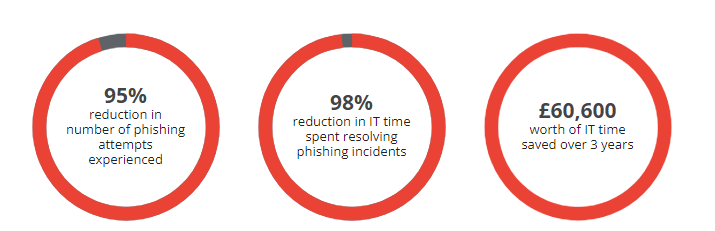
    Time usually spent searching for and deleting phishing emails and resolving incidents saved 35 weeks of IT time*

    Increased Production

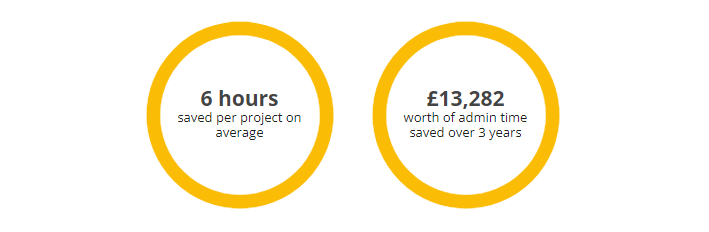
    Google Workspace for Education Plus is the most comprehensive edition, incorporating advanced teaching, learning, and security capabilities. Admin staff can create administrative, educational, and security reports 80% faster.

    ROI Breakdown

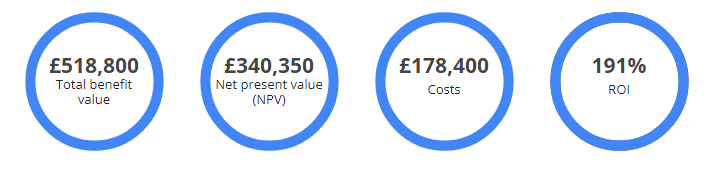
    The study shows Education Plus delivers a strong return on investment (ROI). Over three years:

    Lowering the Costs and Labour

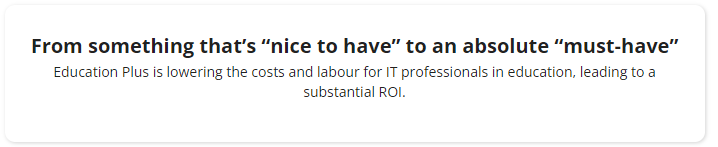
    Organisations in Europe overcome struggles with securing their environments, overseeing cumbersome IT processes, and using inefficient communication. Review the entire report here.

    Forrester found the composite organization saved the team a total of 1,397 labour hours per year, which at 40 hours/week would be the equivalent of 35 weeks for one FTE.

  • Transform Your School with Chromebooks

    Chromebooks allow teachers to educate students even when they aren’t in the same room together. Chromebooks include accessibility right out of the box, unlocking learning experiences for students with diverse needs, abilities, and learning styles.

    This means that Chromebooks can seamlessly access Google Workspace for Education’s productivity and collaboration tools, as well as apps available in the Chromebook App Hub, Google Play Store, and content across the entire web.

    • Managed access puts IT in control of what users access
    • Simplified deployment gives IT access to device policies
    • Advanced security ensures school data is always safe
    • 24/7 IT admin support at no additional cost

    Open a world of opportunities.

    With Chromebooks, schools around the world are investing in their students’ futures through next-generation learning technology that fits easily within their budgets.

    • 53% lower cost per device
    • 57% lower total cost of ownership
    • 59% less management per device

    Source: IDC, “The economic value of Chromebooks for education”, January 2020

    Start transforming your school with Chromebooks

    Explore Chromebook’s total cost of ownership for education

    If you’re looking for Chromebooks to advance education at your institution, explore their economic value and total cost of ownership.

    Try out the Chrome OS Readiness Tool

    Did you know some Windows devices in your organisation can run Chrome OS? Find out which ones with our free and private readiness tool.

    • Assess which Windows devices can become Chromebooks
    • Get started

    Ideal for one-on-one environments, these Chromebooks can be sent home with students to extend learning beyond the classroom. Discover devices optimised for large video conference calls, note-taking, and running productivity applications simultaneously.

    At-a-glance features

    • Best for classroom and distance learning
    • Use with Google Workspace for Education and video conferencing concurrently
    • Minimum system requirements: 4GB RAM, CPU (Intel: Celeron N4020 / 4100 / 4120 / 4500 / 5000 / 5100 / 6000, AMD: Athlon 3050C, 3150C, 3015Ce, MTK: 8183 / 8192, QC: 7c)
  • How to spot phishing emails

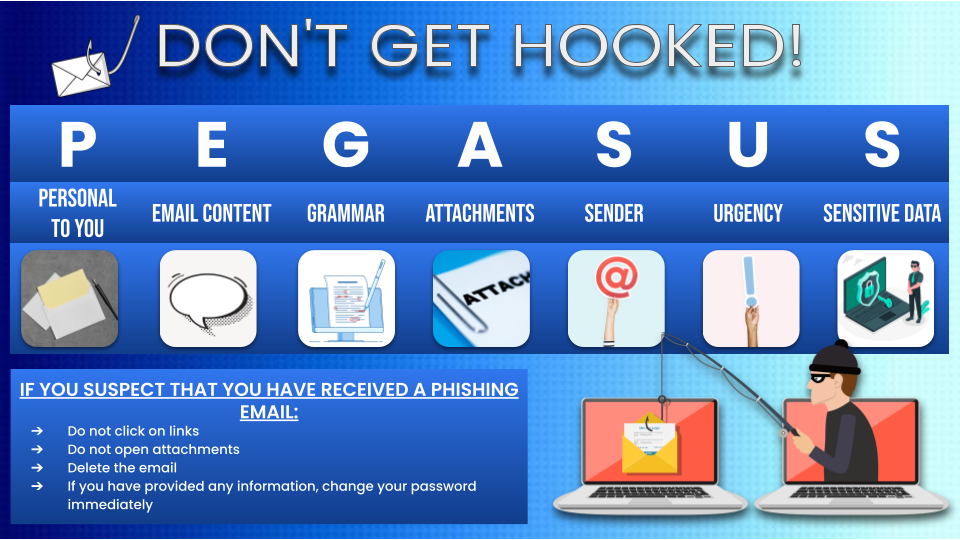
    Everyday, fraud organisations are sending phishing emails to all kinds of recipients, even to school staff members. Phishing refers to the aim of an email that tries to trick you into providing sensitive information. This could be login usernames and passwords, account numbers, or even confidential files. When it comes to protecting this kind of information, it is very important to be vigilant with each email you receive. We have created the mnemonic PEGASUS to help you to remember each of the steps to identifying a scam email. If you would like to download or print the graphic below, please click here.

    Work through the following steps and scammers won’t stand a chance!

    Personal

    How personal does the email sound? If the sender addresses you with a generic title at the start of the email and continues to use non-specific language throughout, then this email might not be a legitimate message for you. Most phishing emails are sent in bulk to thousands of recipients at a time, so you should look for content that would make the email specific to you or your school. Look for references to previous conversations, to you, or to your school – if you don’t find any, then this could be the first sign of a phishing email. However, this is not a firm rule because if you are being targeted personally, then the scammer may have done some research to convince you that they are genuine. Check against the rest of these steps to be sure.

    Email Content

    Similarly to the previous point, it is important to check the body of the email for red flags. If the sender is making an offer that is too good to be true, this could highlight the email as a concern. If they mention an invoice for a product or service that doesn’t sound familiar, or if they claim to be from a company that you don’t normally have contact with, then there is a good chance that they are trying to get information from you illegitimately.

    Grammar

    Since the first days of email fraud, a giveaway has always been in the spelling and grammar in the email. Scammers from all over the world will send phishing emails to recipients in many countries and will not always be successful in writing the emails using the correct language. Despite the variety of translation, spellchecking and grammar-checking tools available, this is still an indication to be found in scam emails today, so is always good to notice.

    Attachments

    If you receive an email that seems suspicious, then it is very important that you do not open any attachments. Files attached to suspicious emails can be seriously dangerous once they have been downloaded or opened. Certain attachments will contain viruses capable of causing damage to your computer and files, while others will even spread and affect other devices across the school. Even if they look familiar, such as a PDF or Word document, they can still be harmful, so it is always better to be cautious and avoid clicking on any attachments that come with unusual looking emails.

    Sender

    Have a look at the sender address of the email. Depending on how you access your emails, it might be listed at the top of the email, or you may have to click on the sender name to see the address in full. Does it look long or complicated, or does it have a spelling mistake? If so, then it could be from a fake source. Even if the domain is spelled correctly, it may actually be different, by having extra words or symbols included, such as @facebook vs @face-book. Click on the sender to see the email address in full and make sure that the domain looks legitimate. If this is not the case, then it could be a scam. This is particularly important for recognising a scammer who is targeting you or the school personally. Most reputable organisations will use the same domain for both their emails and their website, which means that if the part after the @ symbol doesn’t match up with the website address you would normally use for a particular business, then it could be fraudulent.

    Urgency

    A trick that scammers use to get us to give up our details is by making us feel under pressure to provide the information quickly. This might be by threatening you or saying that your account will soon be locked, or that you urgently need to pay an invoice. This is a very common way to tell that the email might not be all it seems. Disarm the sender by taking a moment to carefully check the email against PEGASUS. It is always better to be safe, so don’t let the emails trick you!

    Sensitive Information

    The clearest way to tell that an email is illegitimate is by noticing what the sender is asking of you. If you are being asked for sensitive information, such as passwords, account numbers, or sensitive information, then it is likely to be from a harmful source. Reputable businesses go to great lengths to make sure that sensitive data such as banking information is requested securely and that you feel comfortable submitting it. If you are typing important information into a form that feels unfamiliar, unprofessional, or otherwise strange, then take the time to check the website address at the top of your browser. As before, if anything is spelled wrong, or is different from a website you would normally use, then don’t trust it. Don’t even type into the form, as some websites can collect the information you type even before you submit the form.

    What to do next

    If you suspect that you have received a phishing email, do not click on links, do not open attachments, delete the email and if you have provided any information, change your password immediately, or ask us to. We are happy to confirm any suspicious emails that you receive, although if you follow PEGASUS this won’t be necessary, and you can simply delete the email.

    It might seem like the simple task of checking your emails is fraught with danger, but most scam emails will give themselves away quite quickly. If you remember to be calm but cautious, then this article will have given you the tools that you need to protect your school and your files with confidence!

  • Why data privacy is so important for your school

    Above all else, schools should be happy, inclusive places that have a truly open, collaborative and community feel.

    But, it would be irresponsible not to recognise the importance of keeping school data private.

    Data privacy is a growing issue for schools, as education and research organisations are handling a greater amount of information, while at the same time being subject to a growing number of cyber hacks.

    Disclosure of information is one of the most common threats, and it’s vital that schools take steps to protect their data and that of every student.

    What are the threats to education data?

    With e-learning platforms, virtual classrooms and BYO devices becoming the norm, the way school data is stored, accessed and shared is constantly changing.

    While many of these advances are positive and make for a more collaborative and creative learning environment, there are also serious negatives that need to be recognised and addressed.

    Data privacy is a hot topic for the education industry as more and more cyberattacks occur.

    While the information schools store might look innocuous, it’s naive to assume that school data can’t be valuable to hackers.

    Student names, addresses, academic and health records, and more, are all stored on school networks. With paper records, in dusty filing cabinets, a thing of the past, all of this personally identifiable information (PII) is on the school network and vulnerable to hacks.

    In addition to phishing scams, that trick people into giving information, ransomware hacks are also on the rise. With students using their own devices, this type of infectious virus can more easily infiltrate a network if proper security standards aren’t used.

    Get to know your data

    It’s hard to protect something if you don’t know what that something is.

    Doing a data audit – that is, a data inventory and mapping of all the processes that collate and use/store student information – will give you a good base from where to start.

    Once you know the kind of data you have, you can start to discover platforms and IT vendor features that can help you better protect and use the information between staff and parents, or across your management networks.

    How to improve your school security

    The amount of data stored and used by schools can feel like an ocean of information. And how can something as small as a school protect something as large and ever-changing as an ocean?

    Don’t panic. There are some simple ways to help improve the way you secure and protect your school data.

    1. Talk to your people

    The weakest link in data security is people. Sad, but true. Equipping your staff, students and teachers with the basics, about how to stay safe and secure online, can be a great step in stopping things like phishing scams and ransomware attacks. Conduct regular sessions with leaders who can pass on the correct information, and let your teams be part of a safe data solution.

    2. Put policies down in writing

    Allow and encourage your IT decision makers to create a set of guidelines and policies, around devices and access, that everyone in the school can see and understand. As well as making specific departments or leaders accountable, it also acts as a handbook of what to do when suspicious external sources request information they shouldn’t need.

    3. Use a trusted IT vendor

    Sounds like common sense, but when employing a third party IT vendor or support service, ensure you’re using trusted, reputable, global brands. These internationally recognised organisations can offer you the security options you need, and know what requirements your school legally and practically requires.