Note: If you remain connected but not active, the session will disconnect after 1 hour. Your account will then be logged out after 3 hours. Please Save, close and logout when you are finished with the remote session. Leaving your session connected will take up unnecessary resources on the server.
For connecting via a Windows machine, please see our Windows Guide
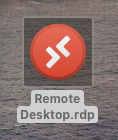
This is what your Remote Desktop file would look like (The Icon may look different, please keep reading). This can be used from any Mac that meets the requirements (Personal or Work) to connect to the school’s server.
MacOS Version Requirements
Your Mac must be relatively up-to-date using version MacOS 10.12 or later,
To check your version, click the Apple Logo in the top left, and select “About this Mac”, the new window will display the version.
You can then click “Software Update…” to install updates if needed/found. (An update could take between 10-45 minutes, depending on which update, not including download time)
Please make sure the following application is installed from the app store: https://apps.apple.com/gb/app/microsoft-remote-desktop-10/id1295203466?mt=12
Connecting
The app above is needed to launch the Remote Desktop connection. Once installed go back to where you saved this file and run. The icon may have changed and It should attempt to open in the “Microsoft Remote Desktop 10” app.
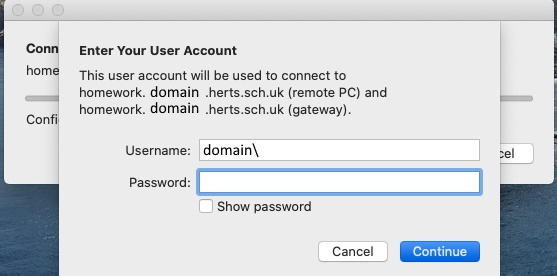
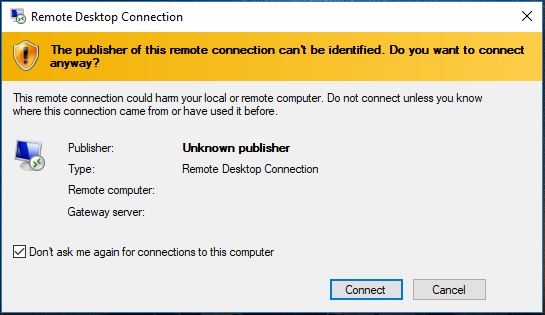
If you double click to run the shortcut, you will be prompted with this message.
(Domain would be replaced with the domain relevant to your school)
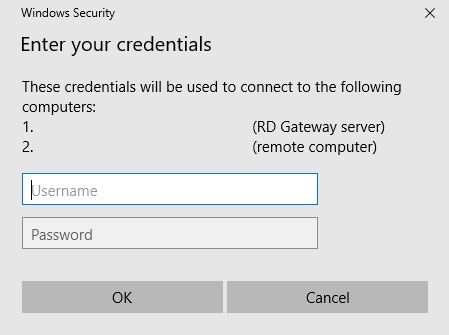
Enter your computer login details that are used when in school.
Do not delete the “Domain\” section.
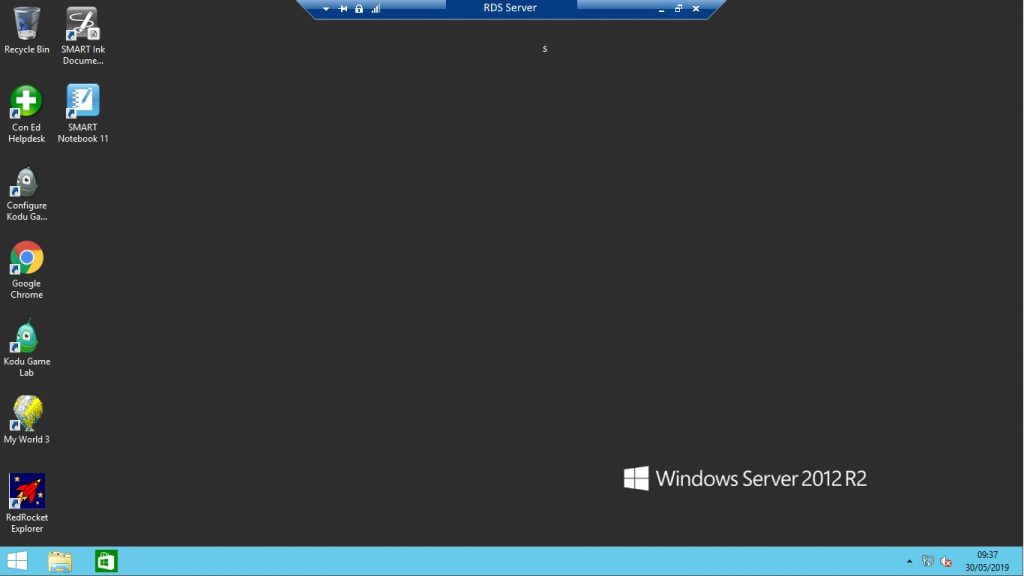
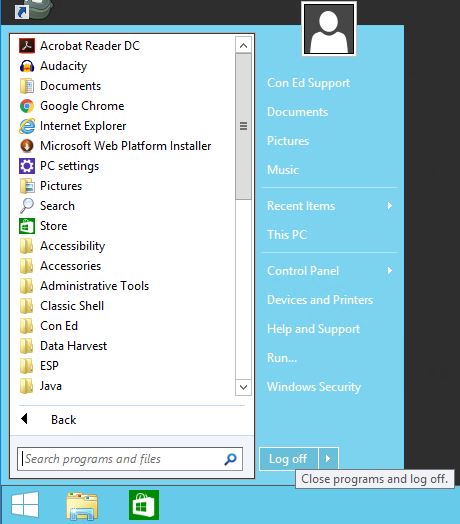
Once logged in, you will have a window similar to the one below.
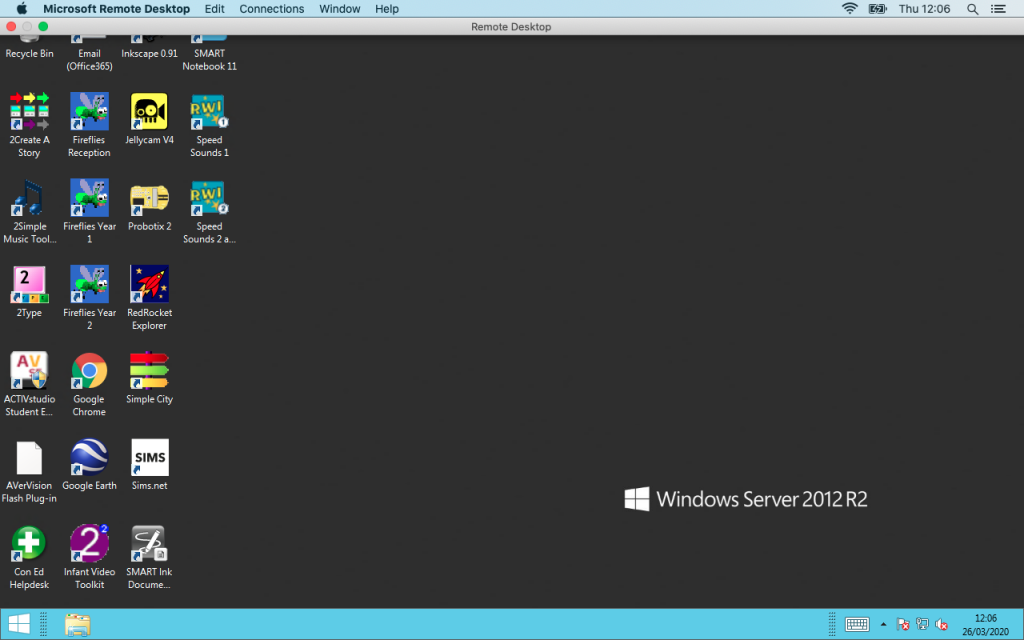
You can then logoff as normal from the start menu.
Extended Guide If having Difficulties
If your having trouble logging in or if the screen is not fitting correctly once connected. Please follow these steps to change the parameters of the remote desktop shortcut.
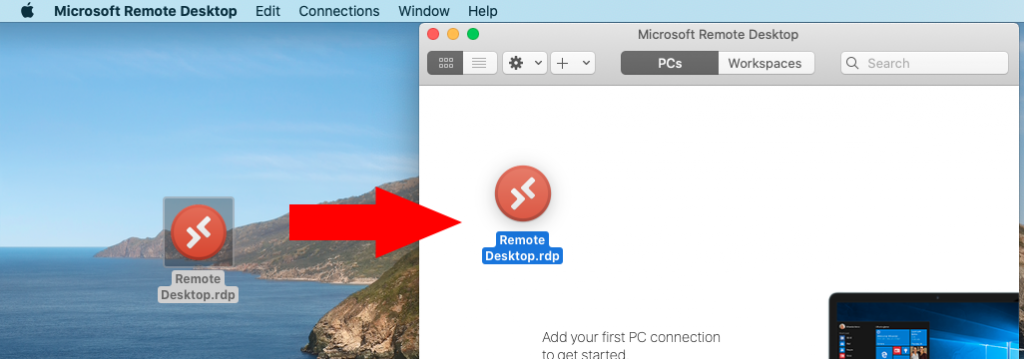
Launch the Remote Desktop 10 app and drag the RDS shortcut into the app window.
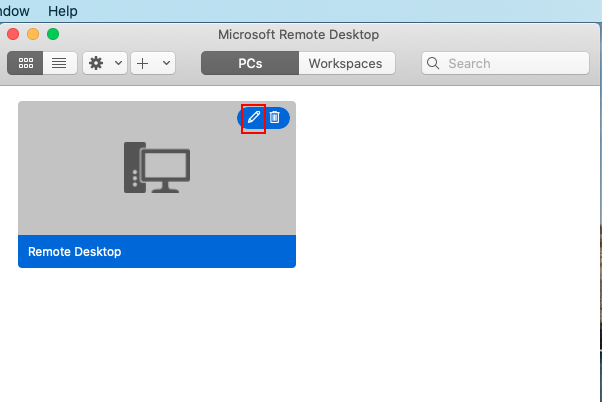
It will come up like this, please select the “Pencil” icon to edit the settings.
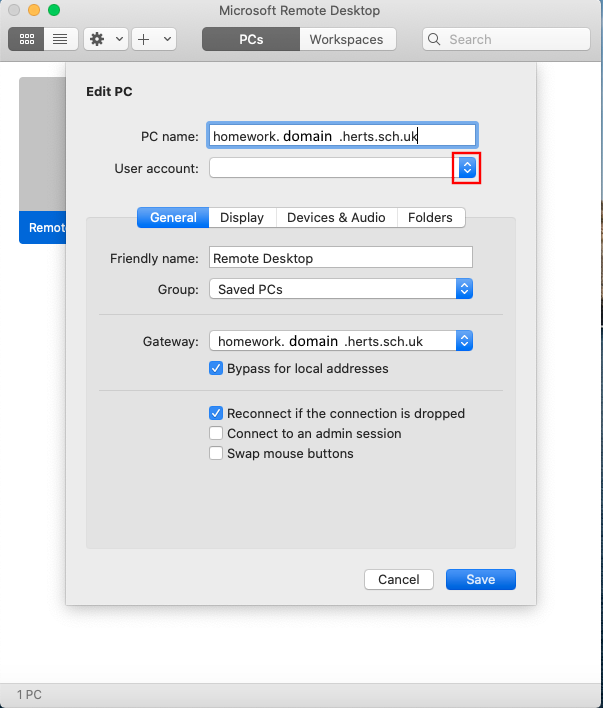
Select the highlighted button to add your computer login details.
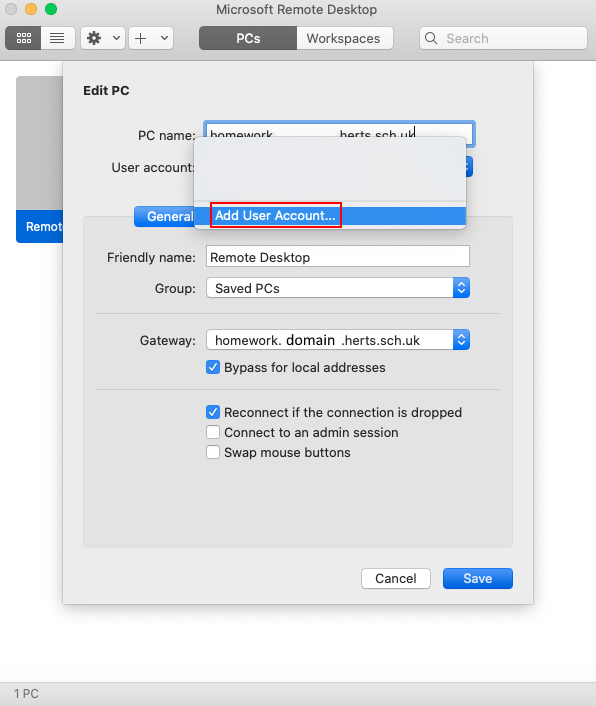
Add a new user account.
Enter your login details that you would use on the computers in school. (domain can be found by double clicking on the shortcut and checking the wording before the “\” symbol).
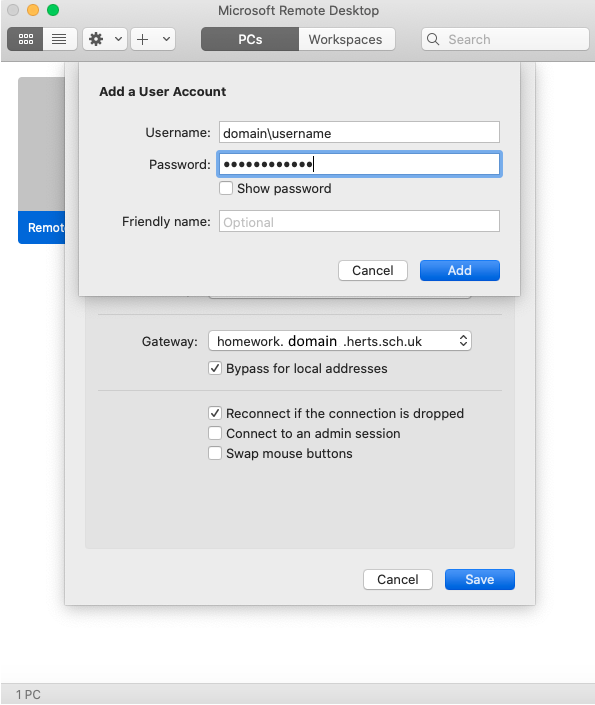
Display Settings
Any trouble with the screen size, select the “Display” tab in the edit settings and select “Default for this display“
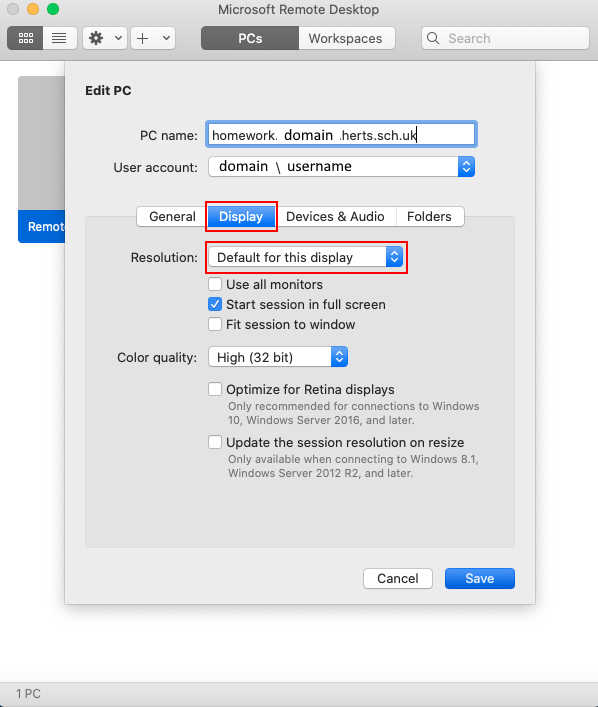
Further issues would need to be logged on our Helpdesk.
Thank you for Reading.