
27 years of trusted school IT support across Hertfordshire and Buckinghamshire

Category: VPN

  • RM Unify – SSL Connect Guide for Windows

    RM Unify – SSL Connect Guide for Windows

    This how-to guide explains the process of connecting to RM Unify’s VPN, SSL Connect, which allows users to access their school network from any external location.

    Before you start

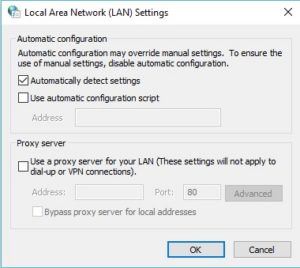
    If you are using a school device from home, prior to using the SSL connect, the proxy settings on the laptop must be turned off. There are two ways to accomplish this. By clicking the ProxyPal icon which may be found on your desktop, until the message reads ‘disabled’. Alternatively, search ‘internet options’ in the start menu and click on the option as seen below.

    Navigate to the ‘connections’ tab, click the ‘LAN settings’ option and make sure that both proxy server options are unticked. Confirm the changes by clicking ‘OK.

    After these two requirements have been met, please continue to step 1.

    Step 1

    Navigate to ‘rmunify.com’, and enter the VPN login details provided by your school’s headteacher/office admin. The username must have @schoolname suffix as part of the username to sign in successfully. For example, your username may be “AmyW”, however the full VPN username is “AmyW@schoolname”. (@schoolname should be replaced with the name of your school’s RM account)

    Step 2

    As part of the initial sign in, there will be a prompt to enter a password recovery email address. It is advised that your school email address is used, so that you can easily reset the password if needed. Click the ‘Save’ button.

    Step 3

    At this stage, you’ll be requested to accept RM’s cookie policy and terms and conditions. Select both tick boxes and click the ‘Launch RM Unify’ option.

    Step 4

    Once logged in, you will be presented with a dashboard. Click on the ‘SSL Connect’ option, as seen below.

    Step 5

    Select the “LAN Connect” button in the top left corner of your screen.

    Step 6

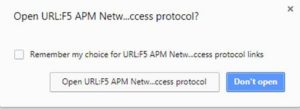
    At this stage, you may be prompted to open URL’s or to accept installations. Press yes/ok/accept to any of these.

    Step 7

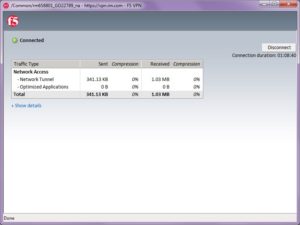
    Finally, a new window will open which will attempt to connect to VPN. Once connected it will confirm this.

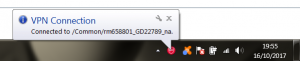
    You may also get a ‘VPN Connection’ message in the bottom right hand corner of your taskbar to confirm the connection too. (If you’re asked to set your network connection, choose the ‘Work network’ option).

    Step 8

    At this point you are effectively able to browse to your school server as though you were back at school (click start > computer > access the network drives). For schools that have an RDS server, you can use the RDS/Homework connection on your desktop.

    Step 9

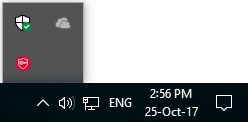
    After you’ve finished using the VPN, make sure to disconnect from the session. You can do this by simply closing down the RM Unify site, or Double click on the red icon in the hidden icons area of the taskbar.

    This will open a new window, which has an option to disconnect. Click on this to terminate the VPN connection.

    NOTE: If you are using a school laptop, please remember to turn the proxy settings back on when you are back school.

  • RM Unify – SSL Connect Guide for Macs

    This how-to guide explains the process of connecting to RM Unify’s VPN, SSL Connect, which allows users to access their school network from any external location.

    Before you start

    Before proceeding, there is an important prerequisite that needs to be checked.

    Prior to using the SSL connect, if you are using a school Ma, the proxy settings on the must be turned off. To achieve this, navigate to settings/preferences and select the ‘Network’ option until you see the below window appear.
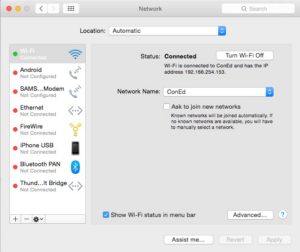
    Select the ‘Advanced…’ option, click on ‘Web Proxy (HTTP)’ from the list, and remove any details which have been entered here – as seen below. Click ‘OK’.
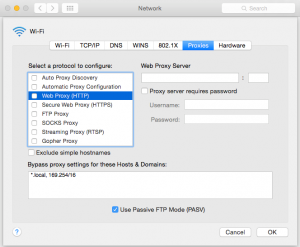
    After this requirement has been met, please continue to step 1.

    Step 1

    NOTE: For this step please use a browser other than Google Chrome – the latest version of Chrome is currently not compatible with the VPN software.

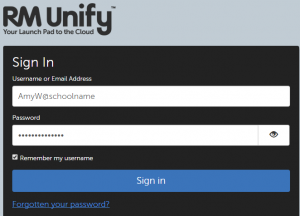
    Navigate to ‘rmunify.com’, and enter the VPN login details provided by your school’s headteacher/office admin. The username must have @schoolname suffix as part of the username to sign in successfully. For example, your username may be “AmyW”, however the full VPN username is “AmyW@schoolname”. (@schoolname should be replaced with the name of your school’s RM account)
    Step 2

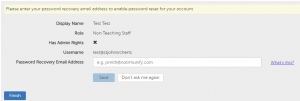
    As part of the initial sign in, there will be a prompt to enter a password recovery email address. It is advised that your school email address is used, so that you can easily reset the password if needed. Click the ‘Save’ button.
    Step 3

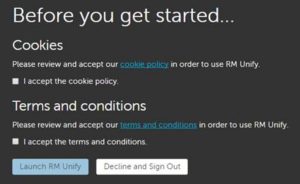
    At this stage, you’ll be requested to accept RM’s cookie policy and terms and conditions. Select both tick boxes and click the ‘Launch RM Unify’ option.
    Step 4

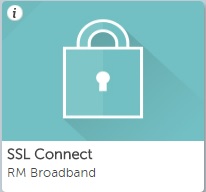
    Once logged in, you will be presented with a dashboard. Click on the ‘SSL Connect’ option, as seen below.
    Step 5

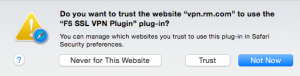
    At this stage, you may be prompted to specify whether you would like to trust ‘vpn.rm.com’ to use the ‘F5 SSL VPN Plugin’. Click on the ‘trust’ button.
    Step 6

    The browser plugin will need to be installed, by clicking on the ‘click here’ option as seen below.
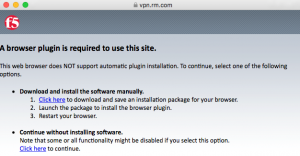
    The installation package will then be downloaded, which can be opened by clicking on the downloads icon.

    Once opened, click the ‘continue’ button until the installation is complete.
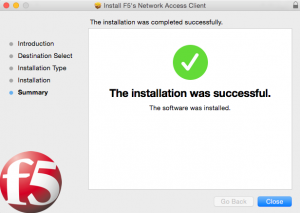
    Step 7

    At this stage, it is necessary for Safari (or whichever browser was used to install the plugin) to be completely closed and then re-opened, to ensure the plugin has been installed correctly.

    Step 8

    Log back into your RM Unify account, select the SSL connect option as before, and then click on the “LAN Connect” button in the top left corner.
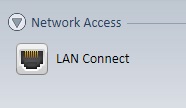
    Step 9

    After this button has been clicked, the VPN will create a connection. Once connected, you can then use the remote desktop connection software to remote into the school network and use it as if you were working in school.

    If you don’t have a remote desktop connection setup, install Microsoft’s ‘Remote Desktop Connection for Mac’ from the App Store and enter the IP address of the school server. Log in using the same username and password you use in school. If this you require assistance with this, please get in contact with Con Ed.

    Step 10

    After you’ve finished using the VPN, make sure to disconnect from the session by clicking on the ‘disconnect’ button or closing all browsers which will terminate the VPN connection.

  • How to install Cisco VPN Client

    NOTE: This guide is only applicable to Windows XP, Vista, 7 and 8. Windows 10 instructions will be uploaded shortly.

    VPN is a system that allows a user to connect to their organisation’s network from an external location. Essentially, it’s like running a really long network cable from the school back to your house – everything is encrypted making it safe and secure for use.

    If you are using VPN from a school laptop, then the chances are that we have already deployed the VPN client to your machine. In which case, follow this guide from step 4. If you are going to use VPN from a personal Windows device, then instructions for installation is as below:

    1) To install VPN on a personal device, first we need determine the type of system you have. Click Start > Computer > C drive (Local Disk).

    • If you see “Program Files” folder, you have an x86 system
    • If you see “Program Files” AND “Program Files (x86), you have an x64 system.

    2) Once you have determined the type of system you have, choose and download the appropriate installation file below:

    3) Once downloaded, right-click and extract the folder to any location. Navigate to the location where the folder has been extracted to, open the “vpnclient_setup” installation file. Accept all default settings. After the installation is complete restart your machine.

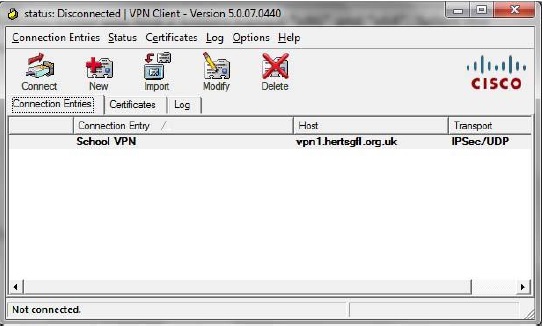
    4) Once the machine is restarted, open the VPN client (click Start > All Programs > Cisco Systems VPN Client > VPN ).

    vpn client

    5) Click Import. Now browse for the School VPN file which we have made available to you. If this has not been provided, please get in touch in the usual way.

    6) If you see School VPN listed in the client, it is now ready to use.

    client

    Exactly how you will now access your school documents will differ from school to school – ask us to find out the method adopted by your school.

  • How to configure VPN on a Mac OSX

    VPN is a system that allows a user to connect to their organisation’s network from an external location. Essentially, it’s like running a really long network cable from the school back to your house – everything is encrypted making it safe and secure for use.

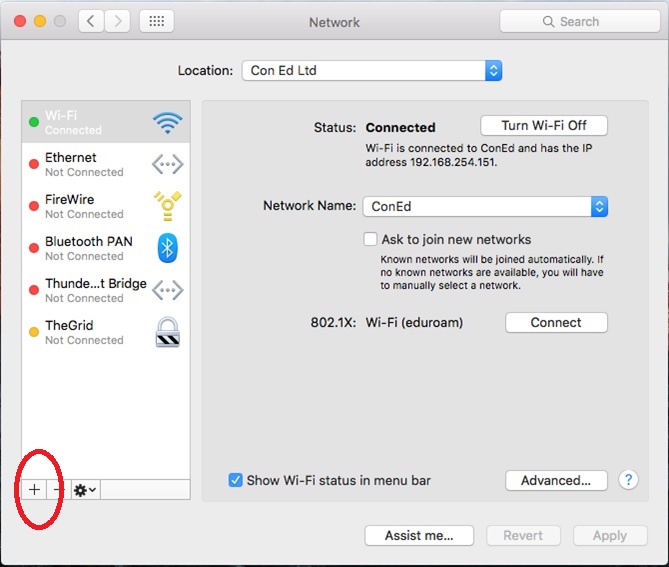
    To configure VPN on a Mac OSX, open Network Preferences, click on the + sign (plus sign) in bottom left corner to add a new connection.

    network1

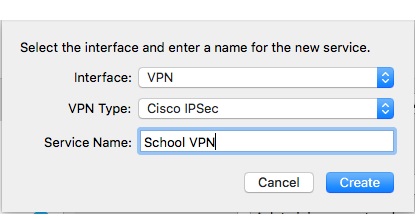
    In the popup that appears, change the details to:

    • Interface: VPN
    • VPN Type: Cisco IPSEC
    • Service Name: School VPN

    vpn interface

    Click Create.

    You now need to enter the server address, which is vpn1.hertsgfl.org.uk and the account name, which is your personal VPN username. You will be asked to enter your password each time you connect.

    Click on Authentication Settings…

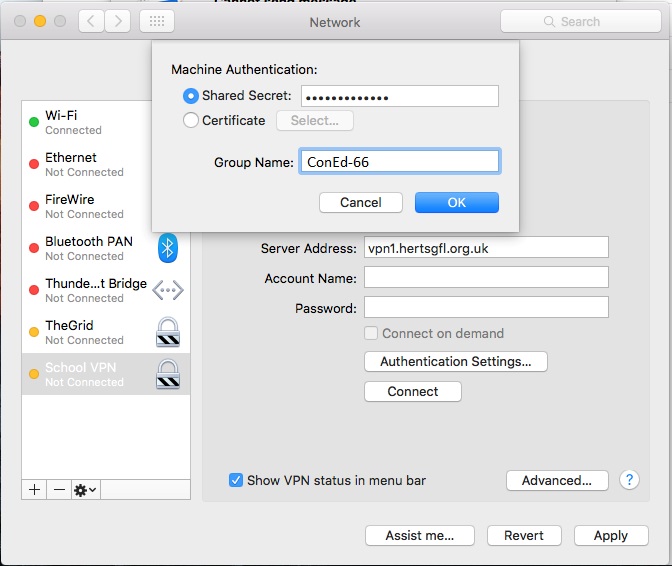
    You will need to get in touch with us to confirm the Shared Secret, and Group Name settings – they are both the same values. Once you have this, enter it in the appropriate boxes and click OK.

    group name

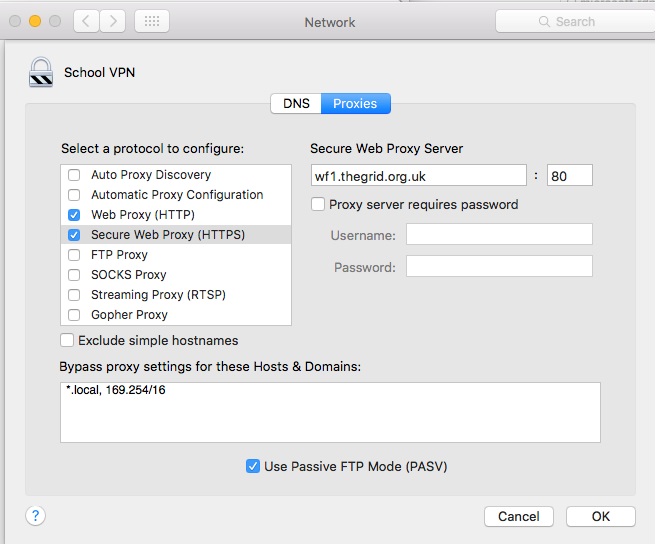
    When connected to VPN, it’s as though you are connected to your school network. Therefore you should also define the Proxy settings to be used while connected via VPN. To do this click on the Advanced… button and enter the following for both Web Proxy (HTTP) and Secure Web Proxy (HTTPS).

    proxy

    Click OK and make sure you click Apply to save the settings.

    That’s the VPN settings defined. If you now click connect, it will prompt you for you VPN credentials. Enter these and you are now successfully connected to the Herts VPN network.

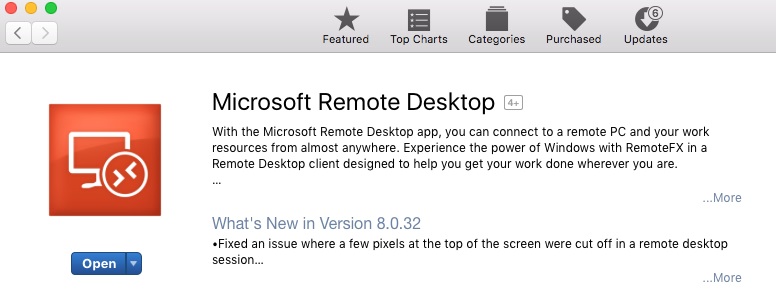
    Once connected, the easiest method of working remotely is to use an RDP client. RDP is a Remote Desktop Protocol which allows you to connect to and remotely control a computer as though you were sitting right in front of it. We find the Microsoft one is best. You can install this from the app store. There will be a few oddities, such as the keyboard will be different and won’t have a right mouse button to click, but otherwise it’s a fairly stable platform to work from. Before proceeding, speak to us about setting up a machine at school for you to connect to – we will provide the details needed to set the RDP client as below.

    rdp

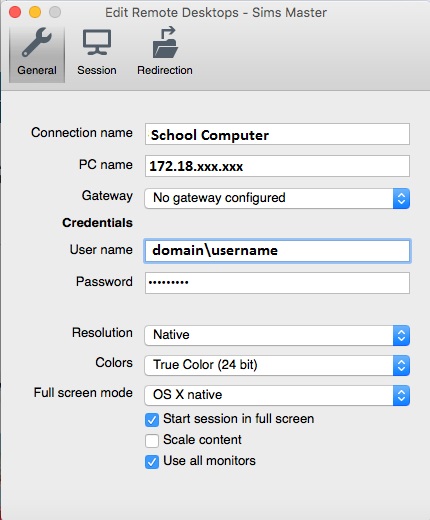
    When you first run the Microsoft Remote Desktop client, you will have to define a site. Click on the + sign (plus sign) and enter the following details. You can save the entry by pressing the cmd and W keys. (Or file > close)

    rdp setup

    • Connection name: give it a suitable name
    • PC name: This is the IP address of the machine you will connect to.
    • Username: This is your school computer username
    • Password: This is your school computer password

    Once the above details are in place, that’s it, now you are ready to remotely control your school machine. Connect to the School VPN network first (from Network Settings), then simply double click on the connection you have create in the RDP client. You will probably get a few security warnings, namely to Verify Certificate. Simply accept all warnings and continue.

    If all is well, this should connect and log you into the machine that’s been configured for RDP at school. Remember, that you can only have one person using this at a time. E.g. make sure no one in the school is using the computer when you want to connect and visa versa.

    Microsoft Remote Desktop Connection Keyboard Shortcuts

    • Two finger click = Windows right click
    • Cmd button = Windows “Windows button”

    When you are finished with VPN, to end the session either:

    • Log Out – Log off windows in the normal way (which logs off the remote machine you controlling)
    • Disconnect – Go to the top of the screen and from the Window box, choose Close Connection. (this will lock the remote computer, rather than logging off). The advantage with this method is that because the computer is only locked, if you connect again, you’ll carry on from where you left off.