27 years of trusted school IT support across Hertfordshire and Buckinghamshire

Author: admin

  • Data privacy training is critical

    Somehow when we think about data security and privacy, we tend to look to technology solutions to minimise risks. And, while technology solutions are certainly part of the privacy equation, there’s another area of risk that must be addressed: people.

    Teach the teachers

    Staff members, instructors, students, and even parents can all be ‘weak links’ when it comes to protecting sensitive data. Whether through viruses transferred between shared files or email, the sharing of passwords or data theft, the perils of people can’t be overlooked.

    But teachers play a crucial role, thanks to the amount of time they spend in the classroom and the on administrative tasks, like grading work, preparing lessons and communicating with parents and faculty. They must, of course, employ good security practices themselves. Then they can, in turn, model those good practisces to their students and emphasise their importance to parents.

    IT – a big part to play in data privacy training

    That’s where the IT team comes in. IT leaders have an opportunity, even a responsibility, to train technology users about the risks that their actions may represent – whether inadvertent or intentional. But as any teacher will tell you, training must be more than a ‘one and done’ exercise. So, make good use of your colleagues’ teaching expertise and, once you’ve figured out what the content of your training must be, get them to help fine-tune how it’ll be delivered.

    Ahead of those conversations, here are some best-practice tips for delivering privacy training designed to stick:

    1. Keep it fresh: The cybersecurity threat landscape is always evolving, as new attack vectors are discovered, and new exploits uncovered. This not only requires vigilance on your part, it also requires regular ‘refresher’ training for all users – at least yearly and preferably more frequently.
    2. Keep it simple: IT is notorious for jargon and complexity but many of your audience will have little to no understanding of technology, so make sure your lessons and instructions are easily understood and not steeped in data security terminology.
    3. Explain the ‘why’: It’s easy to ignore a rule or procedure if you can’t connect it to a larger purpose. You don’t need to get overly technical but explaining why security requires certain practices will help make them ‘stick’.
    4. Use examples: Don’t be sensationalistic but use a few simple and preferably local examples of security gone wrong to emphasise that the threats are real. Relate your examples to the ‘why’ behind specific rules or policies.
    5. Give feedback: Let your audience know when they’re getting things right and share examples of internal best practices as well as internal breaches as appropriate.
    6. Include the parents: Make sure your training includes some communications with the parents, through newsletters, notes and other means. Their behaviour is a big influence on your students, so it pays to help them understand cybersecurity too.

    Bonus tip: Get user feedback. It’s helpful to know if your instructions and suggestions are clear, if you’re clearly explaining the ‘why’, if there are suggestions on how to improve and so on. Opening the lines of communication between IT and others can help build relationships that boost compliance.

  • Securing Education in the Digital Age

    Protect Your Teachers and Staff From Cyber Threats

    Technology has become a critical tool for teachers and staff in the education sector today. According to a global study by SMART Technologies, almost three-quarters (64%) of UK schools now embed technology in everyday teaching and learning.

    Unfortunately, this same technology leaves teachers and staff at risk of a digital attack. Around one in 10 primary schools in the UK have experienced a cyber attack in the past 12 months, while a third of secondary schools have been victims of cybercrime.

    However, by giving your staff the right tools to manage security risks, you can set them up to manage security risks while still reaping the endless benefits of technology use in the classroom.

    How Google Workspace for Education Is Keeping Schools Safe

    Communication and Collaboration With Students Are Crucial for Teachers

    Teachers rely on their schools to find the right technology that allows them to do so securely. Approximately 170 million students and educators use Google Workspace for Education worldwide.

    For schools looking to give teachers the benefits of Google for Education, the free edition offers a myriad of security features, including:

    • Advanced Google Drive security controls
    • Alert centre notifications to keep you informed of potential security threats
    • A security centre that allows you to prevent, detect, and remediate threats
    • Data protection including automatic encryption, two-factor authentication & automated data loss prevention


    Paid Editions of Google for Education Can Bring Teachers and Staff Even More Peace of Mind

    Research shows that Google for Education Plus led to a 95% reduction in the number of phishing attempts experienced, due largely to its out-of-the-box security and email filtering.

    With additional services such as attendance tracking, a security centre and investigation tool, document approvals, and more meeting and live stream capabilities, any of the three upgraded editions can help educators focus on teaching with the necessary security in place.

    Click here to compare all Google Workspace for Education editions.

    Google also announced in the spring of 2023 that it was releasing new features to help protect users’ privacy, keep schools’ data secure, and create safe digital learning environments.

    ChromeOS Offers Built-In Security and Control

    More UK schools recognise the benefits of Chromebooks over iPad. In addition to the many collaboration and education benefits behind Chromebooks, there are also many security features. To help reduce risks in the classroom so teachers can educate their students without distraction, ChromeOS offers a number of security features such as:

    • Embedded security: Protect your institution from evolving cybersecurity threats with built-in virus protection, 128-bit data encryption, Verified Boot, and sandboxing.
    • Automatic updates: With updates that happen in the background, Chromebooks stay current against the latest threats without having to restart their systems.
    • Proactive tools and guidance: Keep an eye on security with alerts, dig deeper into incidents with the investigation tool, and get tips from

    Many schools looking to give their staff the right tools to manage security risks choose to utilise Chrome Education Upgrade. The upgrade transforms devices for standardised testing, allows devices to be securely managed from the cloud-based Google Admin console, and offers 24/7 IT admin support for teachers and staff.

    Complete the Digital Citizenship and Safety Course

    Google created a course to help teachers and students learn how to create a safe and positive experience online. The course comprises several lessons to read, videos to watch, and activities to do. Once you’ve completed the course, you’ll better understand how to integrate these best practices into your classroom curriculum. Take the free course now.


    Setting Students up for Success

    Protecting students’ privacy, keeping schools’ data secure, and digital learning environments safe are cornerstones of Google’s commitment to education. Explore the features for safer learning released by Google for Education.

    Teach Safely and Wisely

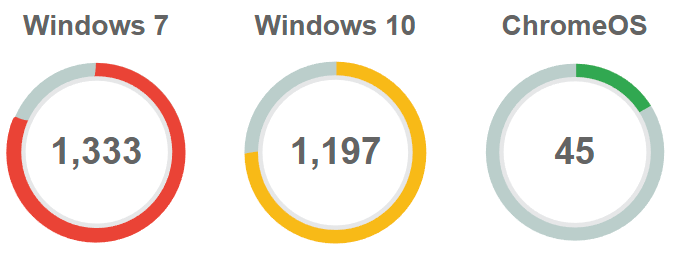
  • Windows 7 hits a 50% share

    Since its launch in 2009, the 5 year old operating system, Windows 7, has finally reached a 50% market share.

    Figures from Net Applications show that in the few weeks since Microsoft ended its support for XP, the share for Windows XP users has fallen by 2.42%, while Windows 7 has risen 1.29% and Windows 8 by 1.32%. What makes the figures interesting is that Windows 8 is now the default operating system on new machines, however, the increase in market share between Windows 7 and 8 is very close. Microsoft still lacks the widespread general acceptance of Windows 8, which suggests that end-users (particularly businesses and schools) and diehard XP fans are choosing to upgrade/downgrade to Windows 7 instead.

    A machine purchased with Windows 8, can only be downgraded to Windows 7 if the machine has been pre-installed with the Professional version of Windows 8. The Professional version allows many advanced features including the ability to join a domain, group policy support and remote desktop – basically, it is suited to a server/client environment such as schools.

    The Windows XP share is declining much slower than anticipated, especially for an end-of-life product. At the current rate, it is expected to continue to still have a significant share for at least the next 18 months.

    In most cases, our schools are able to upgrade to Windows 7 through buying individual “volume” licenses or a Microsoft EES-OVS agreement. Certainly, if not already, now is the time to plan for the retirement of Windows XP from the school. It’s also the ideal time to consider the Microsoft Open Value Subscription Agreement for Education Solutions (OVS-ES), which is especially cost effective during these schools wide, upgrade projects. Ask us for more details

  • Keeping Students Safe from Cyber Threats in the Digital Age

    Keeping Students Safe from Cyber Threats in the Digital Age

    Protecting Your Students from Cybercrime

    An audit by the National Cyber Security Centre found that cyber incidents have affected over three-quarters (78%) of UK schools. Because of the increased use of technology, students are much more susceptible to cyberattacks today than ever before. In fact, 60% of children around the world between the ages of eight and 12 are exposed to various cyber risks online.


    That equates to 12M children exposed to cyber risks.


    At the beginning of 2023, confidential data from 14 different schools in the UK, was leaked online after the schools refused to pay the hackers’ demands. The leaked data included children’s SEN information and pupil passport scans. The education sector continues to be heavily targeted by ransomware. A 2022 report revealed that 56% of lower education institutions and 64% of higher education bodies worldwide had experienced a ransomware attack in the past year. Fortunately, there are some things schools can do to protect students from cybercrime.

    Cybercrime Prevention Tips Schools Can Use

    Monitor Their Apps and Services: Many students become targets of cyberattacks through the apps they use. Ensure your students only use the apps and services provided to them by the school. Have a conversation with them about the importance of protecting themselves when using apps on their home devices.

    Make Privacy a Priority: In a world where people post everything about themselves online, it’s critical to talk with students about their personal privacy and how they can protect themselves against threats. Schools should also consider their own data and security policies to ensure their students’ information is kept safe.


    Keep Mental Health Top of Mind: Emerging technologies can be exciting, but students should take them in stride. It’s important that students balance their use of technology with other things that are important to them. New technologies can provide an opportunity for both students and adults to learn and implement new safety, privacy, and security protocols.

    Talk to Students About the Future of Technology: New technology, such as AI, can offer new ways to identify and solve problems. While it won’t ever replace human moderators, it can be an additional means of support for cyber safety. Educating students early on about the benefits of this technology and helping them find ways to tap into peer support will allow them to feel more secure.


    Remind Students to Check if It’s Real: It’s easy for people to hide behind their computers and target students online. Remind your students how to tell the difference between what’s real and what’s not. Teach them the suspicious language and activities to watch for so they don’t get tricked into clicking into something that will put them at risk.

    Achieving the Highest Level of Security in Schools in the World

    Implementing the world’s most advanced security in schools is another big step in keeping students safer in the classroom. With best-in-class privacy and security capabilities, Google for Education offers a first line of defence against online threats.

    Here’s a look at how Google protects the digital safety of students around the world:

    • Every day, 74 million users get help from Google’s Password Manager.
    • Every day, 100 million phishing attempts are blocked by Gmail.
    • Every week, 30,000 unsafe websites are identified by Google.
    • Every year, 700 million users strengthen their security with Security Checkup.


    There have also been zero reported ransomware attacks ever on any educational ChromeOS device.

    Chrome Education Upgrade Helps Schools Ensure Students’ Safety

    Chrome Education Upgrade is a tool many schools are embracing to help them keep students safe. With easy device management and the latest built-in security, this upgrade is helping provide students with the technology they need to embrace education without the risk of a cyberattack.

    By implementing the right technology and openly communicating the importance of security and privacy to students, schools can arm their children with the knowledge and defence they need to stay safe.


    Be Internet Legends

    Created to help children be safe and confident explorers of the online world. Students can make smart decisions that allow them to use the web safely and wisely.

    Click Here to Learn How

  • Find the Right Chromebook for Your Students

    Place the Right Cutting-Edge Technology in the Right Hands

    A study by the Department of Education discovered that only 1% of primary schools and 2% of secondary schools were able to provide 1:1 access to laptops or tablets for pupils. With students back in the classroom after the global pandemic, schools are reassessing their own technology and researching what they can do to put high-quality technology in the hands of each student.

    Many schools are on the hunt for additional devices that they can distribute to students, while some schools are planning to refresh their fleet of devices completely. The tech requirements for each school depend on the school years included. For instance, a student in primary school has very different needs than a student in secondary school.

    Fortunately, Google’s Wayfinding Guide offers a look at the best devices available for students today. So, how would a school begin the journey to update the technology for its students?

    Four Steps to Help You Choose the Right Device For Students

    • Determine the main use case and exactly how the device will be utilised. Will these devices be used remotely? Is video learning a key player in the classroom? Talk with students about their biggest needs and use that data to drive your decision.
    • Walk through specifications required for students. Are there classes that would benefit from larger screen sizes, more storage space, or a lighter device?
    • Meet with your school’s leadership team to discuss your recommendations based on student needs. Explain your primary use cases and why these devices are best for these uses.
    • Do your research by comparing Chromebooks within the device ecosystem. Look at things like multiple browser tabs, Google Workspace, and advanced video conferencing features that will help students learn both in-person and remotely.

    What Software and Apps Do Students Need?

    To set your school’s students up for success, it’s imperative that they have the right tools and resources in place. A recent study showed that 57% of UK schools involve students in the planning of technology use in the classroom. This is a great opportunity to talk with your students about what would make them feel prepared to learn and collaborate.

    Google Workspace for Education

    This suite of easy-to-use tools offers students a flexible and secure foundation for learning, collaborating, and communicating with teachers and other students. Using Workspace, one UK-based school was able to transform its student learning experience, increasing sharing and enabling 1:1 learning for each student which saw overall student engagement skyrocket.

    Google Meet/Google Classroom

    These two tools are essential for distance learning. Google Meet offers easy-to-use video conferencing that allows students to join classroom sessions from anywhere, on any device. For an all-in-one solution for students, Google Classroom enhances the student learning experiences with simple learning tools and an emphasis on collaboration.

    Recommendations & Requirements for Students

    Students require different tech specifications based on their use cases. For example, a young primary school student wouldn’t need the same EdTech as a student about to graduate from secondary school. Here’s a look at what the students in your school might benefit from so you can help find the right Chromebook.

    Reception-Year 9

    • 10-12″ touch-enabled clamshell screen
    • Lightweight tablets (detachable)
    • Ruggedised for durability

    Year 7-Year 13

    • 11-15″ touch-enabled clamshell
    • Convertibles
    • Lightweight and ruggedised
    • Garaged stylus
    • Dual cameras
    • 8GB RAM, 64GB+ Storage

    Google’s Wayfinding Guide provides dozens of Chromebooks to fit your student’s specific needs. No matter what your specifications are, this guide is a powerful resource to help you during your decision-making process.

  • 5 Factors to Help Select the Right Devices for Your School

    In today’s classroom, technology is an extension of teaching. Like any good educator, the best devices can support a variety of learning styles, environments, and activities. But choosing from the sheer volume of available laptops, detachables, and tablets takes time and discernment.

    This article is designed to help you identify and evaluate the most critical factors in selecting devices that work for the entire school.

    1. Consider performance.

    The needs of your users, particularly students, and teachers, are the most appropriate place to start. What types of programs do they need to run? What are their primary activities? Where will the learning day take place? At minimum, ensure to select a device that can support:

    • Video, collaboration, and remote learning tools
    • Touch screen and web-based activities
    • Data analysis, coding, and content generation tasks
    • Higher functions like graphic design and esports

    2. Choose an appropriate form factor.

    Once you know what the devices will be used for, you can move on to selecting the appropriate size, configuration, or physical arrangement of a computing device, otherwise known as its form factor. According to Intel, “ChromeOS devices are also a popular choice for [students and educators], with a wide range of available form factors. All Chrome devices run the Chrome operating system created by Google and can support powerful configurations of memory, storage, and security.”

    When in doubt, a Chromebook offers the hybrid teaching and learning capabilities that are most appropriate for the modern classroom.

    3. Assess compatibility with the wider ecosystem.

    There are a number of external devices your edtech will need to be capable of supporting if classroom activities are to run smoothly. Be it a second monitor, earbuds, or external hard drive, you want devices that pair with as many peripherals, softwares, and current tools as possible.

    Open ecosystems, like those used in ChromeOS devices, provide unmatched flexibility, so learning isn’t limited by brand loyalty.

    4. Evaluate security and privacy capabilities.

    Ensuring the school’s proprietary info and your student and staff’s sensitive data stay safe is essential for learning continuity. That means investing in devices that operate with a built-in suite of security tools and features.

    To stay protected from an alarming rise in cyberattacks like ransomware, schools need comprehensive hardware and software protections like the automatic software updates and virus protections included with every Chromebook.

    5. Weigh the cost options.

    Anytime you’re investing in a fleet of devices, cost will be a key consideration. It will be easiest to justify your budget if you’re spending for devices that are durable, scalable, and high-performing. Techonology can be replaced more often if funds are available on a recurring basis but don’t forget to consider and budget for professional development, technology support, infrastructure, retrofitting classrooms and installations, before introducing new classroom tech.

    As technology continues to be a critical component of modern learning environments, decision makers will need to be well-versed in the device selection factors that best support learning successes.

  • Arm Your Educators With the Best Technology

    A Reassessment of School Technology

    A 2022 study revealed that nearly two-thirds of schools in the UK are using technology in everyday teaching practices. A separate study by The 21st Century Teachers report revealed that 48% of teachers use a variety of digital technologies with their students.

    The use of technology in schools is only expected to increase in the coming years, meaning schools should start thinking now about how they can arm their teachers with the best tools to do their job well and collaborate with students both in-person and remotely.

    Key Benefits of EdTech for Teachers

    The Department of Education interviewed 17 schools that had successfully implemented new technology within the last two years to find out what benefits and challenges they now faced. They discovered that the teachers benefited heavily from the introduction of devices in their schools.

    Benefits included:

    • Lightened workload
    • Reduced time spent on lesson-planning
    • Improved grading process
    • Enhanced creativity
    • Increased collaboration
    • Boost in confidence
    • Ability to better track how learners are progressing

    Use Cases for Teacher Devices

    While many of the uses are similar, students and teachers have very different needs when it comes to their EdTech. Most teachers have heavy workloads that include content creation and editing, and running apps in virtualised environments.

    It’s important to find devices that support heavy multitasking – i.e., large video calls with dozens of participants, multiple browser tabs, and Google Workspace. Because they’re often sharing lessons with the entire class, external monitors and displays are important as well.

    How to Support Your Staff With the Right Software

    Investing in teachers is one of the best ways schools can directly impact and improve the student experience. For teachers to feel successful in their role, they need the right tools in place. Here’s a peek at some of the Google for Education Software recommended specifically for teachers.

    Easy-To-Use Tools

    Providing your teachers with easy-to-use tools not only helps them simplify tasks, but it improves efficiency and saves time. With Google Workspace for Education, educators can build to-do lists, schedule meetings, read and respond to emails, and seamlessly collaborate with everyone in the school.

    Apps That Support Communications

    Applications like Google Meet and Google Classroom help teachers communicate with students and other staff members while managing multiple classes in one central destination.

    Why Chromebooks Are the Best Choice for Educators

    With 50 million students and educators using them to create, collaborate, and communicate, Chromebooks are the number one device in primary and secondary education worldwide. Here are just a few reasons why Chromebooks are a great option for teachers:

    • They’re fast and reliable: Thanks to quick boot-up, rapid charging, and a battery life that lasts 10.5 hours, Chromebooks allow teachers to focus on educating instead of worrying about their devices.
    • They foster collaboration: Tools like Screencast and Cast Moderator let educators share their screens, while built-in accessibility features remove barriers so everyone can work together.
    • They encourage productivity: Chromebooks help teachers manage classes, create and grade assignments, and communicate with students – all in one place, and from the convenience of anywhere.
    • They are safe and secure: With automatic updates every 4 weeks and built-in security that keeps personal data safe from cybercriminals (without antivirus software), Chromebooks offer peace of mind for educators.
    • There’s a Chromebooks for every educator: From garaged stylus, to 1080p+ camera, to a convertible screen – Chromebooks offer valuable features for every educator no matter what specifications they require.

    Transform Virtual Learning With These Two Tech Tools

    To help make key workflows easier for educators, Google created Screencast and Cast Moderator – two powerful tools that are changing the way teachers conduct virtual classes and engage with their students. With Screencast, teachers can easily record and share their screen with students, making it an ideal tool for creating instructional video presentations or walkthroughs. Cast Moderator allows teachers to manage and control the screens of all the devices in their classroom to ensure students stay focused and on task.

    Using these resources, teachers can create a more interactive and engaging virtual classroom experience for students in the classroom and remotely. Learn more about both resources HERE.

  • New Google Meet features

    Google’s priority with Meet is to make sure meetings are safe and secure. Last year they launched a number of tools to help with this, including security controls so only intended participants are let into meetings and advanced safety locks to block anonymous users and let teachers control who can chat and present within a meeting. In the coming months, Google will be adding to that list improving Meet for Teachers and Admins.

    Helping teachers keep virtual classes safe

    1. End meetings for everyone

    Teachers now have the option to end meetings for everyone on the call, preventing students from staying on after the teacher has left – including in breakout rooms.

    2. Advanced Mute Options

    The new “mute all” function will help educators keep their classes on track. Sometimes it’s important to teach without interruption, meeting hosts will be able to control when students can unmute themselves.

    3. Tablet & Mobile Phone Capabilities

    Educators using tablets or mobile phones to teach also have access to key moderation controls, like who can join their meetings or use the chat or share their screen, directly from their iOS or Android devices.

    4. Google Classroom + Meet Improved Integration

    Classroom and Meet will work together even better, so every meeting created from Classroom is even safer by default. When meetings are generated from Classroom, students won’t be able to join before the teacher. Meet will also know who’s on the Classroom roster, so only students and teachers in the class will be able to join. Every teacher in Classroom will be a meeting host by default, so if there are multiple teachers, they’ll be able to share the load of managing the class.

    Greater visibility and control for admins

    Google will be launching new settings in the Admin console so school leaders can set policies for who can join their school’s video calls, and whether people from their school can join video calls from other schools. This will make it easier to facilitate things like student-to-student connections across regions, professional development opportunities for educators, and external speakers visiting a class.

    1. Google Meet audit log

    Google will be adding more information to these logs – like an external participant’s email address – so admins can better understand how people are using Meet at their school.

    2. Investigation tool

    Educators with Education Standard or Education Plus licenses can now access Meet logs in the investigation tool, so they can identify, triage and take action on security and privacy issues. And later this year, admins will be able to end any meeting within their school from the investigation tool as well.

    Engagement and inclusivity in Meet

    Over the past six months, Google has launched features like breakout rooms, hand raising, digital whiteboards and customised backgrounds. Later this year, students will be able to more easily engage and express themselves with emoji reactions in Meet.

    1. Emoji reactions in Meet

    Students will be able to pick emoji skin tones to best represent them, and react in class in a lightweight, non-disruptive way. Teachers and admins will have full control over when reactions can be used.

    2. Lowering Bandwidth Capabilities

    Unreliable internet connections can make remote teaching and learning more challenging, Google will be improving Meet to work better if you have low bandwidth. Rolling out in the coming months, this can help keep class on track when internet connections are weaker.

    3. Performance of Meet on Chromebooks

    Google also made significant improvements to the performance of Meet on Chromebooks. These include audio, video and reliability optimisations, better performance while multitasking and more.

    4. Teaching and Learning Upgrade or Education Plus licenses

    Rolling out over the next few months, educators will be able to set up breakout rooms ahead of time in Google Calendar. This will make it easier for teachers to prepare for differentiated learning, be thoughtful about group dynamics and avoid losing valuable time setting up breakout rooms during class.

    5. Meeting transcripts

    Helping students who are not able to attend class stay up to date, later this year educators will be able to receive meeting transcripts. They’ll be able to easily share transcripts with students, review what was discussed during class, or maintain a record for future reference.

  • How schools can stop buying stuff that sits on the shelf

    By Frederick Hess | Forbes

    When assessing government funding for schools, the focus is usually “How much?” – with too little attention given to how effectively funds are being used. It’s time for a second look at how, when, and why schools buy what they do.

    The question of how, when, and why schools buy stuff usually travels under the yawn-inducing label of “procurement,” and gets about as much attention as you’d expect. But this inattention has created huge problems, meaning that huge sums get wasted, educators get frustrated and schools have trouble getting their hands on goods and services that actually help.


    Inattention has created huge problems, meaning that huge sums get wasted, educators get frustrated and schools have trouble getting their hands on goods and services that actually help.


    Even as schools across the country spend billions each year on education technology, tech companies estimate that two-thirds of educational software licenses go unused. Some educators wind up relying on what they can assemble from Pinterest on a Sunday night. Why does this happen? And how can we do better? Here are three takeaways that can help address the disconnect.


    School officials need to be clear as to how a new purchase actually helps teachers do their job.

    An eternal complaint among educators is that schools waste money on ineffective programs and resources that they don’t want or need. Thomas Arnett, a one-time middle school math teacher and now a researcher at the Christensen Institute, explains that teachers view procurement as being more about creating new things to do than helping teachers accomplish tasks they’re already tackling.


    If it’s not clear to teachers how a new purchase or program is going to help them do their job, they’ll (quite reasonably) stick with what they know.


    If it’s not clear to teachers how a new purchase or program is going to help them do their job, they’ll (quite reasonably) stick with what they know. Decisions about outlays will be more likely to yield useful purchases if they start with a clear understanding of what teachers say they need to do their job.


    Compliance concerns shouldn’t drive spending decisions.

    Increased government funds could make a big difference for students, but experience teaches that they rarely do. In practice, concerns about spending restrictions, reporting requirements and government timelines mean that these pounds can wind up underwriting fragmented services, ineffective but familiar programs or faddish offerings.

    As Junge and Krvaric explain, the complexity of government funding rules – and the risk-aversion of education officials – often lead to a reliance on programs that feel “safe,” including fragmented offerings that readily match government guidelines, familiar programs that don’t get audited or new offerings that enjoy a clear wink-wink endorsement.

    Government officials could help by simplifying spending rules; in the meantime, schools need to more aggressively explore what’s allowed and resist the temptation to stick with what’s “safe” over what’s successful.


    Education officials need to engage with vendors.

    School systems are constantly inundated with vendor pitches. But experiences with vendors overpromising and under-delivering leave many school officials leery and inclined to keep them at arms-length. The ironic result, as former school HR administrator turned ed-tech CEO Lauren Dachille observes, is that when it comes time to buy new textbooks, assessments, information management or pretty much anything else, those making the purchase are frequently only familiar with what’s on offer from the vendors with the biggest and pushiest sales teams.

    One consequence is that a given “request for proposals” (RFP) tends to include specific requirements that reflect the “features” list of well-known products, unintentionally excluding less familiar, more customisable, cheaper and (frequently more user-friendly) products of smaller or newer vendors. Rather than view vendors as an inconvenient blight, school officials should regard them as a resource and as potential partners.

    Government funds are intended to help schools enhance learning, make schools safe and help students catch up. All of these require substantial outlays on technology, supplies and hardware. As school officials make these purchases, they have an obligation to ensure that they’ll actually be used and won’t languish on the shelf, like too many textbooks and technologies from days past.


    This article was written by Frederick Hess from Forbes and was legally licensed through the Industry Dive publisher network. Please direct all licensing questions to legal@industrydive.com.

  • How to setup an Office365 email on Android

    How to setup an Office365 email on Android

    NOTE: There is now an updated guide to setup Office365 using the OWA app. Click here for instructions.

    1) To setup an Office365 email account on an Android device, open the “Settings” app

    settings

    2) Scroll down the menu options and select “Accounts”

    accounts

    3) Select “Add Account”.

    add account

    4) Next you will be presented with a list of various account types to setup. It’s a common assumption to select “Outlook.com” at this point, however, select “Email”.

    email account

    NOTE: If you cannot see “email”, select “IMAP” or “Personal (IMAP)”

    5) Now you can fill in some basic email credentials. Once these are filled in, tap “Manual setup” in the bottom left corner.

    set up email1

    6) Select “IMAP account” for the tyoe of email account

    imap account

    7) The next screen 2 screens require a little more information.

    Incoming Server Settings

    incoming server1

    IMAP server: outlook.office365.com
    Security type: SSL (Accept all certificates)
    Port: 993

    The “Username” and “Password” fields should be filled in using your email credentials. Once completed, tap “Next” in the bottom right corner.

    outgoing server1

    Outgoing Server Settings

    SMTP server: outlook.office365.com
    Security type: TLS (Accept all certifcates)
    Port: 587

    The “Username” and “Password” fields should be filled in using your email credentials. Once completed, tap “Next” in the bottom right corner.

    NOTE: If you get a “handshake failed” error after putting in the settings above, use the security type “STARTTLS” on the outgoing server settings, with port “587”.

    8) If everything has been entered correctly, the account should get verified after a few seconds and you will be presented with the screen to select your desired sync interval and frequency. Tap “Next” and finally give your email account a suitable name such as “My school email” and the name you wish to be displayed for sent emails – Tap “Done” and now your Office365 email is setup on your Android device.

    done