27 years of trusted school IT support across Hertfordshire and Buckinghamshire

Author: admin

  • 4 Online Safety Lessons Students Don’t Want to Learn the Hard Way

    Adults do a lot to keep children safe. We teach them not to run with scissors, look both ways before crossing the street, and avoid talking to strangers. But how much time are we spending keeping them safe online?

    Even though we may have good cyber hygiene practises for our own accounts, that information doesn’t always get passed down. “Britain’s two million most vulnerable children are seven times more likely to come to harm online than their peers,” explains The Guardian.

    Having students master these cybersecurity lessons will help them use good judgement to safely navigate the net.

    Lesson One: Nothing Really Gets Deleted from the Internet.

    At this stage of the internet, we understand that any information put on the web, as well as pictures or posts someone else shares about us, never goes away entirely. Students often don’t.

    Everything from private info to images or even an off-hand comment taken out of context can reemerge years later. 36% of UK recruiters actually say they’ve rejected a job candidate because of it.

    There’s no room to be lax about the digital footprint we left behind. This is something even many adults wished they’d realised sooner. Students need to be intentional with every single post they make, realising it will follow them forever.

    Lesson Two: Do a Data Mine on Yourself Every 3-6 Months.

    Using Google to search your name for existing internet content is a good start. Setting up a Google alert to flag you when there’s a new mention of your name is even better. But there are more comprehensive actions students can take to protect their private information and monitor their online reputation.

    Such as:

    • Using Chrome’s incognito mode to conduct the search (staying logged in on other browsers could change what comes up).
    • Searching, with quotation marks, for information tied to your full name, legal name, previous name, social media handles, or anything else you go by.
    • Doing a reverse image search for any photos you are concerned might show up online.
    • Running a Google Image search with your usernames.
    • Scrolling at least five pages deep into the search results.

    Lesson Three: Privacy Settings Are Your Best Friend.

    According to the UK Safer Internet Centre, 62% of 8 to 17s have received friend requests from people they don’t know.

    It’s just one example of an online safety issue that can be corrected by selecting the right privacy settings.

    As a general rule, all public profiles should be set to private. Though some social media sites do this automatically for minors, students can, and should, also set additional safety parameters – like specifying who can contact them or make friend requests.

    At minimum, encourage them to check who can view their posts and who can tag them in posts. It’s also a smart move to review public information including their profile picture, username, and bio since those are available for anyone to view.

    Lesson Four: Don’t Assume It Can’t Happen to You.

    Just hearing a list of dos and don’ts may not be enough to convince students to take action. Instead, instructors should present real-life situations that illustrate why the unthinkable can, and often does, happen.

    To help students internalise the potential consequences of being careless online, try showing them examples like:

    • Backlash from racist, sexist, or xenophobic posts (even if they’re relatively old)
    • Ways other youth have been scammed in public chat rooms and forums
    • The ramifications of conducting inappropriate internet searches on school networks or devices
    • What can happen to your credit if you disclose private information
    • The negative repercussions of accidentally downloading malware
    • How cyberbullying can impact your mental health

    The sooner students develop an online awareness, the more mindful – and safer – their interactions will be.

  • SIMS Upgrade

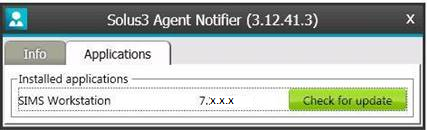
    The latest SIMS upgrade (which you’d have received communication about recently from HfL) has now been released for some schools. If it has, then users may experience “incompatible database” error when logging in. To fix this, the update needs to be applied. This should happen automatically a few minutes after turning on the computer, but if it doesn’t you can force this through by:

    1) Looking for the solus agent in the bottom right corner

    2) Double-click this, and then the applications tab at the top.

    3) click “check for updates”

    4) If it complains that there are no updates available, but whether you wish to reinstall anyway, select yes.

    5) SIMS update will now install and should allow users to log in.

    If the error says that deployment for the update is scheduled already, then users will need to wait about an hour for the update to automatically kick in. The machine may need a restart after this period too. If it’s still not working, then please get in touch via the helpdesk as usual.

    Please pass the message on to all staff.

  • How to create a simple assignment in Google Classroom

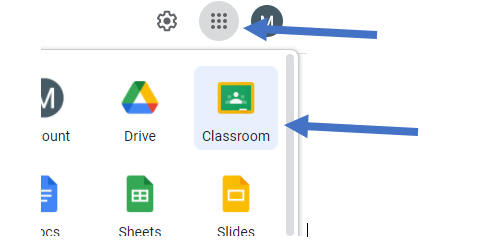
    1. Open Google Classroom via the waffle, or go to www.classroom.google.com and select your classroom

    1. Click the Classwork tab

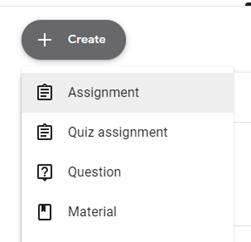
    2. Click Create > Assignment

    1. Upload an existing task, or create one directly within classroom

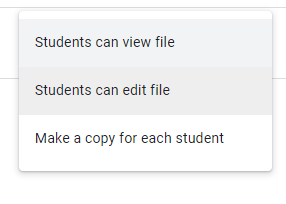
    2. Choose how pupil see the assignment

    • Student can view file – this is a view only copy
    • Students can edit file – this allows all students to collaborate on the same document
    • Make a copy for each student – this creates a copy of the document for each student
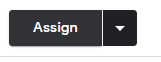
    1. Assign the work by clicking on Assign button

    tip: you can schedule the assignment to appear at a later date by clicking the drop-down button and select “schedule”

    1. When Pupil logs into Classroom, and click the Classwork tab they will see the assignment.

    2. When work is completed, they click TURN IN to hand the work back to teacher

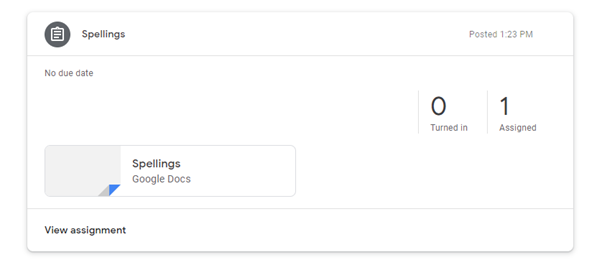
    1. Teacher can see how many pupils have handed work in

  • Top 10 Keyboard Shortcuts

    Keyboard shortcuts help us to save significant amounts of time while we are working at our computers. Whether we use them to cut and paste, or to undo mistakes, most people have their favourite. The list of key combinations goes deeper than many people realise, so I’ve put together my 10 favourite shortcuts that you may not have discovered yet.

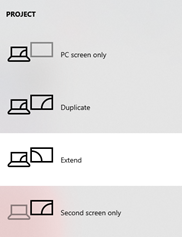
    Windows key + P – Project to a second screen

    If you use a second monitor, projector, or interactive whiteboard, Windows has the ability to choose how to display to it. Try pressing the Windows key and “P” at the same time and then selecting “Extend”. In this mode you can put a different window on each screen – great for when teachers want to look at something different from their pupils!

    Windows key + E – File Explorer

    I expect that most people have a preferred way to access their documents. For me, the quickest way is to use this shortcut to open Windows File Explorer at the touch of a button. Well, two.

    Windows key + D – Desktop Show/Hide

    The desktop of our computer is a great place to keep commonly used files and shortcuts. Unfortunately, it can take a long time to minimise all our windows when we want to get back there. Windows key + “D” will hide everything on your screen, so that you can see your desktop again. To put everything back, simply use the same shortcut again.

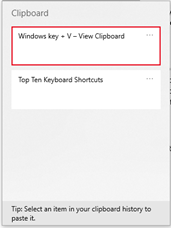
    Windows key + V – View Clipboard

    This newer feature has quickly become one of my favourites, by saving the clipboard history. The first time you use this shortcut, you will be asked to turn the feature on. Then, every time you copy a picture or some text it will be saved in the clipboard, ready for you to access and paste anytime until you reboot your computer (at which point the clipboard will be cleaned).

    Windows key + Shift + S – Snipping Tool

    If you find yourself saving a lot of screenshots, you might be interested in adding this to your shortcut list. As long as your computer is on Windows 10, this combination will open up Snipping Tool, a handy feature of Windows that lets you save an image of what’s on your screen. Simply click and drag to select a portion that you want to save or use the buttons that will appear at the top to draw a free-form shape to save, or to select the whole screen.

    Windows key + L – Lock Windows

    Even if you don’t work with sensitive information, our computer sessions should never be accessible when we leave the computer unattended. Instead of logging out completely, simply lock your screen quickly and easily by pressing Windows key + “L”. When you come back, just re-enter your password to resume with everything the way it was.

    Alt + Tab – View open applications

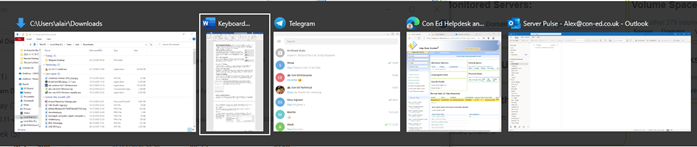
    It can be easy to lose our applications as the taskbar fills up with the various documents and programs that we have opened. Thankfully, we can use Alt + Tab to see them all and cycle through them (Alt + Shift + Tab to cycle back).

    Ctrl + A – Select All

    Whether you want to select every file in a folder, or all the text on a page, try using Ctrl + A as a much faster replacement for clicking and dragging to highlight your selection.

    Ctrl + F – Find

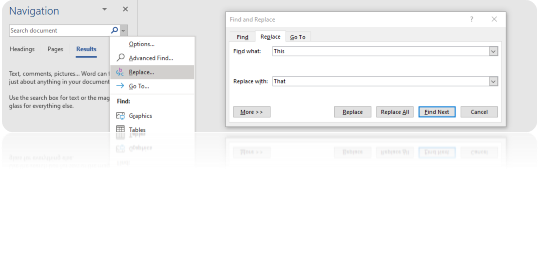
    You can use this shortcut almost anywhere to bring up the search feature. On a web browser, in a PDF or in most other applications, use this feature to search for a word or phrase. Additionally, in some applications such as Microsoft Word, the search feature also gives you the option to replace instances of the word or phrase.

    I hope you’ve found this list helpful and that you’ll start impressing your colleagues, by adding some to your repertoire soon!