27 years of trusted school IT support across Hertfordshire and Buckinghamshire

Author: admin

  • Google Meet Taking Schools Beyond Distance Learning

    Google Meet Taking Schools Beyond Distance Learning

    Google Meet is a video conferencing tool included with Google Workspace for Education. It works seamlessly with popular products like Classroom, Gmail, and Docs. Boost your management, security, and engagement capabilities with an upgrade that’s right for you.

    Connect from anywhere with easy-to-use video conferencing

    Bring your school community together with high-quality video conferencing that’s intuitive and empowers educators to focus on what matters – teaching and learning.

    Protect your school community with industry-leading security, speed, scale, and reliability

    Keep your online learning environment safe with one of the world’s most advanced security infrastructures. Give admins tools for more control and visibility, and empower teachers to manage their class in a private and secure setting.

    Engage your students with inclusive features built for teaching and learning

    Enhance the learning experience of students in your school community with capabilities that make virtual learning even more engaging and inclusive – like breakout rooms, hand raising, and closed captions in a variety of languages.

    Provide enriched experiences beyond distance learning. Your school community can use Meet to provide enhanced learning experiences beyond distance learning and connect with each other anytime, anywhere. Empower educators with professional development they can access from wherever they are, get parents more involved in their students’ learning with remote parent-teacher conferences, inspire students with virtual guest speakers, and more.

    Features

    Explore how you can use Google Meet features to enable more flexible teaching and learning in your school.

    Recordings

    • Create a repository of recorded classes to allow students to review and other educators to learn from
    • Record professional-development sessions and meetings for educators who aren’t able to attend live
    • Send recorded messages to students and guardians
    • Help students stay caught up when out sick by sending them recorded assignments and resources
    • Prepare substitute teachers for classes by equipping them with recorded resources

    Breakout rooms

    • Empower students to share their ideas with their peers during group work
    • Conduct more collaborative professional-development sessions in small groups for educators

    Live streaming

    • Host public or private live streams to make it easy for people to attend board meetings, school events, assemblies, and more

    Real-time translated captions

    • Communicate and interact easily with parents or guardians who speak in other languages
    • Provide a more inclusive classroom for students whose first language is different from the language of instruction

    Q&A and polls

    • Survey students to get their opinions on anything from where they’d like to go on a field trip to their favourite subject – and easily consolidate their answers on a topic or assignment

    Create more ways for students to learn and connect.

    Check out some of the top ways educators are using Google Meet to enhance the student learning experience:

    • Allow students who aren’t able to attend in-person class to join remotely
    • Host online classes for all students when needed – like during snow days
    • Invite guest speakers to present virtually
    • Teach smaller groups or clubs remotely
    • Host virtual field trips for students
    • Make it easier for students to get help from their teachers with flexible office hours
    • Allow students to take tests from different locations and monitor student exams remotely
    • Make connections with classes at other schools – invite or attend another class’s lesson

    Discover more ways to empower and connect your school community.

    Educators are constantly finding new ways to use Google Meet. Here are a few examples of how you can use Meet to further empower and connect your school community:

    • Meet with parents or guardians remotely
    • Conduct and record virtual professional-development sessions with teachers in your school or district
    • Host virtual school-board meetings
    • Have scheduled or impromptu meetings with other faculty members or administrators
    • Attend recurring meetings with other faculty members and form group-learning communities
    • Hold extracurricular activities remotely
    • Bring in guest speakers from the broader community to present virtually at school meetings
  • Making good decisions about classroom tech

    Who doesn’t love new technology? Certainly not students – and most teachers, too. With new devices, apps and services coming at us all the time, it’s easy to get distracted, or, worse still, fall into the new-tech trap. But it’s easy to avoid if you keep asking one simple question: will this technology lead to better outcomes?

    It’s a simple question on the face of it, but of course lurking beneath its surface lie many more. And you might consider asking them in partnership with your fellow educators, administrators and IT team members. An international survey of 8000 teachers found that 59% believe they should have the last word in what technology is bought for their classrooms. That’s probably a debate for the ages, but if everyone keeps the following considerations in mind, good decisions – and good outcomes – should follow.

    Will the tech help students and teachers?

    You’re buying classroom technology. A classroom is made up of teachers and students together, so ask yourself if what you’re looking at works for both. It might not be practical to ask your students en masse but asking a representative sample of the student body should give you some valuable insights into how they learn and how they’d like to learn.

    Will it be easy to deploy and use?

    This applies to physical hardware as much as software: you want technology that’s robust, simple to use, durable, and hard to break. You don’t need the support headaches of constantly explaining or fixing technology that isn’t suitable for a busy environment and users of varying abilities.

    And of course, ‘simple’ doesn’t mean boring or narrow. It means usable, reliable and easy for students to engage with. As any teacher knows, ‘simple’ can be a difficult goal to achieve.

    What problem will it solve?

    If you haven’t identified a problem, you don’t need new technology. When you know what the problem is, it’s easier to test whether something you’re considering is right for you.

    Ask yourself if the new technology lets teachers or students do something they couldn’t do before. Look for technology that breaks down barriers to learning and promotes engagement between teachers and students. These are education’s biggest challenges – deploying technology that helps overcome them would be a major achievement.

    Can the school support it?

    Schools can run into problems if they buy state-of-the-art technology but don’t have the infrastructure to support it. Whether network bandwidth, data storage, information architecture or some other factor is the problem, there’s nothing more frustrating – and wasteful – than technology that can’t be fully, or properly, used. Teachers and students might not appreciate it, but sometimes the best technology investment is one that takes care of things behind the scenes.

    Do you have the right software?

    When you provide the devices and operating systems, this isn’t a consideration, but if you’re BYOD, this could be your final stumbling block. Software that works with a web browser might not work with the browser on a tablet. This means doing your homework and perhaps running some education sessions for the teachers involved.

    Just like teaching, getting technology choices right requires research and planning. Your teaching staff can help you when it comes to keeping things simple by providing a view of where the real educational value is. With that frame around the question, you’ll make the best choices.

  • Always Connected Chromebooks

    Chromebooks provide the teaching and learning benefits of computers without the typical distractions that come with technology in the classroom.

    This means that Chromebooks can seamlessly access Google Workspace for Education productivity and collaboration tools (which are free for schools), as well as apps available in the Chromebook App Hub, Google Play Store, and content across the entire web.

    • Managed access puts IT in control of what users access
    • Simplified deployment gives IT access to device policies
    • Advanced security ensures school data is always safe
    • 24/7 IT admin support at no additional cost

    Always Connected Chromebooks

    Keep students and teachers securely connected from anywhere with LTE-powered Chromebooks.

    Decrease dependency on limited WiFi bandwidth or lean into strong broadband areas.

    Empower students and teachers to access learning from home and school.

    Wide range of leading network providers.

    Use cases:

    • Stay connected through internet outages and crises
    • Enable distance learning at home without stable Wifi
    • Connect families without internet access
    • Continue teaching and learning outside
    • Leverage school partnerships with broadband providers
    • Take advantage of providers who offer devices with included data plans
    • Use as primary connection in countries with strong LTE networks

    Learn from anywhere

    • Students can access their apps, settings, and more from any device
    • Prepare students for the future with collaborative projects that deepen digital skills
    • Discover and share new apps with educators using the Chromebook App Hub

    Deploy and manage simply

    • Easy to distribute 1 or 100 devices using the Chrome partner ecosystem
    • Simple to manage thousands of devices and set 200+ policies and commands
    • Add users, devices, printers, and internet from central Google Admin Console

    Accessible for all learners

    • Centrally manage hundreds of thousands of devices from the Admin Console
    • Versatile form factors to suit different budgets and needs
    • Shareable devices can be used across multiple classrooms and students

    Get the latest security updates

    • Background updates install the latest security and features every 6 weeks
    • Two versions of Chrome OS on every device
    • Sandboxing of identities, user profiles, and OS itself
    • Layers of data encryption and verified security checks on boot up
  • Three Optimistic STEM Education Trends

    Three Optimistic STEM Education Trends

    By Talia Milgrom-Elcott | Forbes

    This week the organisation 100Kin10 released its annual Trends Report, looking back at what has changed in the past year and looking ahead to better understand what changes might be coming. Read on to see what trajectory education might be taking.

    In 2021, they expect to see increased focus, funding, and fortitude in addressing social inequities. We’re seeing more organisations focus on racial justice in STEM, investigating pedagogy, curriculum, textbooks, assessments, grading and more through a racial-equity lens and being willing not only to examine but to change practise.

    At the same time, there is a growing subset of leading organisations in STEM working to better understand and address systemic inequities that persist despite past efforts.

    This moment of rapid change may have opened the dams, creating space to reconsider long-held assumptions.

    • Grading: Across the country, many teachers have expressed questions about the cost/benefit of traditional grading. There have been teachers debating whether eliminating grading takes the pressure off students, and whether grading and standardised tests might not only stem from but perpetuate racial bias.
    • Attendance: It is becoming increasingly clear to teachers that attendance might be a necessary but insufficient indicator of learning, and it’s engagement, not presence, that should “count” as attendance.
    • Schedules: As any teen (or parent) can tell you, teenagers do not like waking up early. Researchers studying later start times think they may have mental and physical health benefits for students, leading more teachers and school administrators to reconsider early school start times.

    We’re hearing from large and small, local and national teacher preparation programmes that interest in teaching is up and teacher recruitment is on the rise. Across our network of leading STEM teacher preparers, more people are choosing teaching now than did 2-3 years ago.

    With more teachers coming into the pipeline in 2021, perhaps we’re seeing the beginnings of a fundamental shift in how our nation respects and values teachers, with all the changes in workplace conditions, pay and other supports that teachers’ role as essential workers demands.

    This article was written by Talia Milgrom-Elcott from Forbes and was legally licensed through the Industry Dive publisher network.

  • Take a Peek at What’s Next for Google Classroom

    Google didn’t set out to create an LMS, Classroom is committed to meeting the evolving needs of schools. Google continues to put the people who use their products first and listen to your feedback to address your top priorities. And they always make sure Classroom retains the simplicity and ease-of-use that’s made it so helpful to teachers, students, and school leaders around the world.

    Below is a sneak peek into all the new features coming to Classroom over the next year – from the ability to use Classroom with other tools and more controls to features that help students learn from anywhere, as well as a simplified workflow for teachers.

    Better together: Use Classroom with other tools

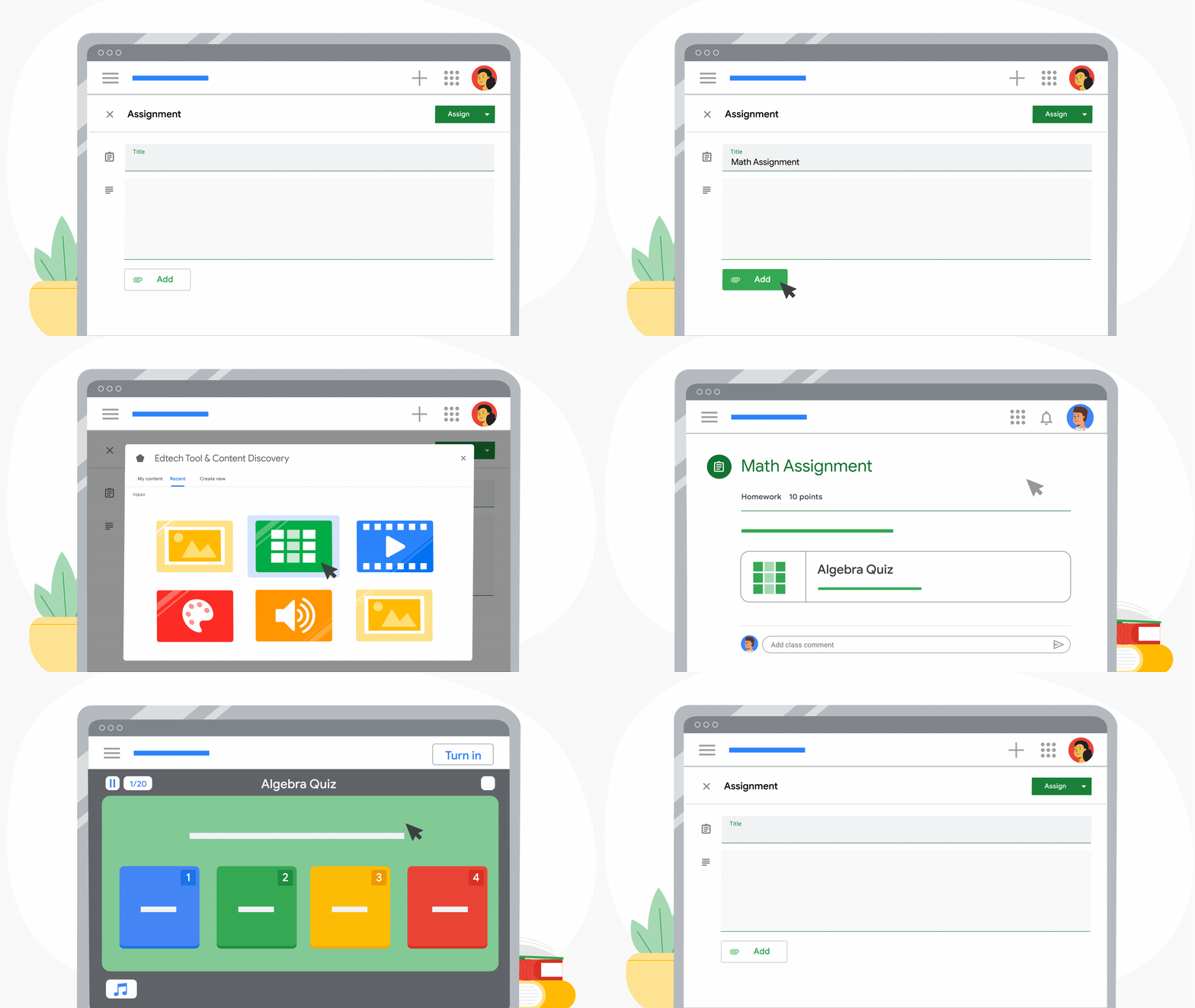
    1. Use your favourite EdTech tools and content with Classroom (coming later this year) – teachers using Google Workspace for Education Plus or Teaching and Learning Upgrade, Classroom add-ons will let them choose their favourite EdTech tools and content from a marketplace and assign it to students directly inside Classroom – all without extra log-ins. Admins will also be able to install add-ons for teachers in their domains.
    2. Set up classes in advance with SIS roster syncing (coming later this year) – Provisioning classes for an entire school system can be time-consuming. Later this year, admins using Education Plus will be able to create classes and populate and sync rosters directly to Classroom from their Student Information System (SIS).
    3. Streamline grade entry (coming later this year) – Grade Export, which is available to eligible Skyward and Infinite Campus customers, is coming to Aspen SIS. This will allow teachers to track grades and push them from Classroom’s Gradebook to their SIS, eliminating the need to put grades in two places.

    This is for you, admins

    1. Get deeper insights with Classroom audit logs (coming soon) – With audit logs, admins can get to the root of Classroom-related issues and pinpoint instigating events, such as who removed a student from a class or archived a class on a specific date. Classroom audit information will soon be available directly in the Admin Console.
    2. Analyse Classroom activity logs (coming soon) – Admins using Education Standard or Education Plus can soon get deeper insights about Classroom adoption and engagement. Admins will be able to easily schedule exports of Classroom audit logs to BigQuery, where they can get adoption and engagement insights. We’re also building a customisable Data Studio template to help admins visualise Classroom data.

    A better hybrid learning environment for teachers and students

    1. Track student engagement (coming later this year) – To give teachers visibility into which students are engaged and which are falling behind, we’re launching student engagement tracking. Educators will be able to see relevant stats about how students interact with Classroom, such as which students submitted an assignment or commented on a post on a particular day.
    2. Keep learning happening while offline (coming later this year) – We’re updating the Classroom Android app to work offline or with intermittent connections. Students will be able to start their work offline, review assignments, open Drive attachments, and write assignments in Google Docs – all without an internet connection.
    3. Submit better pictures of homework (coming later this year) – We’ve seen an increase in the number of images uploaded to Classroom – especially from students taking photos of paper assignments. We’re making it easier to attach and submit photos in the Classroom Android app and for teachers to review. Students will be able to combine photos into a single document, crop or rotate images, and adjust the lighting.

    A simple workflow for educators

    1. Improved grading on mobile (coming later this year) – More teachers are using mobile devices to give feedback on the go. We’re improving how you use Classroom to grade on Android, including the ability to switch between student submissions, grade while viewing an assignment, and share feedback.
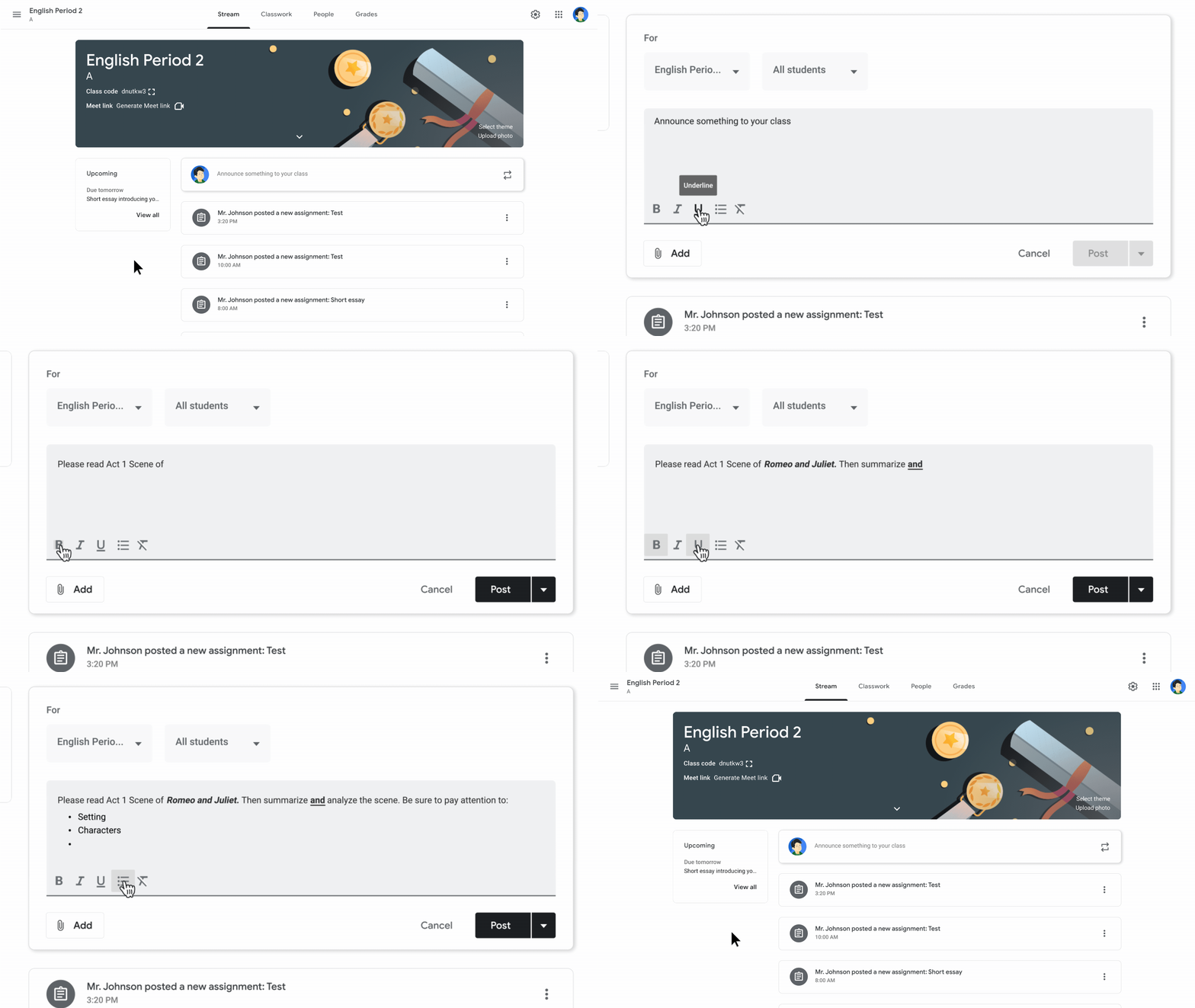
    2. Rich text formatting (coming soon) – Teachers and students (on web, iOS and Android) will soon be able to customise Classroom assignments and posts using rich text formatting – including bold, italics, underline and bullets.
    3. Originality reports in new languages (coming soon) – Originality reports help students turn in their best work, while making it easy for instructors to detect potential plagiarism. Soon they’ll be available in 15 languages including English, Spanish, Portuguese, Norwegian, Swedish, French, Italian, Indonesian, Japanese, Finnish, German, Korean and Danish, Malay and Hindi.
    4. CS First integration (now available) – CS First is our free, introductory computer science curriculum. You can now import student rosters from Classroom into a new CS First class and students can sign in using a Google account.
  • Selecting the right Chromebook for your school, staff, and students

    Chromebooks aren’t like other laptops. They run Chrome OS, an operating system made by Google. With Chromebooks, educators and students can deepen classroom connections and foster more meaningful learning experiences, from anywhere, anytime. Read more on how you can find the right device for you, your students, and staff.

    Basic Classroom Use – Shared student devices
    – Web browsing
    – Email
    – Google Workspace or browser based classwork
    – Assignments and testing

    Learning Anywhere – Classroom and distance learning devices
    – Supports multiple browser tabs, Google Workspace, concurrently with video conferencing with 15+ participants

    Advanced Use – Teachers, staff, higher education, secondary school devices
    – Recommended for heavy workloads including content creation/editing, coding, running apps in virtualised environments
    – Supports heavy multitasking (large video calls with 15+ participants, multiple browser tabs, Google Workspace, external monitors/displays)

    Use our wayfinding guide

    In 2020 the pandemic changed the way schools use Chromebooks. To meet the existing, and new needs of our customers, Google developed a wayfinding guide to help their customers find the right Chromebook for their use case.

    1. Identify the primary use case, or how the device will be used.
    2. Map out the device specifications required for these use cases.
    3. Make recommendations for devices that meet these needs.
    4. Compare across the device ecosystem and find the right device.

    AUE: Auto update expiration – You can find information about Auto update expiration for your devices here. Devices listed on the following pages have AUE of 2026 or more.

    Connected devices – Devices with LTE/5G SKUs have been marked with an icon.

    Zero-touch enrollment – For the most updated list of devices enabled for zero-touch enrollment, reference here.

    Devices that support Parallels – The recommended hardware specifications for Parallels are available here. Devices eligible for Parallels is available to reference here.

    Supported peripheralsWorks With Chromebook is a peripherals certification program ensuring compatibility across all makes of Chromebook devices. Here is the list of certified peripherals across various categories including Headsets, webcams, mice, external storage, cables & adapters, wall chargers and others.

    New features to get things done fast

    Quicker access to what’s important

    The new Screen Capture tool in your Quick Settings menu lets you take precise screenshots and screen recordings without needing to remember keyboard shortcuts. Your media controls are also now built directly into the Quick Settings menu, so you’ll always know where to go to play, pause or skip to the next song that you’re playing from the web or an Android app.

  • How interactive learning will shape the classrooms of the future

    The competition for students’ wandering attention is steeper than ever. Snapchatting has replaced note passing, and push notifications distract from even the most interesting lessons. For most students, mobile phones and electronic devices are the centre of their budding universe.

    But that can actually work to a teacher’s advantage.

    The classrooms of tomorrow embrace tech, using a variety of device-supported, interactive learning methods to fully engage students in the material.

    What is interactive learning?

    According to Australia National University, “Interactive learning is a hands-on/real life approach to education founded upon building student engagement through guided social interaction.” It’s designed to create a “challenging but encouraging space for students to wrestle with novel concepts and develop practical skills.”

    Here’s what future classrooms might look like as interactive learning continues to evolve:

    Highly creative lesson plans

    In the past, dusty black and white chalkboards were the focal point of the classroom. (No wonder they couldn’t always hold our attention!)

    Today, educators who understand the value of interactive learning employ a variety of mixed media like gamified content, video clips, quizzes, polls and social media, to keep lessons interesting.

    Educators who understand the value of interactive learning employ a variety of mixed media.

    For more complex material, teachers may cycle through several different software systems or web applications, making previously resource-intensive lessons easier to complete.

    Interactive learning offers educators the ability to adapt and change lessons easily to accommodate different learning styles or simply to keep students engaged.

    Increased student engagement

    Interactive learning also promotes a culture of engagement. As students become more deeply invested in the material, their brains are less likely to succumb to distraction or shut off in the middle of a lesson.

    Some classrooms accomplish this with digital whiteboards, which help students conceptualise subjects like never before. Even complex or seemingly unreliable material transforms into an immersive learning experience.

    Even complex or seemingly unreliable material transforms into an immersive learning experience.

    Students may also be invited to more fully engaged with a lesson by inviting them to take more ownership in the learning process.

    For example, some classrooms provide students with screen recording software. This lets them share what’s on their laptop or tablet and ask the rest of the class questions about a particular passage or concept. In this way, engagement becomes contagious as other students take part in the conversation and offer their insights.

    Better communication

    It’s these conversations that foster better communication among students. Tomorrow’s classrooms encourage students to take their conversations and collaborations online. In doing so, they learn ways to work with remote and in-person teams and better communicate their ideas and plans.

    Specifically, social media has been used to fuel communication through lessons using:

    • Facebook Groups: These discussion forums make it easy for students to respond to teacher prompts while encouraging them to interact with other student posts. Collective comments can be monitored by teachers, making it easy for them to address any emerging themes or questions.
    • Twitter Hashtags: Unique hashtags can be used to lead and facilitate group discussions pre- or post-lesson. Twitter feeds help students feel more invested in the class’ proposed questions or ideas, allowing them to respond to other discussions taking place among the group.

    It’s also an ideal learning experience for students who struggle with sociability. Suddenly, instead of being too shy to participate, introverted learners can interact and communicate with classmates from the comfort of their devices.

    Introverted learners can interact and communicate with classmates from the comfort of their devices.

    Students may also use video conferencing technology to communicate and collaborate with peers anywhere in the world, making them more culturally competent, global learners.

    More independent learners

    Most classrooms contain students of various abilities and aptitudes. Interactive learning makes it easy for teachers to slow down or speed up lessons based on a student’s individual interest level and learning style.

    This is especially impactful for students who may outpace the rest of the class.

    Teachers could easily push additional resources out to the mobile phones, laptops or tablets of accelerated learners. They can then view these while waiting for their classmates to complete an in-class assignment, or after the school day. Either way, it encourages independent study of subjects that feel the most interesting.

    Tech-savvy students

    Whether using Twitter to report about an event in real-time or exercising safe search practices to identify reputable sites from unreliable ones, interactive learning increases the technology competent student body.

    Students are also likely to master a variety of software applications and devices in the process.

    According to Larry Bernstein at EdTech magazine, here are tech tools students in one Cambridge International study say they use:

    • 48% use desktop computers
    • 42% use smartphones
    • 33% use interactive whiteboards
    • 20% use tablets

    Many interactive learning strategies rely on the latest technology, ensuring students get daily, hands-on practice with the tech most likely to follow them into the workforce.

    Exactly how interactive learning will shape the classrooms of the future is still coming into focus. For now, we see clearly that interactive learning strategies are transforming devices once thought of as distracting into active partners during the learning day. As technology continues to evolve, so will these interactive learning environments, transforming student futures well beyond graduation day.

  • Devices Designed for all Learners

    Every student deserves a quality education, with the tools they need to explore, discover, create and achieve their full potential. Chromebooks help extend and expand the modern learning experience to more students, including those with disabilities and diverse approaches to learning.

    In classrooms around the world, Chromebooks are connecting students to the information they need, in the way they need to experience it, with the tools they need to do their best work.

    https://www.youtube.com/embed/G8aztCnvv7U?feature=oembed

    Enhance visual clarity

    Make on-screen content easier to see and read with a few keystrokes or clicks of the mouse.

    Increase size of all items:

    Enlarge all on-screen text and visuals, and easily revert back if necessary.

    Screen magnifier:

    Turn on the built-in screen magnifiers to automatically enlarge on-screen content every time you log in.

    Screen reader:

    Make on-screen content audio-accessible with synthesised speech.

    Adjust mouse cursor size:

    Enlarge the mouse cursor so it’s easier to see as you’re working.

    High-contrast mode:

    Invert screen and text colours for sharper contrast and easier reading.

    Highlight cursor and text:

    Make the mouse cursor, keyboard-focused item, or text insertion point easier to spot with coloured circles that fade after a second to avoid distraction.

    Select-to-speak:

    Select specific content to hear it out loud, in synthesised speech, to aid comprehension.

    Braille support:

    Attach a compatible USB or Bluetooth refreshable Braille display so teachers and technicians can work with visually impaired users.

    HEARING

    Adjust audio preferences and view closed captions

    Help someone who is deaf or hard of hearing access information from audio- and video-based content.

    Mono audio:

    Play the same sound through both speakers for users who are deaf or hard of hearing in one ear.

    Closed captioning:

    Access closed captioning for videos that meet the latest standards.

    MOTOR

    Give students options for entering information

    Empower students who might have difficulty using a standard keyboard.

    On-screen keyboard:

    Type using a touchscreen or mouse, or use handwriting or dictation to enter information on the screen.

    Touchpad settings:

    Customise touchpad settings to enable automatic clicks, tap dragging or tap to click functionality.

    Physical keyboard settings:

    Tailor keyboard settings to adjust the keyboard repeat rate and the delay time before a key repeats to aid accurate typing.

    Sticky keys:

    Perform keyboard shortcuts by pressing only one key at a time instead of holding down multiple keys at once.


    How to turn on Chromebook accessibility features

    You can make your Chromebook easier to use by turning on accessibility features that work best for your needs.

    1. At the bottom right of your Chromebook, select the time. Or press Alt + Shift + s.
    2. Select Settings.
    3. At the bottom, select Advanced.
    4. In the “Accessibility” section, select Manage accessibility features.
    5. Choose the accessibility features you’d like to use

    Case Study

    Creating an “accessibility for all” culture in classrooms through technology

    Product Image

    Accessibility is no longer considered a benefit for just a few pupils with defined disabilities. Educators are realising the value of an “accessibility for all” approach, where all students use the same tools with accessibility features. Students with additional support needs aren’t singled out, while their peers see benefits through access to new learning tools. Learn more

  • 5-Step Data Recovery Plan for Schools

    5-Step Data Recovery Plan for Schools

    While big data continues to revolutionise the business world, schools are collecting and storing more personal data than ever before, especially when 1:1 learning enters the mix. This comes with the responsibility to protect that data in the event of a network malfunction or security breach and requires the capability to recover lost data in such a circumstance.

    It’s imperative that schools have a data recovery plan that defines how data will be managed and protected, and how it will be recovered in the event of an IT disaster. This is especially important as local and global privacy regulations – like the EU’s General Data Protection Regulation – impose additional responsibilities (and penalties) on organisations that handle personal data (like educational records).

    Step 1: Identify and classify data

    You must first understand what data the school holds and where it is stored. Then you can classify it into categories that are ranked in order of importance. You need to understand which data is critical to the operation of the school, and which data is most sensitive to outside eyes.

    Step 2: Audit your backup process

    How is the school currently backing up its data? You should have formal data backup procedures that set out whether your data is backed up to a cloud storage service or to an external server. Data backups should be carried out frequently and follow a regular schedule.

    Step 3: Assess the risks

    To properly protect your data, you must identify and understand the key threats to it. This could include software or hardware malfunctions, physical damage to your data servers, misuse by unauthorised users, and malicious viruses and malware. You should also consider how a network or power outage may affect your stored data. Additionally, it’s important to consider what risk factors 1:1 learning may bring to the table, whether it’s lost devices or insecure networks.

    Step 4: Reach out to your technology vendors

    Your technology vendors can often help with your data recovery plan. Cloud-based administration software and data backup and storage services, for example, will often have built-in data security, protection and backup features in place. Speak to your vendors to clarify how they manage your data, and whether they can assist in protecting it against the risks you’ve identified.

    Step 5: Implement recovery strategies

    In the event of a major malfunction, network outage or cyberattack, taking fast, decisive action is the key to minimising data loss and maximising your data recovery efforts. For every threat you’ve set out, create a series of steps that need to be followed to neutralise the event and recover the lost data. This document should be shared with all relevant employees of the school to ensure all parties understand their role when disaster strikes.

    In the digital age, all organisations – including schools – are powered by data. That data helps schools deliver the best possible student outcomes, but it also comes with the responsibility to protect sensitive information from misuse. A strong data recovery plan is the most effective way to achieve this and ensure your collected data is restricted to its intended use.

  • How Technology and Training Can Help Ensure School Safety

    A Safe Learning Environment Ensured by IT Admins

    The importance of student and teacher safety in a school is immense – and no one feels that responsibility quite like IT admins. As guardians of school technology infrastructure, IT admins are responsible for implementing solutions to ensure a safe learning environment.

    Not only are they responsible for finding the right technology to keep their school safe, but they’re also tasked with training both students and teachers on best practices to avoid a digital attack.

    As more IT admins learn the many benefits of Google for Education and Chromebooks within the education sector, there’s been a mass shift away from Apple and Microsoft devices and toward Google.

    Schools Are Choosing Google for Education

    Fife Council Chooses Chromebooks for 53,000 Students

    Here’s an example of how hundreds of schools in Scotland updated their device to improve the overall experience for teachers and students and create a safe and secure learning environment.

    Schools within Scotland’s Fife Council – which makes up 140 primary and 18 secondary schools with more than 53,000 students – saw an opportunity to improve their school’s education experience by updating their devices.

    After nearly a decade of using Microsoft Office 365, they decided to reassess what had worked and what hadn’t and make plans for future technology adoptions.

    ChromeOS became a clear favourite for the school as they determined their need for a cloud approach that could easily be managed, and they were able to achieve a 1:1 deployment for students from year 3 and older.

    These schools are just one example of the move toward a more Google-focused edtech environment in UK schools.

    Keeping Schools Safe Against Unwanted Attacks with ChromeOS

    IT admins in schools worldwide prefer ChromeOS due to its strong defence against ransomware, built-in security features, and overall user experience. The cloud-based operating system has been proven to be a reliable and secure solution for managing and protecting school devices.

    With ZERO reported ransomware attacks on ChromeOS ever, there’s a reason it is the preferred technology for schools around the world. ChromeOS provides the best defence against ransomware and has significantly fewer vulnerabilities than Windows.

    Vulnerabilities Experienced

    Here’s a look at the breakdown of vulnerabilities experienced by each operating system from 2010-2019:

    • Windows 7 experienced 1,333 vulnerabilities
    • Windows 10 experienced 1,197 vulnerabilities
    • ChromeOS experienced 45 vulnerabilities

    Features to Give IT Admins More Control

    What Makes ChromeOS So Much More Secure?

    There are a number of built-in features, including the fact that the operating system does not allow installed apps and extensions to modify it.

    Sandboxing isolates any attack to a limited surface, while Verified Boot prevents boot up of tampered devices. Finally, a low on-device footprint means fewer data at risk of attack, which allows schools to focus their attention on improving the education experience instead of focusing on security.

    Chrome Education Upgrade is a great option for unleashing the capabilities of ChromeOS and ChromeOS Flex. By enhancing management, security, and support capabilities, Chrome Education Upgrade empowers IT to create safer learning environments for teachers and students.

    Relieve Some Pressure on IT Admins

    IT admins face a constant balance of enabling educators to have access to the apps they need, but also ensuring that those apps are safe and secure.

    To take some of the pressure off of IT admins, Google is now adding app badges so that admins can evaluate important info like app usage, user reviews, and developer information directly within the Admin Console.

    Admins are also now able to control app access based on context – ie, they can identify if an app complies with an IT policy or if they’re connected to the school wifi.

    Get the Latest on Safer Digital Learning With Google

    To keep IT leaders up to speed on the latest security best practices and prepared to keep teachers and students safe online, Google created an on-demand virtual event available at no cost. The 45-minute sessions include demonstrations of key-use cases across Google Workspace for Education and ChromeOS, including features like Alert Centre, Investigation tool, Data Loss Prevention, and Verified Boot.

    Watch the On-Demand Sessions Now