27 years of trusted school IT support across Hertfordshire and Buckinghamshire

Author: admin

  • Google Meet

    Google Meet is a video conferencing tool which will enable you to host online meetings between your colleagues, parents and pupils. If your school uses Office365, please see our post on Microsoft Teams.

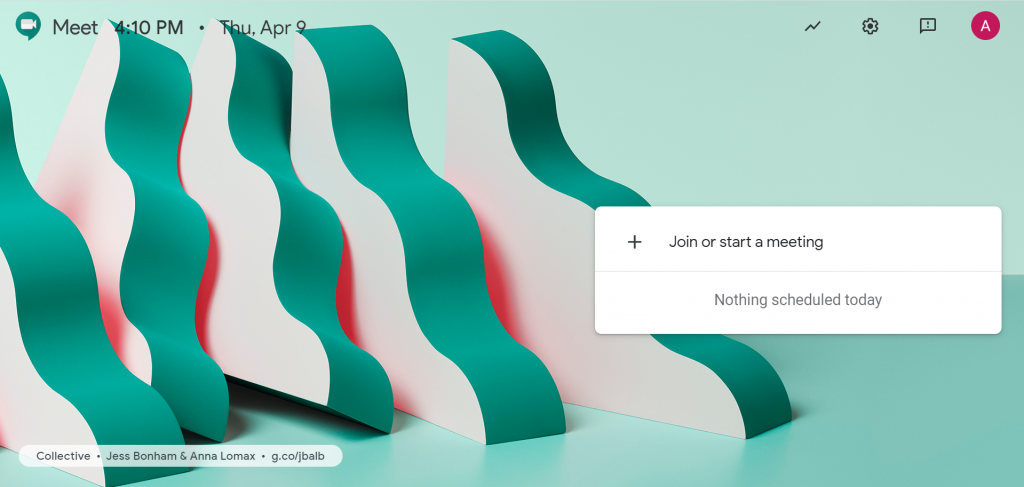
    When you sign into Google Meet with your Google For Education account, you will see this screen:

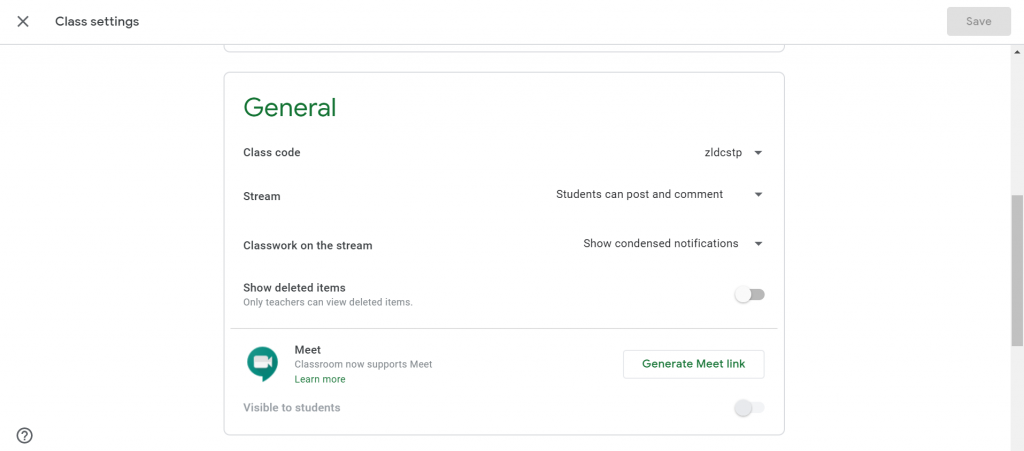
    From here, you can either join a meeting, using a meeting code, or you can start a new meeting for others to join. It will ask you to name the meeting and then will give you an access code, which you can share with others. you can also email users to invite them to join the meeting. When other people access the site, they can either click the invite link, or join the meeting with the appropriate code. Also, until September 30th, you can create a meeting link from your Google Classroom. Go to your Class Settings and then choose “Generate Meet link” from the settings menu.
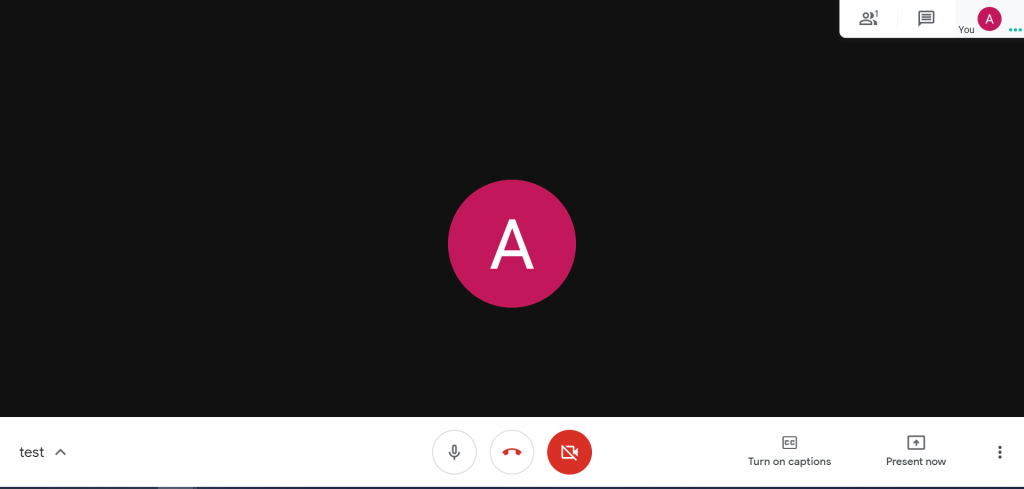
    Using the controls at the bottom of the screen, you can mute or un-mute your microphone, end the meeting, turn your camera on or off, turn on captioning, or present content.

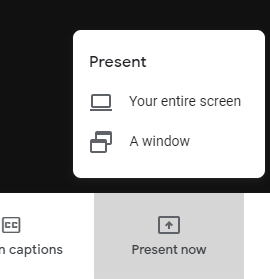
    Choosing “Present Now” will show you a menu, from which you can choose to share an entire screen, or a single application. The difference being that when you change between different applications, meeting attendees will see this when you share your screen, but not when you only share a window.

    Something helpful to note, is that if you add the meeting link to the “Conferencing” section when you create an event in Google Calendar, you can make the meeting a recurring event and the link will remain the same each time.

  • Microsoft Teams

    Microsoft Teams is an online platform which can be used to facilitate communication (including video conferencing) within your school. If your school uses Google’s G-Suite, please see our guide on Google Meet.

    On this platform, you can work directly with other people, or organise your school into teams. A team might be a class, a group of staff, or any other way you might like to categorise the people who use the platform. Please note, that one person can be a member of many teams, so a teacher might be part of a class team and a teaching staff team.
    Simply log into Teams using your Office 365 email account to start accessing and communicating with your school.

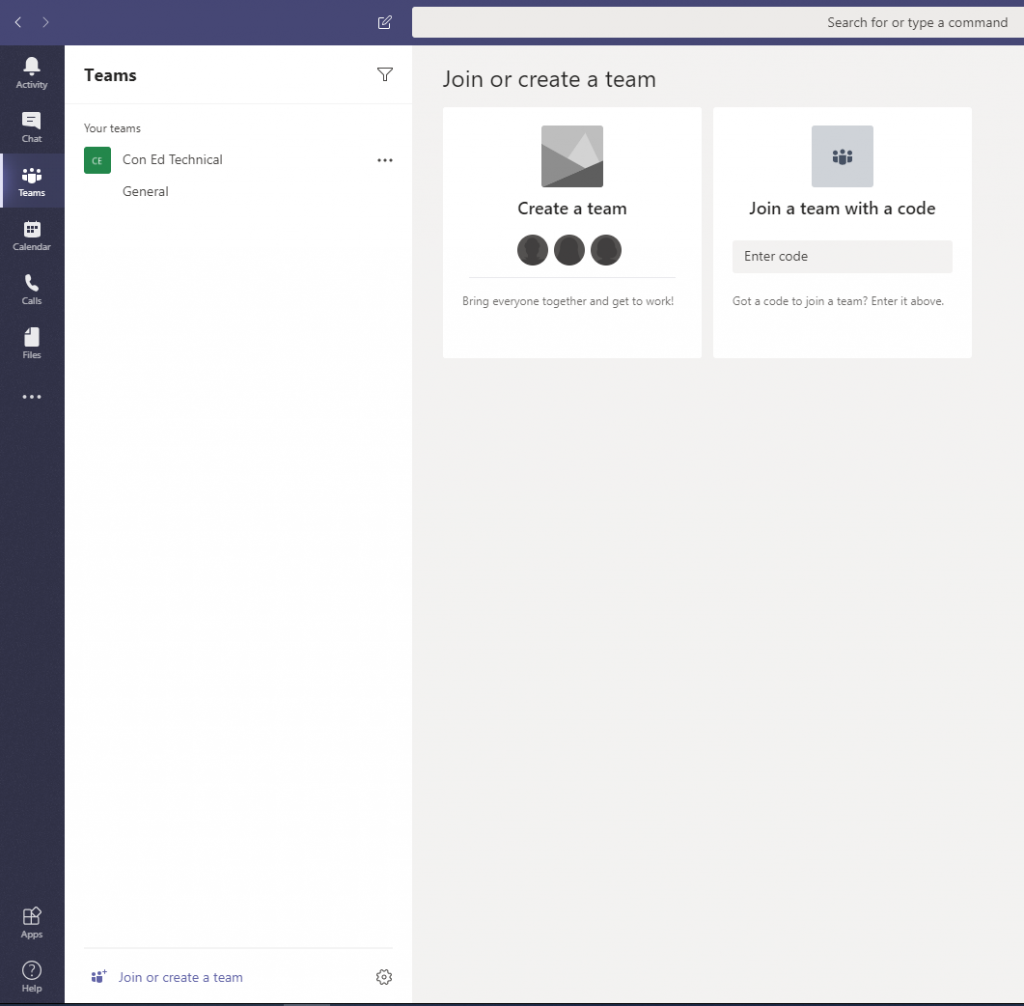
    To create a new team, select “Teams” from the panel on the left. At the bottom on the panel that opens up, you can click on “Join or create a team” to start making a new team.

    If you have an existing Office 365 group, you can turn it into a team by selecting “Create from…” and then “Office 365 group”. Otherwise, choose “Build a team from scratch”. Choose “Private” if you intend to invite people to the team, or choose “Public” if anyone in your school should be able to find and join the team.

    Now that you have a team set up, you can create meetings for them to join, share files, or start a team conversation. To schedule a meeting, go to “Calendar” and choose “New Meeting”. You can invite people to the meeting individually, or you can find the team in the “Add Channel” section to make the meeting accessible to the whole team. When users/groups are added as attendees to the meeting, they will receive an email notification with an invitation link.

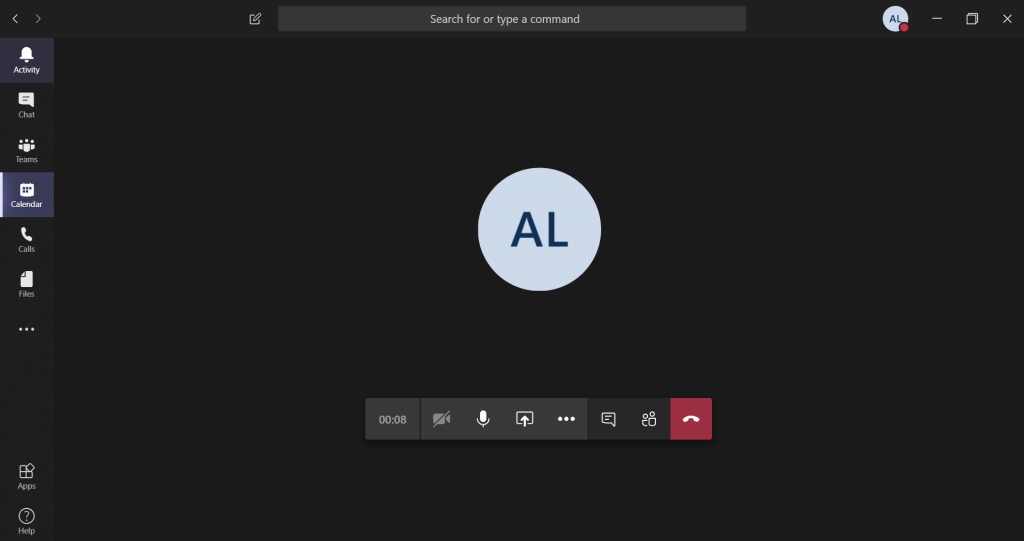
    Once you are in the meeting, you will see this screen:

    When other people join the meeting, you will be able to see them in the People pane. Using the controls on the bottom of the screen, you can turn your video on and off, mute and un-mute your microphone, share content and start a text conversation.

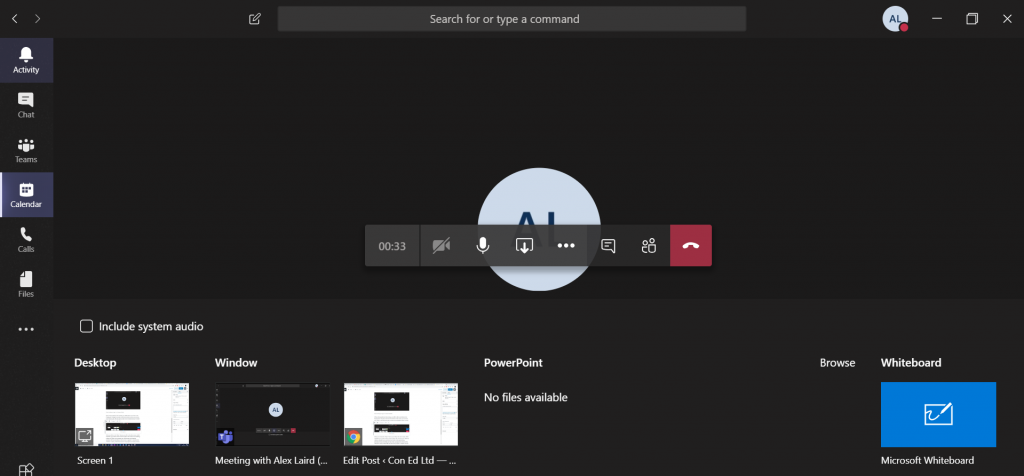
    When you click on the “Share” button, you will see the above menu, which will allow you to select which content to share. The screens in the “Desktop” column, will allow you to present your whole screen, and meeting attendees will see everything on that screen, as opposed to screens in the “Window” column, which will only show one program or window, even if you switch to a different one on your computer. Next is PowerPoint, where you can present an open presentation, or browse for one to open. Finally is Whiteboard, a collaborative screen, where you can write or draw freehand.

  • Remote Desktop For Mac

    Note: If you remain connected but not active, the session will disconnect after 1 hour. Your account will then be logged out after 3 hours. Please Save, close and logout when you are finished with the remote session. Leaving your session connected will take up unnecessary resources on the server.

    For connecting via a Windows machine, please see our Windows Guide

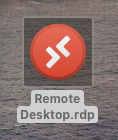
    This is what your Remote Desktop file would look like (The Icon may look different, please keep reading). This can be used from any Mac that meets the requirements (Personal or Work) to connect to the school’s server.

    MacOS Version Requirements

    Your Mac must be relatively up-to-date using version MacOS 10.12 or later,
    To check your version, click the Apple Logo in the top left, and select “About this Mac”, the new window will display the version.
    You can then click “Software Update…” to install updates if needed/found. (An update could take between 10-45 minutes, depending on which update, not including download time)

    Please make sure the following application is installed from the app store: https://apps.apple.com/gb/app/microsoft-remote-desktop-10/id1295203466?mt=12

    Connecting

    The app above is needed to launch the Remote Desktop connection. Once installed go back to where you saved this file and run. The icon may have changed and It should attempt to open in the “Microsoft Remote Desktop 10” app.

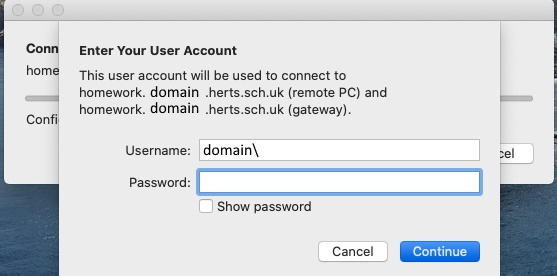
    If you double click to run the shortcut, you will be prompted with this message.
    (Domain would be replaced with the domain relevant to your school)

    Enter your computer login details that are used when in school.

    Do not delete the “Domain\” section.

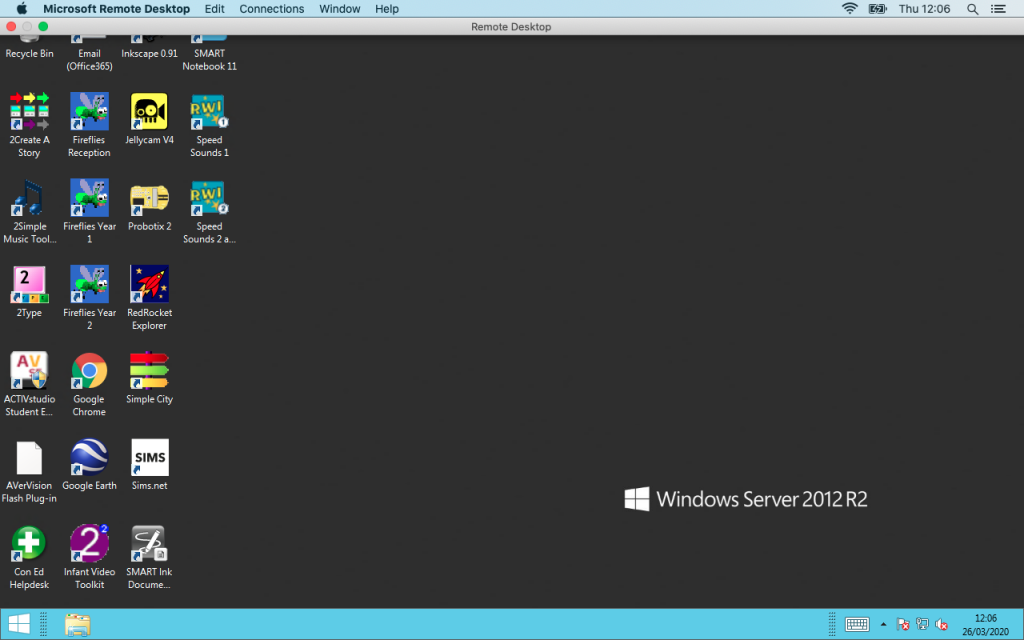
    Once logged in, you will have a window similar to the one below.

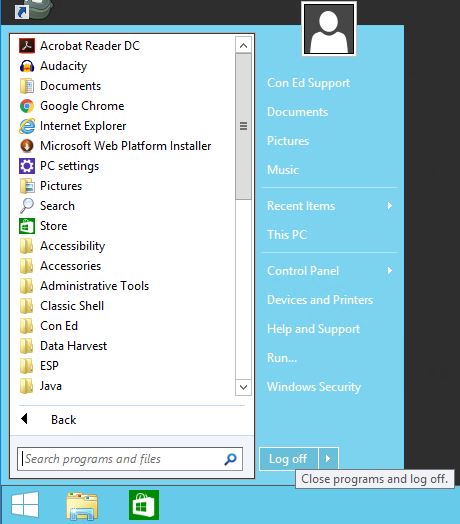
    You can then logoff as normal from the start menu.

    Extended Guide If having Difficulties

    If your having trouble logging in or if the screen is not fitting correctly once connected. Please follow these steps to change the parameters of the remote desktop shortcut.

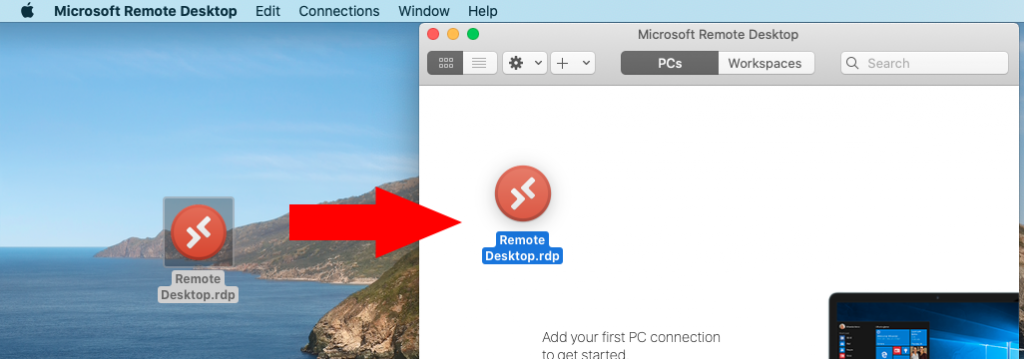
    Launch the Remote Desktop 10 app and drag the RDS shortcut into the app window.

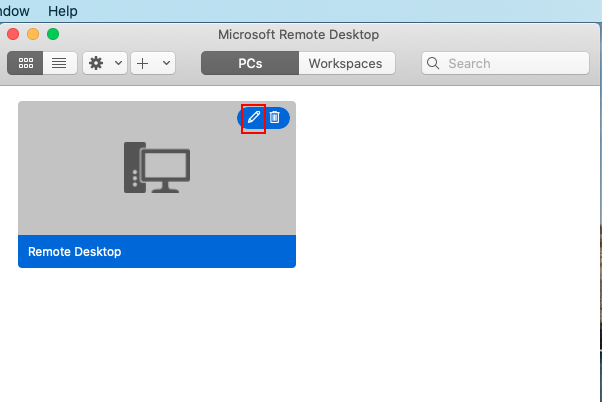
    It will come up like this, please select the “Pencil” icon to edit the settings.

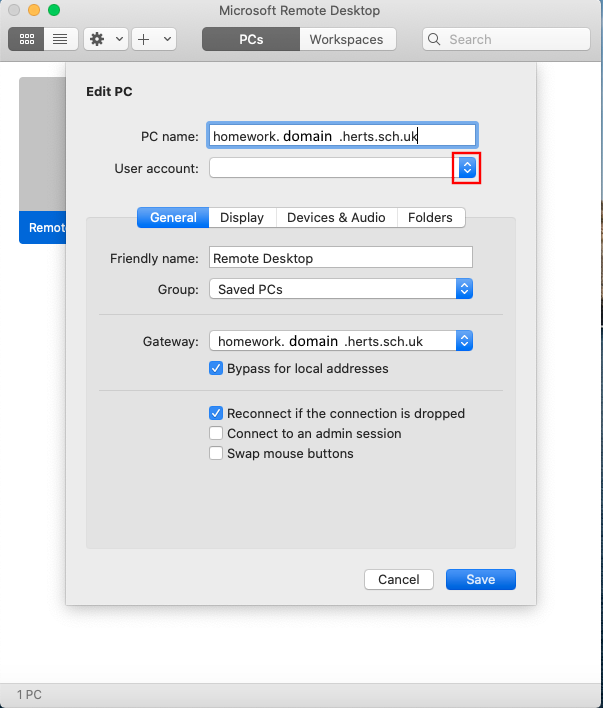
    Select the highlighted button to add your computer login details.

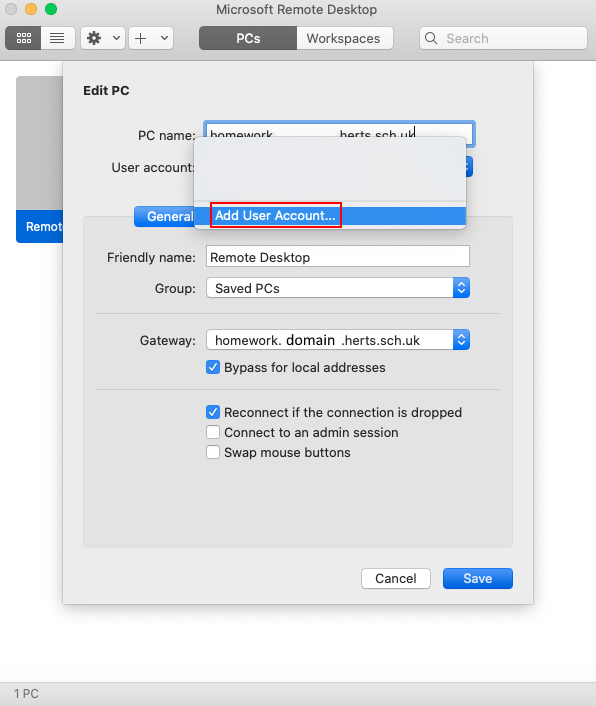
    Add a new user account.

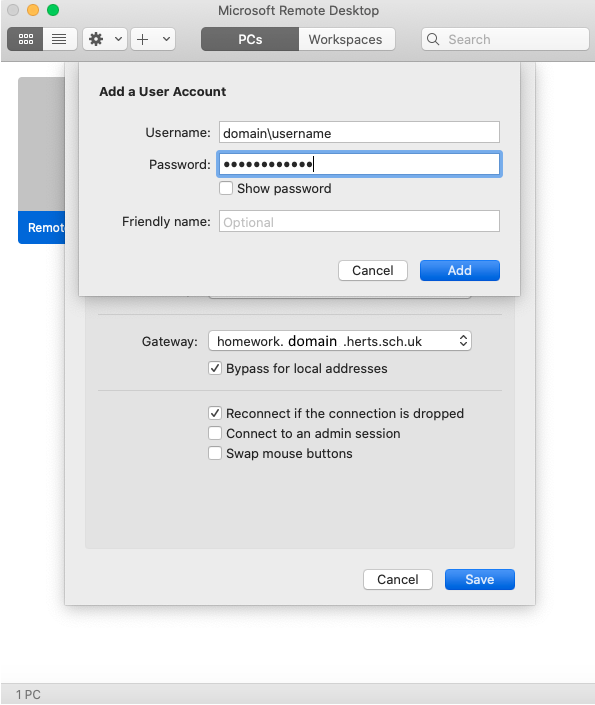
    Enter your login details that you would use on the computers in school. (domain can be found by double clicking on the shortcut and checking the wording before the “\” symbol).

    Display Settings

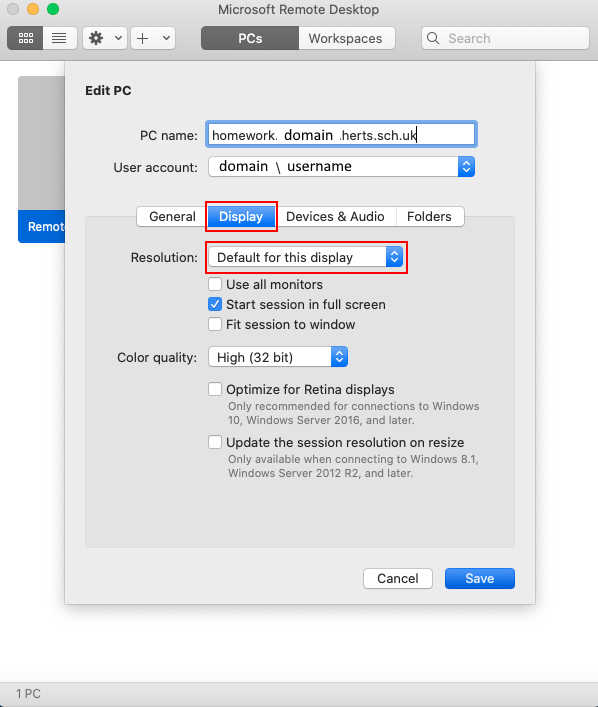
    Any trouble with the screen size, select the “Display” tab in the edit settings and select “Default for this display

    Further issues would need to be logged on our Helpdesk.

    Thank you for Reading.

  • Remote Desktop Guide

    Remote Desktop Guide

    Note: If you remain connected but not active, the session will disconnect after 1 hour. Your account will then be logged out after 3 hours. Please save, close and logout when you are finished with the remote session. Leaving your session connected will take up unnecessary resources on the server.

    This is what your Remote Desktop file would look like. This can be used from any windows computer (Personal or Work) to connect to the school’s server. For connecting via a Mac, please see our Mac Guide.

    Please speak to your ICT Coordinator regarding remote access at your school.

    To get started, double-click the shortcut for your school’s remote server.

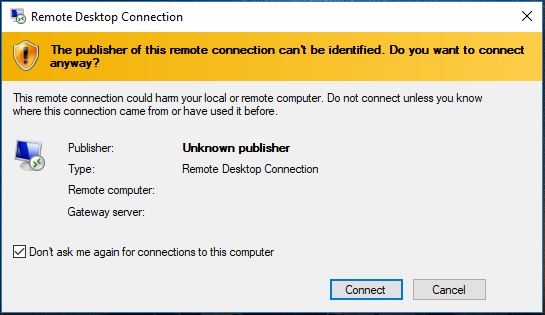
    This is a security Pop to confirm you want to connect to the server.
    Fill the check box in the bottom left, to ignore the prompt in future.

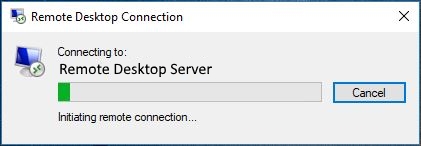
    Your machine is making a connection to the server.

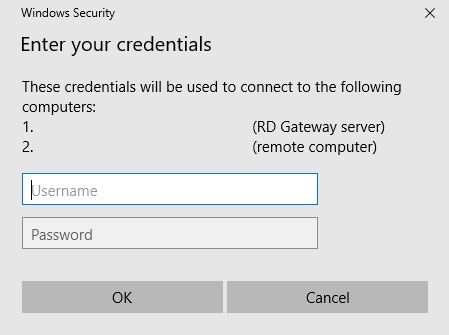
    Next enter your usual computer login information

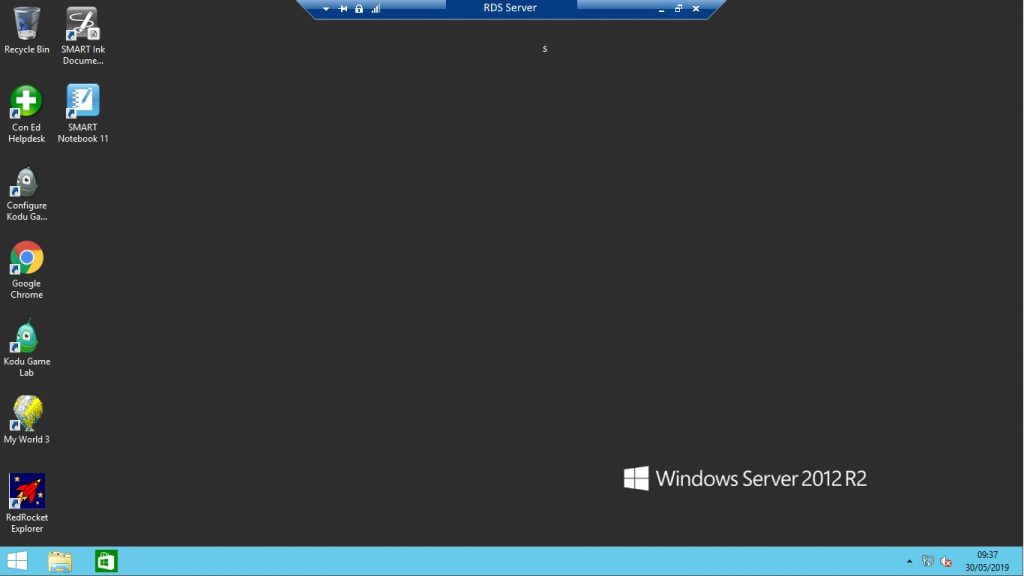
    A new window should appear and you are now connected on the RDS Server.

    At anytime you need to go back onto your own machine, move the mouse cursor to the top of the screen, to get the blue bar, you can then select the Minimise option, 3rd option from the right. Clicking the “X” will disconnect the session but will leave it with all applications still open and logged in.
    When reconnected it will bring it back up.

    To disconnect from the server, you just need to log out as normal, click on the “Start” menu in the bottom left and choose “log off”. The connection will begin to terminate and closed, going back to your personal desktop.

    [← Previous post]

  • Guide to Common iPad Tasks and Problems

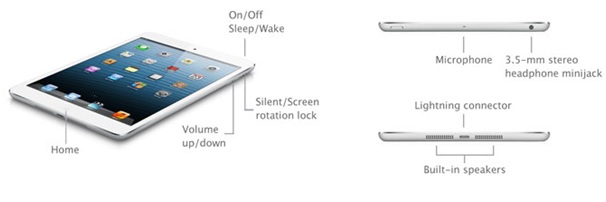
    Button Layout:

    layout

    Multi-Tasking:

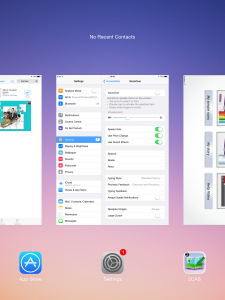
    Placing four fingers on the screen and pushing up will bring up the multi-tasking menu. (Can also be accessed by double tapping the home button). From here you can see all apps that are currently running in the background.

    To close one of these apps, simply swipe it up off the screen.

    No Internet?:

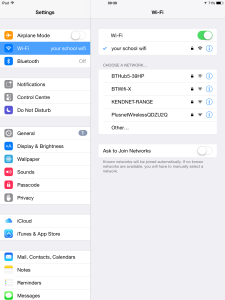
    If the internet on an iPad is not working, go to: settings > Wi-Fi, and make sure you are connected to your schools network. If the iPad is connected but there is no internet access then click on the small blue exclamation mark next to your connected network and scroll down to ‘HTTP Proxy’. This needs to be set to ‘Manual’ and have the address as ‘wf3.thegrid.org.uk’ port: 80. after this has been entered, click back to save.

    Purchasing new App’s:

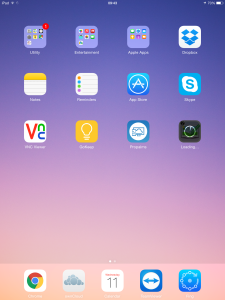
    Select ‘App Store’ from the iPads home screen and search for the app you require, either by category or via the search bar in the top left. You will need to enter your schools Apple I.D and password to download any apps.

    Once an App has been set to download it will appear on the home screen and display a progress bar.

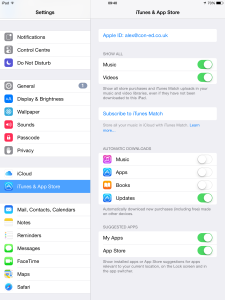
    To make sure that the app you downloaded is automatically set to download on all apps in your school, you must make sure that App Updates is turned on in the settings of all iPads. This is accessed by going to: Settings > iTunes and App Store > Automatic Downloads > Updates.

    Moving and Deleting Apps:

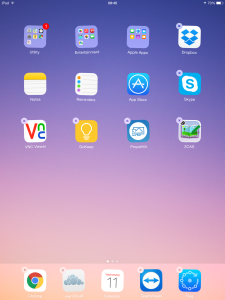
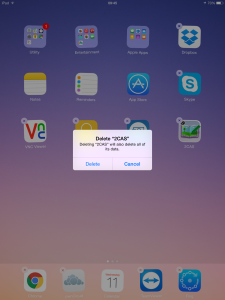
    By tapping and holding for a few seconds on any app on the iPads home screen, the device will enter edit mode. Apps on the home screen will shake slightly and small ‘X’s will appear at their corners. Tapping and dragging on an app will allow you to move it somewhere else on the home screen or by holding it near the edge of the screen you can move it to another page. Apps can be stacked to create folders.

    To delete an App simply tap the ‘X’ and click delete.

    Syncing With iTunes:

    The best way to keep all your iPads up to date with the latest downloaded apps is to sync them with iTunes. This can be done by either plugging each iPad into your schools iTunes master machine or, if you have a iPad trolley you can plug them all in at once.

    When plugging an iPad into iTunes for the first time a message will appear on the iPad asking if you wish to trust this computer. Click yes to this and the iPad will then be displayed in the list of connected devices.

    iTunes should sync automatically, however, if you wish to manually start a sync click on an iPad listed in the connected devices and click on ‘Sync’ in the bottom left hand corner.

    iPad in Recovery Mode:

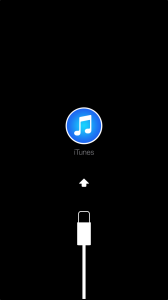
    If you find an iPad is stuck in recovery mode (shown below) with the connect to iTunes screen follow these steps to recover:

    • Connect the iPad to iTunes and it will be detected as being in recovery mode.
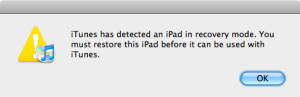
    • Click OK on the pop up message and navigate to the locked device listed in the attached devices menu.
    • From here click on ‘Restore’
    • iTunes will now download an update for your iPad and restore it to previous settings. When complete the device will reboot.

    connect_to_itunes

    recovery mode msg

  • Introduction to Google Sketch Up

    What is Google Sketch Up?

    Google Sketch Up is a 3D modelling computer program for applications such as architectural, interior design, civil and mechanical engineering, film, and video game design. A freeware version, Sketch Up Make, and a paid version with additional functionality, Sketch Up Pro, is available.

    How Do I Use Sketch Up?

    There are a lot of 3D software packages around but Sketch Up is defiantly one of the easiest to use.
    With a few simple clicks you can create surprisingly good looking 3D models with textures and set up a fly around camera shot to show it off.

    For this tutorial we are walking through creating a small house.

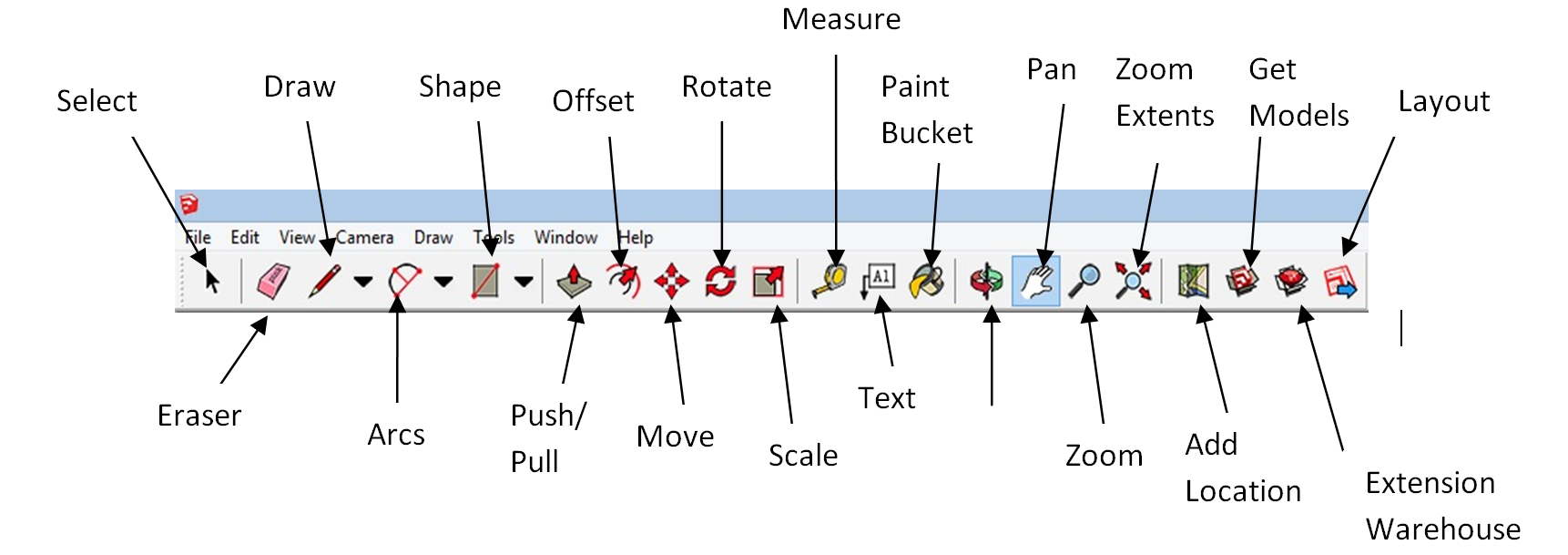
    Sketch Up Toolbar:

    toolbar big

    Creating a New Project:

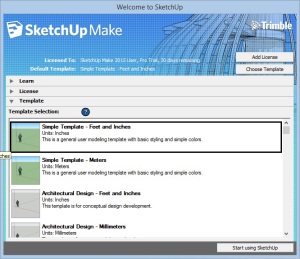
    When you first open Sketch Up you will be met with a welcome screen. From here you can access built in tutorials, Up-grade the software’s license or start a new project.
    Select a desired template from the list and hit ‘Start using Sketch Up’.

    sketch up start menu

    Creating the first structure:

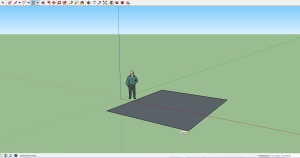
    Select the ‘Shapes’ tool from the tool bar and click and drag and square anywhere on the stage floor. This will be the floor of your house.
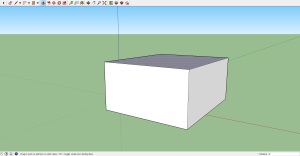
    Then select the Push/Pull too, Click anywhere on the inside of your square and drag upward to create a cube. When you feel the cube is tall enough release the mouse button to set the size.

    square

    extrude

    Adding a Doorway:

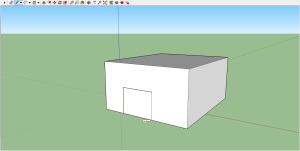
    You can create a simple doorway in two ways. Either by drawing a door onto the wall or by creating a cut-out and adding a solid door in later. For either option select the ‘Lines’ tool and draw a rectangle, starting and ending from the base of your house. Now you can draw more lines to add detail to the door or by choosing the select tool from the tool bar and clicking on the space inside the lines you just drew you can press the delete key to remove it.

    Draw

    Adding the roof and texture:

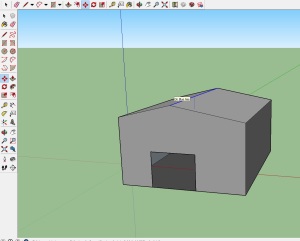
    to create a basic roof. Select the line tool and draw a line across the top of your house. Then, Using the Move tool, click and drag on the line to create a pointed roof shape.

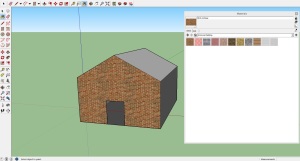
    Adding Colour and texture in Sketch Up is very easy. To start click the paint bucket tool. This will bring up a library of built in textures for you to use. Browse to the ‘Bricks’ folder and choose one of the options by left click on it. Now left click the front of your house to add the texture.

    Textures can be added to anything you create, from building’s and furniture to plants and cars.

    roof

    brick

    Adding 3D Text:

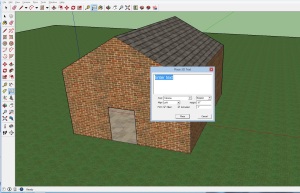
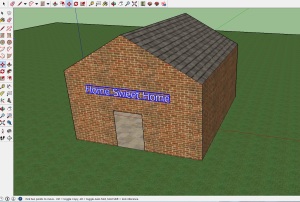
    You can create signs and labels using the 3D text tool. After selecting the tool, enter your desired text and click Okay. Now, by using the drag tool you can move the text anywhere you want. Using this I gave my house a name.

    Don’t forget, when typing your text you can change the formatting of it below the text box.

    creating text

    text on house

    Home Improvements:

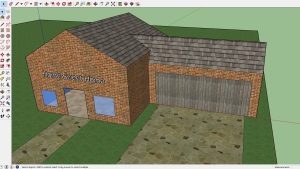
    Using only what’s been covered above I have improved my house with a garage, driveway and windows.
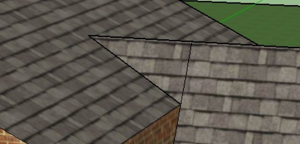
    The garage is just another cube with a roof except this time I need it to join in with my houses roof. By using the line tool I Connected the end of the garage with the middle of house and from there back down to the edge of the garage roof to create a triangle. When this was completed sketch up automatically filled the triangle, allowing me to add more roof texture.

    For the driveway I drew out two rectangle and added a stone slab texture.

    For windows I drew two squares, this time using the line tool and filled the space with a transparent blue glass texture.

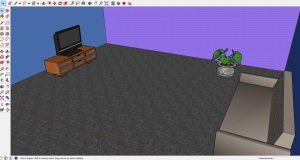
    Improved house

    roof edge

    Using the Asset Library:

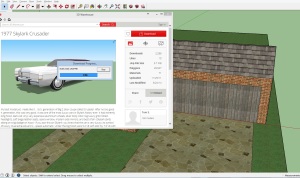
    The Sketch Up Asset Library contains thousands of models created by other people. these can be quickly downloaded and placed into your own Sketch Up projects to add some flair.

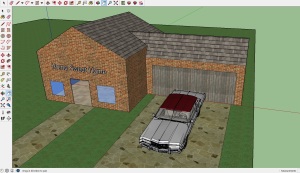
    No home is complete without a car so I found this 1977 Crusader and added it to my project simply by clicking the Download button in the Library.

    When you download a model from the library it will most likely first appear to be quite large or small. To change any models size, first select it and then click on the Scale tool. Now click on any of the corners of the selection box and drag to resize.

    asset store

    New car

    Don’t go forgetting the interior.

    interior

    Congratulations on building a simple house in Google Sketch Up! Using these simple processes you can create anything, from your own furniture and small objects to exterior decoration and large structures.

  • Introduction to Scratch Jr!

    What is Scratch Jr?
    Scratch Jr is an iPad app that a gives young children an introduction to programming.

    By snapping together graphical programming blocks, children can make characters move, jump, dance and sing. In the process, children learn to solve problems, design projects and express themselves creatively using the iPad.

    How do I get it?
    Scratch Jr can be downloaded for free on the Apple App Store.

    How do I use it?
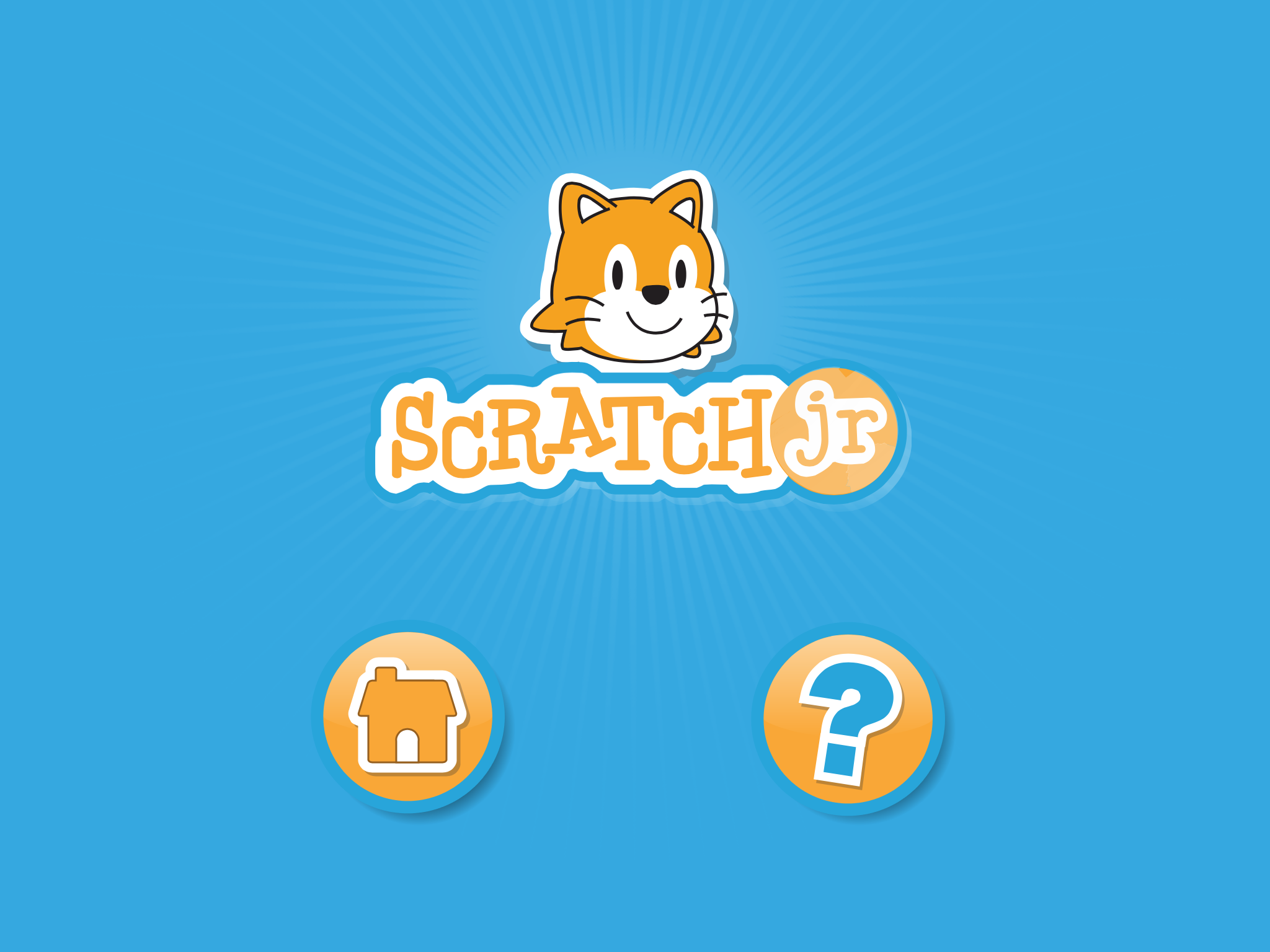
    Scratch Jr is very simple to use. When you start the app you will be presented with a home screen.

    splash screen

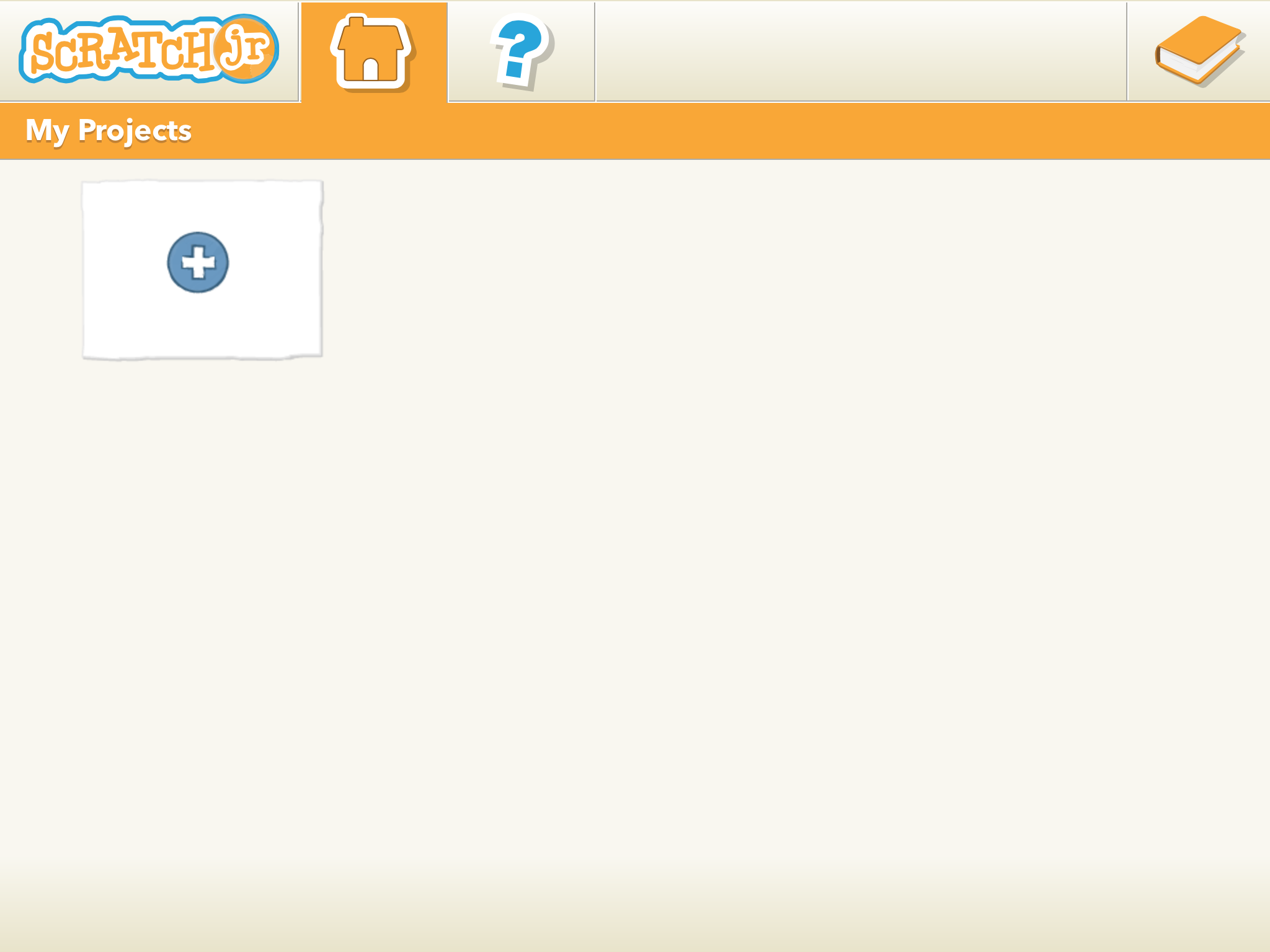
    Clicking the house icon will take you to ‘My Projects’ where you can start making you games and stories. Click the plus button to start a new project and you will see the main Scratch Jr creation window.

    new project

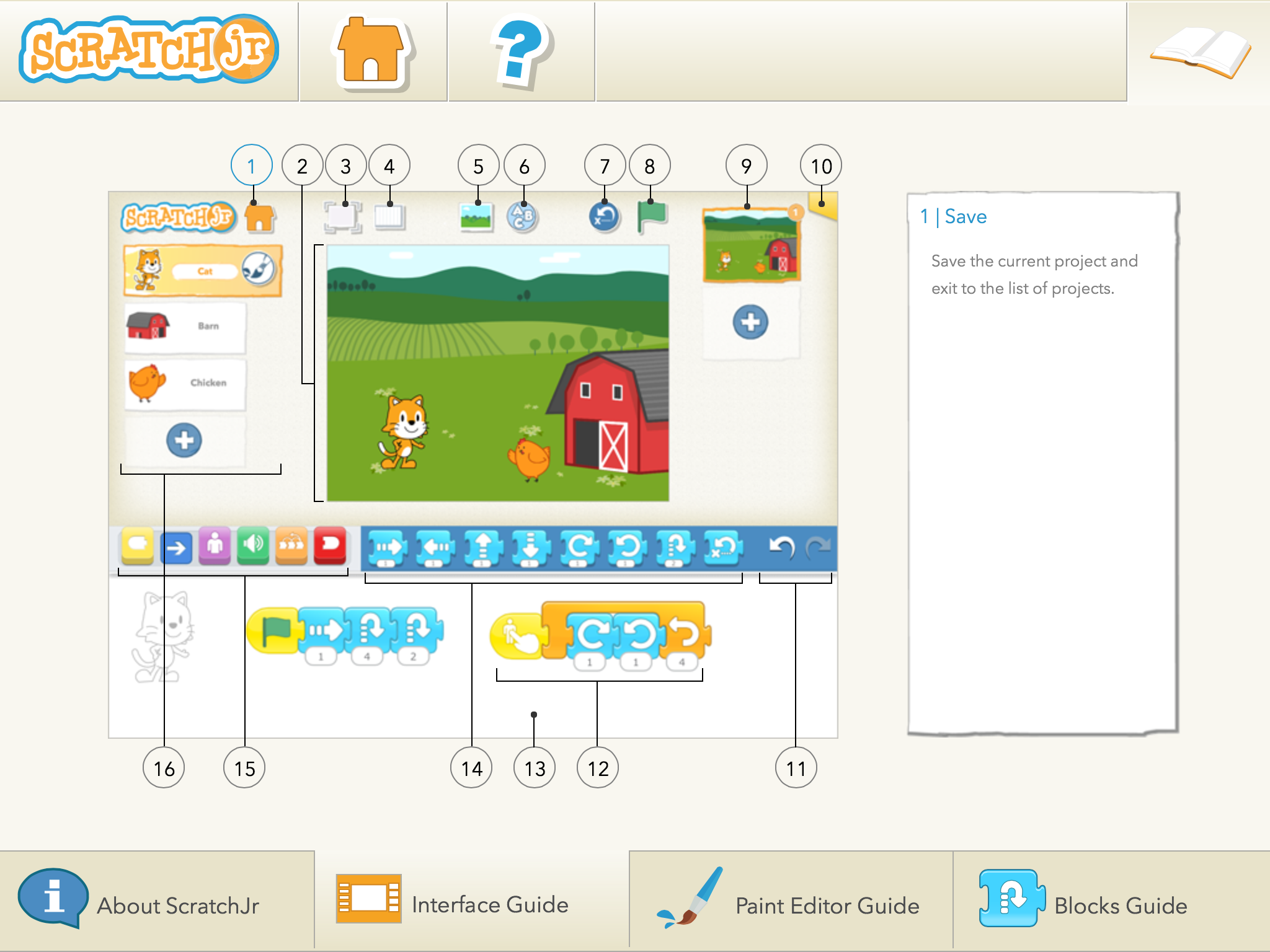
    Get to know the Creation Screen!

    labled dash

    1: Home/ Save 14: Blocks Palette
    2: Stage 15: Block Categories
    3: Full Screen 16: Characters
    4: Grid View
    5: Change Background
    6: Add Text
    7: Reset Characters
    8: Play!
    9: Pages
    10: Project Information
    11: Undo/ Redo
    12: Script
    13: Programming Area

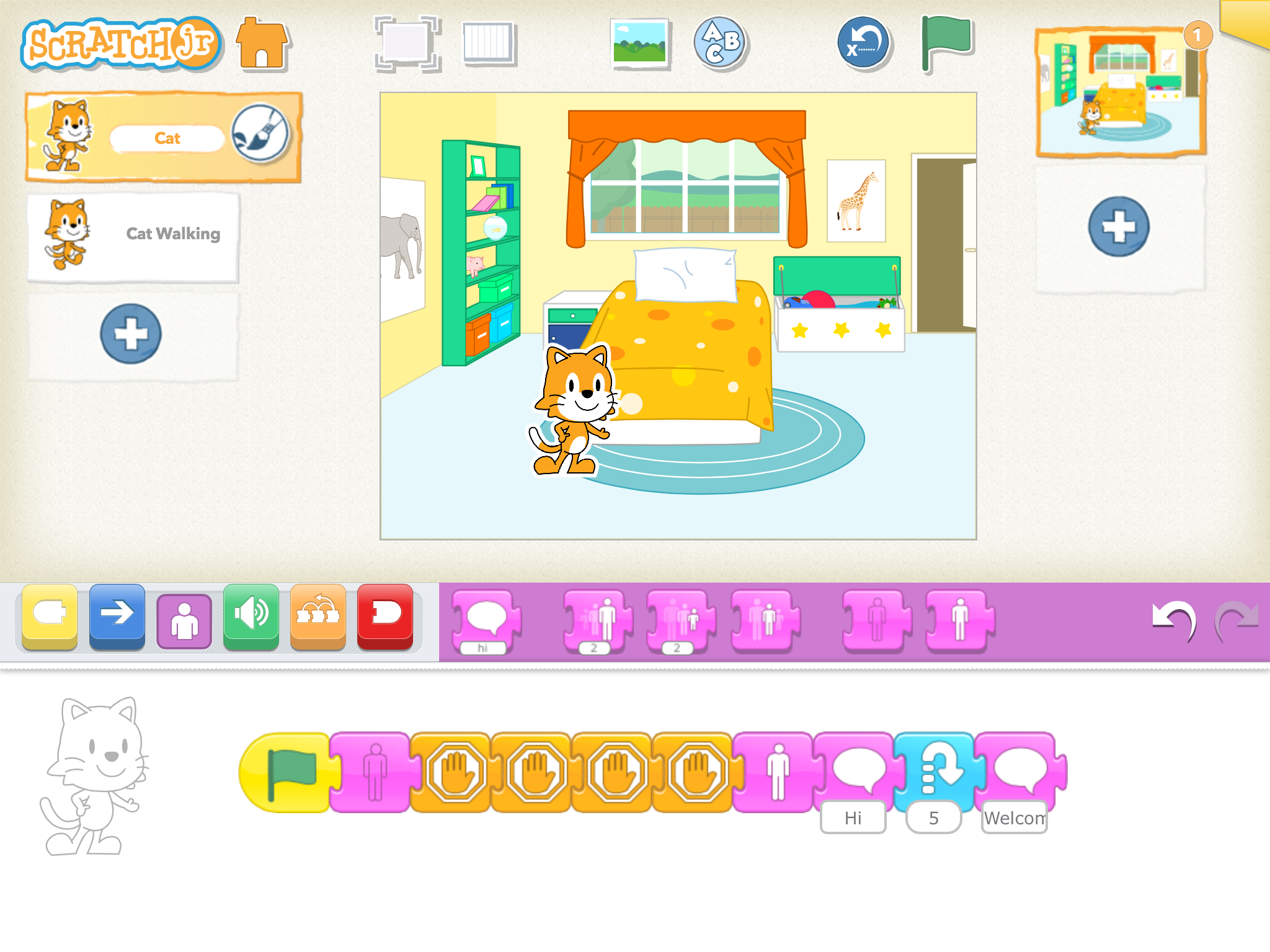
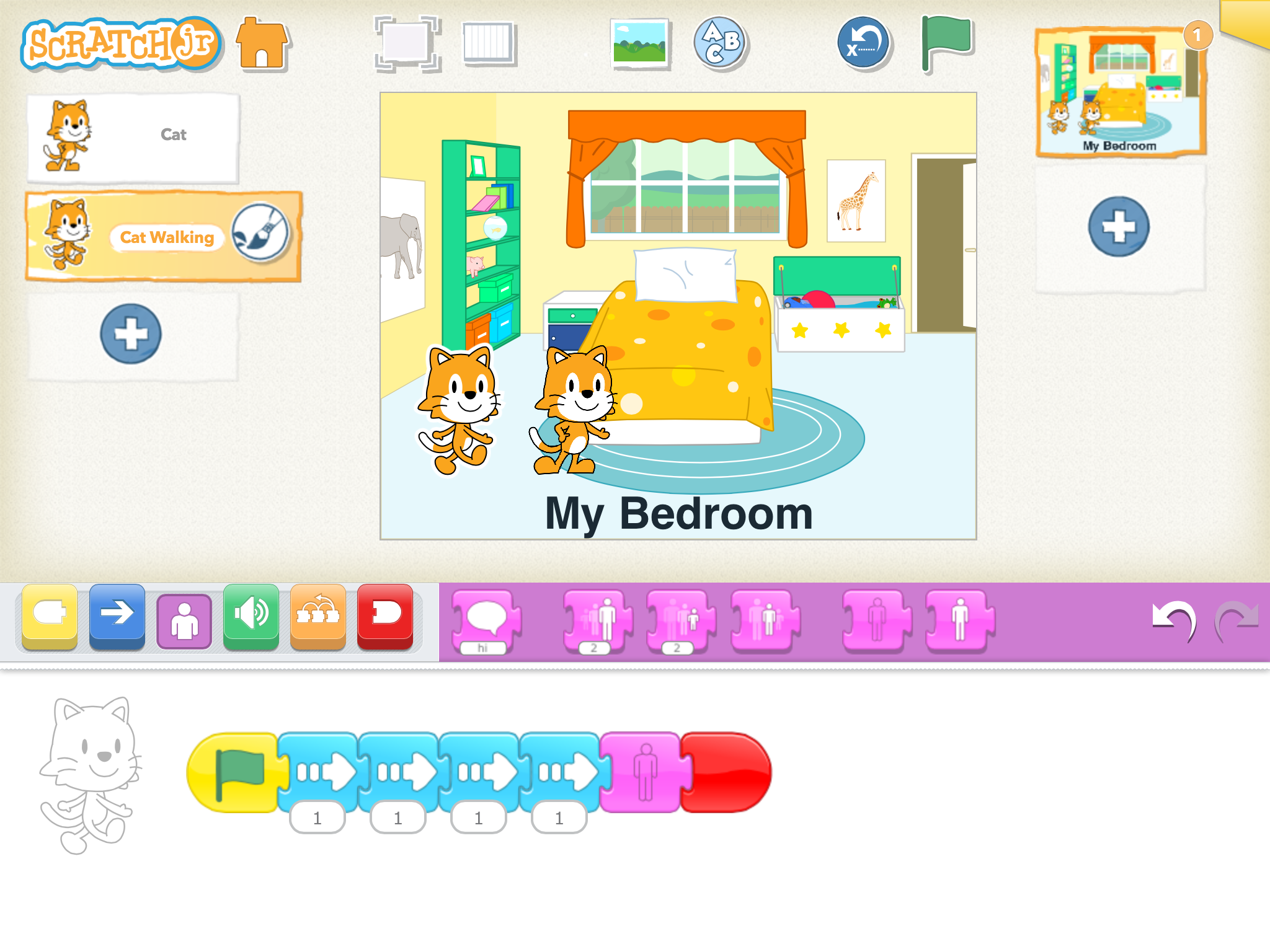
    To start creating your new project simply select a character (new ones can be added by clicking the + button) and start dragging and dropping blocks from the block palette.

    All commands must start with the Green flag and end with the End blocks. What comes in-between is up to you. You can make your character move, talk, appear and disappear simply by adding the corresponding command to the script.

    Don’t forget you can also change your stories background. There is a wide variety of pre-set scenes available and you can access them by clicking on the ‘Change Background’ button.

    character code 1 character code 2

    All Backgrounds and characters can be edited by clicking on the paintbrush, either in the character/ background select screen or on the scene screen

    Add more pages to build up your story book by clicking the + button on the right. These can be completely different to your first page.
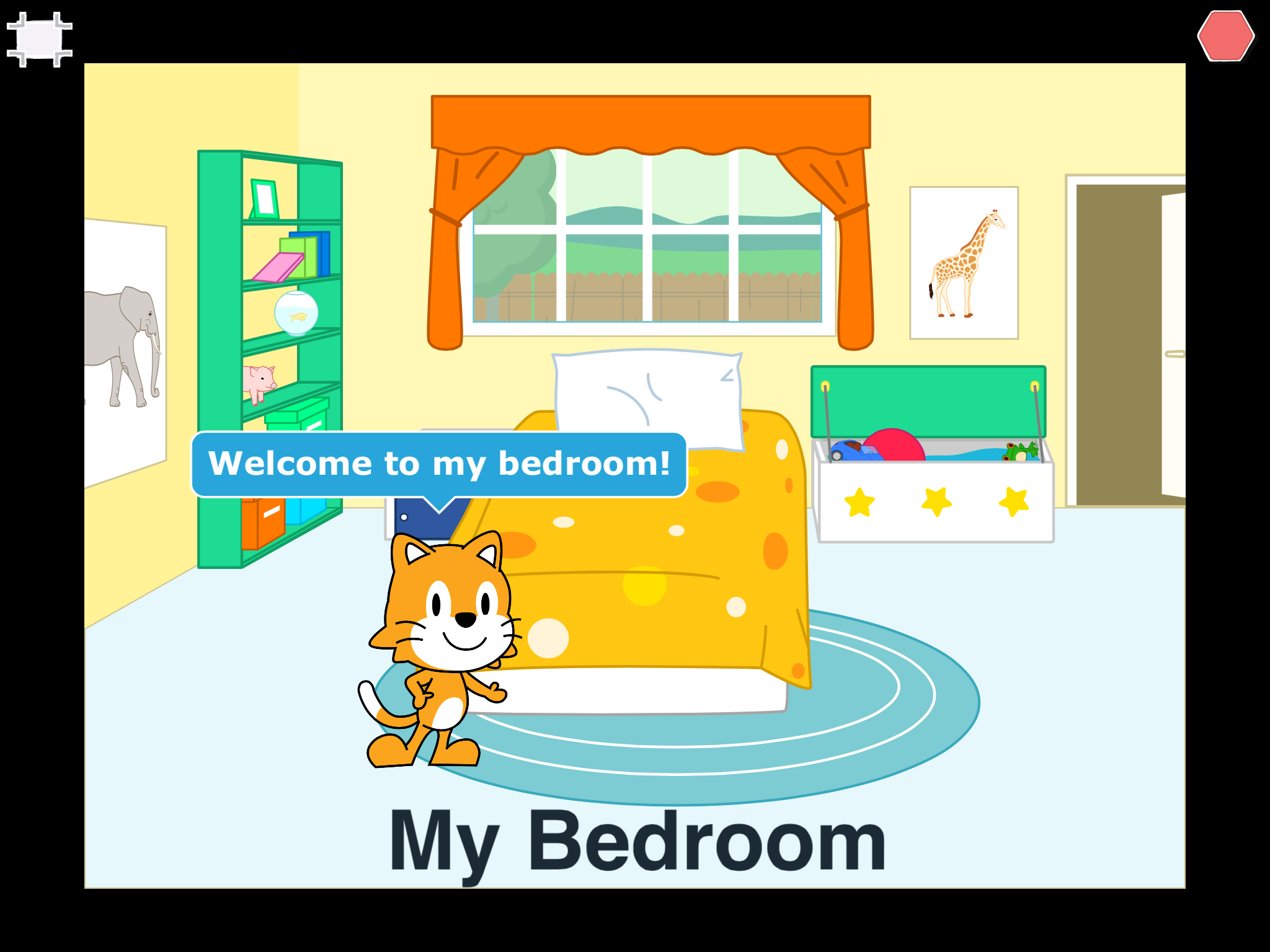
    When you’re ready to show someone your story, click the Full Screen button. From here you can play your story and use the arrows at the bottom of the screen to move through your pages.

    movie view

    Remember to save your project often! Simply click the House icon to save.

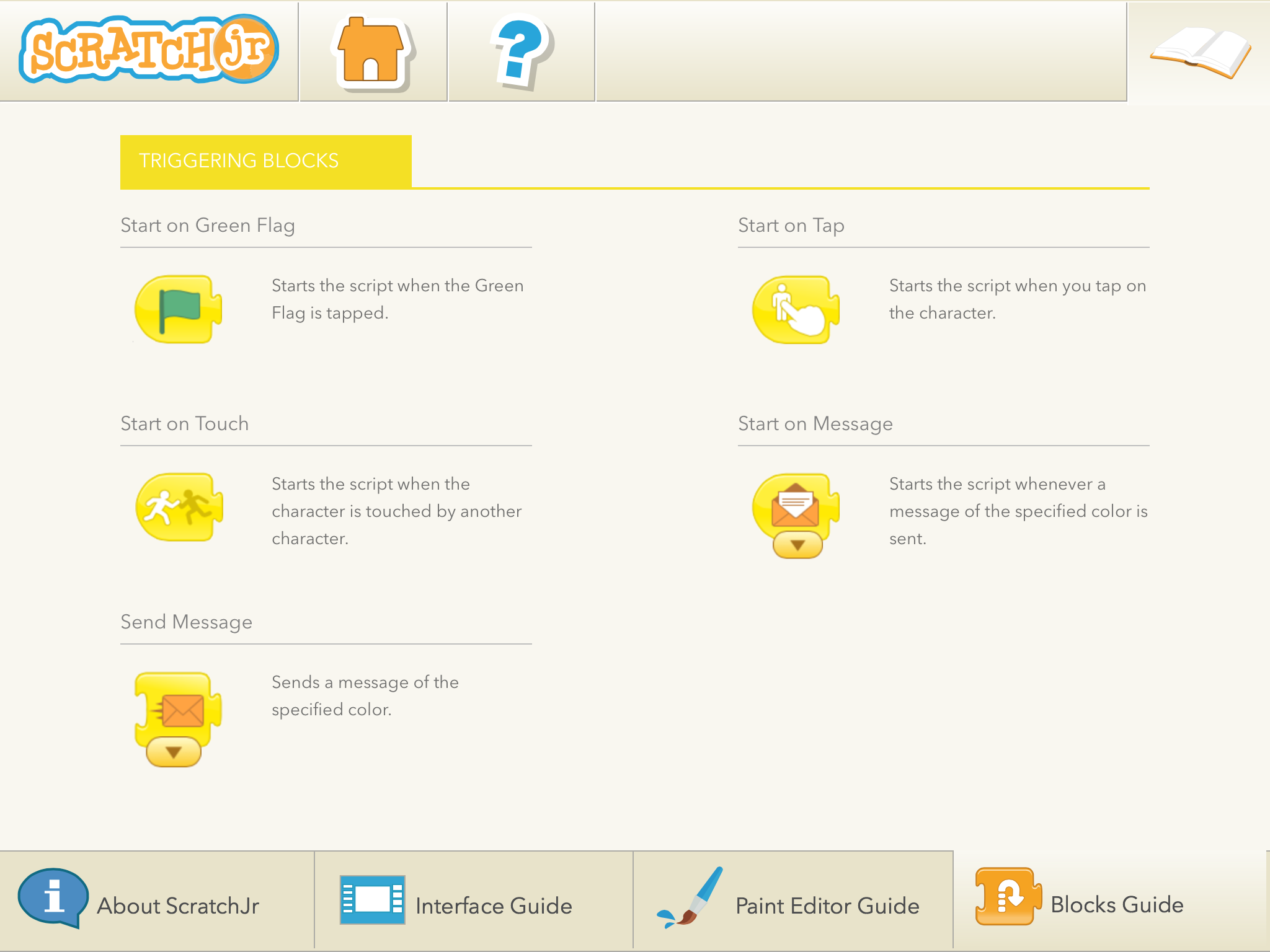
    If you need more information on what the different Blocks do you can find a detailed guide in the help section of the app.

    From the Home menu, Click on the book icon in the top right and then navigate to the blocks guide tab at the bottom. There is also more information about other parts of the app on the other tabs.

    help menu

  • This Is What the Future of Classroom Safety Looks Like

    This Is What the Future of Classroom Safety Looks Like

    In today’s digital world, technology has made opportunities endless for students. Learning can happen from anywhere in the world, and teachers can provide their students with a more personalised education. In short, the future of education is here.

    It’s more important than ever for teachers to be aware of security trends and to be armed with the tools to keep their students safe in the classroom. This shift toward tech-enabled learning brings with it a myriad of safety and security challenges:

    • 73% of parents in the UK are concerned about their kids accessing inappropriate material online.
    • 37% of UK teachers have seen an online safety incident in their school.
    • 84% of parents and guardians worldwide report feeling worried about their children’s online safety.

    Empower the students where and how they learn


    With distance and hybrid learning here to stay…

    • Comprehensive security protections will become vital in ensuring that the continued shift to digital learning doesn’t compromise classroom security.
    • Unfortunately, many schools have struggled to stay a step ahead when it comes to cybersecurity, with many schools lacking the resources to implement security solutions. The result is a growing demand for a more proactive approach to these challenges.

    From platform-specific regulations to complex legislation…

    Making sense of the security landscape is challenging. Schools are looking for guidance on where to turn for the answers. Cybersecurity guidance and education need to be clearly communicated, personalised, and tailored on more of a localised scale.

    There isn’t a widely accepted domestic or international standard on how to be safe online. There are also barriers in navigating the array of policies and laws that are intended for different audiences.

    • 59% of educators and administrators say they either ‘aren’t sure’, or ‘haven’t received’ training or new cybersecurity initiatives for remote learning.
    • 54% of educators and administrators said budget is a medium or large barrier in strengthening their institution’s cybersecurity posture.

    Having a trusted partner…

    This is critical when it comes to navigating the complexity of cyber threats and security in the digital space. Allowing teachers to feel confident and comfortable with the technology their students are using is important, and Google for Education can help.

    With built-in security, rigorous compliance, and control and ownership of your data, Google for Education provides a safer way for everyone in your school community to engage and learn – students and teachers alike.

    Sources:

    1. Bringing online safety education programs to UK schools (2018)
    2. Growing Up Digital: A Report of the Growing Up Digital Task Force (2017)
    3. 84% of parents are worried about their child’s online safety (2019)
    4. IBM Education Ransomware Study (2020)
  • Is Your School Community Protected From Digital Threats?

    When it comes to education, privacy and security are critical. Online threats are around every digital corner, and students have become a top target for cyberattacks.

    Google for Education can help you provide your school community with a safer learning experience by protecting privacy throughout your school community and maintaining visibility into security threats. Here are some facts:

    884 million leaked records

    across the globe in the Education sector, making it the third most affected by data breaches.

    Over 33% of schools

    are more likely to say staff resources had to be diverted to deal with a cyber security breach.

    Ransomware: Target No.1

    Educational institutions are the most targeted segment for ransomware in the UK.

    Only 75%

    of primary and secondary schools have a cyber security policy.

    2x more cyberattacks

    have affected educational institutions from August 2020 to February 2021.

    Tools to Provide Your Students with a Safe Learning Environment

    Chromebooks – Choose from an array of form factors to fit your school’s specific needs and rest assured that your community will be protected while remaining productive.

    Key security capabilities:
    – Automatic updates ensure malware protection is up to date without you needing to do anything – every 4 weeks
    – Verified Boot enables Chromebooks to self-check for malware and auto-repair if corrupted
    – Security sandbox helps prevent the spread of viruses
    – 128-bit encryption to protect every user’s unique space

    Chrome Education Upgrade – Centralise your Chromebook fleet management and unlock the full capabilities of Chrome OS, including access controls and advanced built-in security. Bundle Chrome Education Upgrade with new Chromebook purchases to simplify and speed up deployment.

    Key security capabilities:
    – Advanced security features that let you remotely disable devices, wipe user data upon sign-out, and more
    – 24/7 IT admin support for troubleshooting assistance
    – Fleet oversight capabilities within the Google Admin console simplify deployment
    – Managed access and login controls restrict access as needed

    Google Workspace for Education Standard – Enhance security, visibility, and control so you can more proactively manage and protect your educational data, including the personal information of your school community.

    Key security capabilities:
    – Prevent, detect, and remediate threats with the Security Centre – including the dashboards, health page, and investigation tool
    – Manage devices and apps centrally to perform audits and enforce rules
    – Gain more insights with Gmail log and Classroom log export for analysis in BigQuery
    – Track usage across your domain with audit logs for Drive, devices, LDAP, and more

    Google Workspace for Education Education Plus – Education Plus transforms your institution with the most comprehensive Google Workspace for Education edition. It includes all the enhanced security features and premium teaching and learning tools from Education Standard, enhanced video conferencing, and more.

    Additional security capabilities with Education Plus:
    – Manage your mobile devices and data based on geographic region
    – Identify and resolve problems faster with Classroom Audit logs

    Start today with Google for Education

    Choose the edition that’s right for your institution. Use Google Workspace for Education tools or add enhanced capabilities to suit the needs of your institution.

  • Record a PowerPoint presentation with audio and video

    Record a PowerPoint presentation with audio and video

    Create your power point

    When complete, click Slide Show > Record from Beginning

    This will now put the presentation into “recording mode”

    When ready, click RECORD in top left corner

    This will start the recording and you can start presenting (including using the annotation pens)

    Click through the presentation until you get to the end

    If you are happy with final presentation, click file > save as > change the file type from PowerPoint Presentation (.pptx) to MPEG-4 Video (.MP4)

    [← Previous post]