27 years of trusted school IT support across Hertfordshire and Buckinghamshire

Author: admin

  • RM Unify – SSL Connect Guide for Windows

    RM Unify – SSL Connect Guide for Windows

    This how-to guide explains the process of connecting to RM Unify’s VPN, SSL Connect, which allows users to access their school network from any external location.

    Before you start

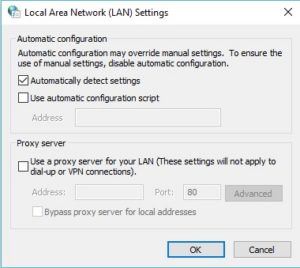
    If you are using a school device from home, prior to using the SSL connect, the proxy settings on the laptop must be turned off. There are two ways to accomplish this. By clicking the ProxyPal icon which may be found on your desktop, until the message reads ‘disabled’. Alternatively, search ‘internet options’ in the start menu and click on the option as seen below.

    Navigate to the ‘connections’ tab, click the ‘LAN settings’ option and make sure that both proxy server options are unticked. Confirm the changes by clicking ‘OK.

    After these two requirements have been met, please continue to step 1.

    Step 1

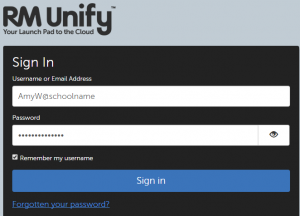
    Navigate to ‘rmunify.com’, and enter the VPN login details provided by your school’s headteacher/office admin. The username must have @schoolname suffix as part of the username to sign in successfully. For example, your username may be “AmyW”, however the full VPN username is “AmyW@schoolname”. (@schoolname should be replaced with the name of your school’s RM account)

    Step 2

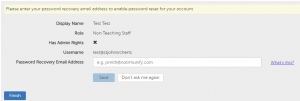
    As part of the initial sign in, there will be a prompt to enter a password recovery email address. It is advised that your school email address is used, so that you can easily reset the password if needed. Click the ‘Save’ button.

    Step 3

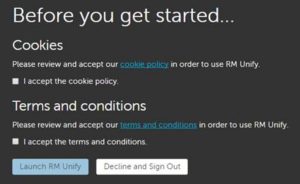
    At this stage, you’ll be requested to accept RM’s cookie policy and terms and conditions. Select both tick boxes and click the ‘Launch RM Unify’ option.

    Step 4

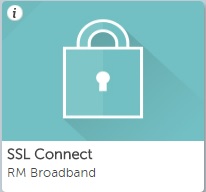
    Once logged in, you will be presented with a dashboard. Click on the ‘SSL Connect’ option, as seen below.

    Step 5

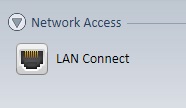
    Select the “LAN Connect” button in the top left corner of your screen.

    Step 6

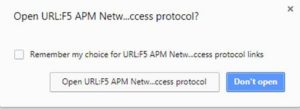
    At this stage, you may be prompted to open URL’s or to accept installations. Press yes/ok/accept to any of these.

    Step 7

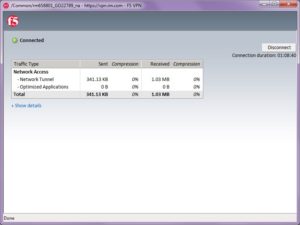
    Finally, a new window will open which will attempt to connect to VPN. Once connected it will confirm this.

    You may also get a ‘VPN Connection’ message in the bottom right hand corner of your taskbar to confirm the connection too. (If you’re asked to set your network connection, choose the ‘Work network’ option).

    Step 8

    At this point you are effectively able to browse to your school server as though you were back at school (click start > computer > access the network drives). For schools that have an RDS server, you can use the RDS/Homework connection on your desktop.

    Step 9

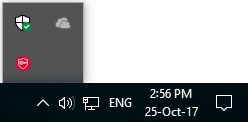
    After you’ve finished using the VPN, make sure to disconnect from the session. You can do this by simply closing down the RM Unify site, or Double click on the red icon in the hidden icons area of the taskbar.

    This will open a new window, which has an option to disconnect. Click on this to terminate the VPN connection.

    NOTE: If you are using a school laptop, please remember to turn the proxy settings back on when you are back school.

  • RM Unify – SSL Connect Guide for Macs

    This how-to guide explains the process of connecting to RM Unify’s VPN, SSL Connect, which allows users to access their school network from any external location.

    Before you start

    Before proceeding, there is an important prerequisite that needs to be checked.

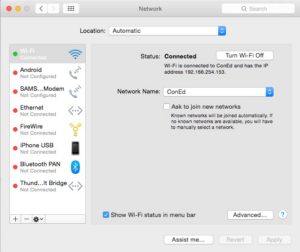
    Prior to using the SSL connect, if you are using a school Ma, the proxy settings on the must be turned off. To achieve this, navigate to settings/preferences and select the ‘Network’ option until you see the below window appear.

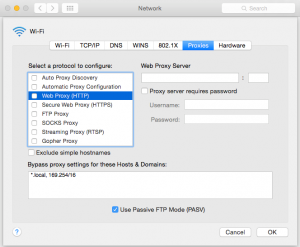
    Select the ‘Advanced…’ option, click on ‘Web Proxy (HTTP)’ from the list, and remove any details which have been entered here – as seen below. Click ‘OK’.

    After this requirement has been met, please continue to step 1.

    Step 1

    NOTE: For this step please use a browser other than Google Chrome – the latest version of Chrome is currently not compatible with the VPN software.

    Navigate to ‘rmunify.com’, and enter the VPN login details provided by your school’s headteacher/office admin. The username must have @schoolname suffix as part of the username to sign in successfully. For example, your username may be “AmyW”, however the full VPN username is “AmyW@schoolname”. (@schoolname should be replaced with the name of your school’s RM account)

    Step 2

    As part of the initial sign in, there will be a prompt to enter a password recovery email address. It is advised that your school email address is used, so that you can easily reset the password if needed. Click the ‘Save’ button.

    Step 3

    At this stage, you’ll be requested to accept RM’s cookie policy and terms and conditions. Select both tick boxes and click the ‘Launch RM Unify’ option.

    Step 4

    Once logged in, you will be presented with a dashboard. Click on the ‘SSL Connect’ option, as seen below.

    Step 5

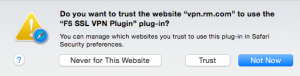
    At this stage, you may be prompted to specify whether you would like to trust ‘vpn.rm.com’ to use the ‘F5 SSL VPN Plugin’. Click on the ‘trust’ button.

    Step 6

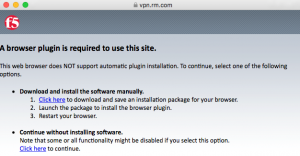
    The browser plugin will need to be installed, by clicking on the ‘click here’ option as seen below.

    The installation package will then be downloaded, which can be opened by clicking on the downloads icon.

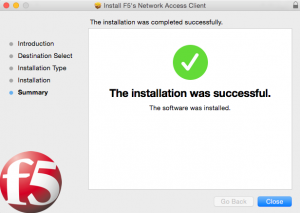
    Once opened, click the ‘continue’ button until the installation is complete.

    Step 7

    At this stage, it is necessary for Safari (or whichever browser was used to install the plugin) to be completely closed and then re-opened, to ensure the plugin has been installed correctly.

    Step 8

    Log back into your RM Unify account, select the SSL connect option as before, and then click on the “LAN Connect” button in the top left corner.

    Step 9

    After this button has been clicked, the VPN will create a connection. Once connected, you can then use the remote desktop connection software to remote into the school network and use it as if you were working in school.

    If you don’t have a remote desktop connection setup, install Microsoft’s ‘Remote Desktop Connection for Mac’ from the App Store and enter the IP address of the school server. Log in using the same username and password you use in school. If this you require assistance with this, please get in contact with Con Ed.

    Step 10

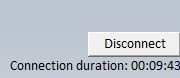
    After you’ve finished using the VPN, make sure to disconnect from the session by clicking on the ‘disconnect’ button or closing all browsers which will terminate the VPN connection.

  • Speedy. Simple. Secure. Discover Easy-To-Use Education Tools With Chromebook.

    Chromebook with Chrome Education Upgrade

    With schools across the UK steadily increasing their digital maturity and implementing more EdTech, decision-makers are starting to build a detailed understanding of what their teachers and students will benefit from most. Technology is meant to make teaching easier. But if you’re using the wrong devices, unoptimised apps, or a difficult-to-manage operating system, it can make your work infinitely harder.

    Chromebooks, powered by ChromeOS and designed for flexibility and simplicity, are the perfect option for schools that want to give their educators and students all the benefits of technology in the classroom – with none of the drawbacks. More than 50 million students and educators trust Chromebooks and ChromeOS to facilitate their learning environment. Here’s why.

    Simple for Students

    Everyone approaches learning a little differently – and with technology on your side, it’s easier than ever to accommodate those differences. There are suitable Chromebooks for every age and every level of ability, packed with purpose-built educational apps for every subject and lesson plan.

    Each student can personalise their Chromebook profile to match their needs and the way they work best, giving them a tailor-made learning experience. There’s no complicated onboarding process – it’s easy for students to log on, get set up, and start learning. And because that profile is stored in the cloud, all those tweaks are available when they switch devices too.

    Simple for Educators

    Adapting a teaching style for all the individual students in a class can be a daunting task. Chromebooks are adaptable, loaded with all the tools and apps your teachers need to deliver engaging lessons for everyone.

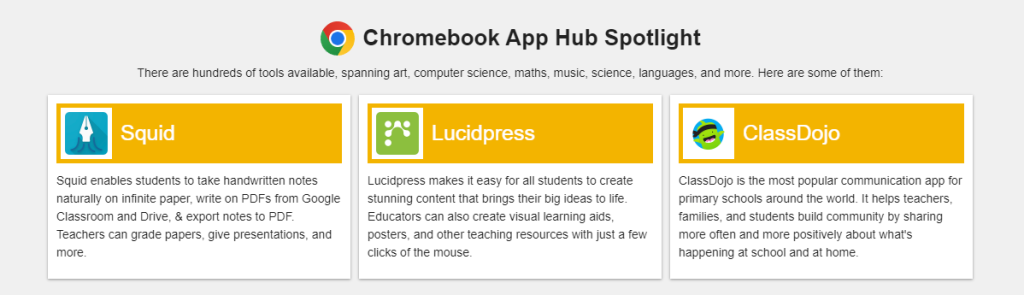
    Teachers can use the Chromebook App Hub to find the apps that suit their students and share them with their fellow educators, helping other classes explore the tools and learning content they need to thrive.

    Simple for IT teams

    Keeping devices up and running, keeping students safe online, keeping vital school systems functional – there’s always a new challenge in educational IT. Chromebooks with ChromeOS are designed to make maintaining and managing a fleet of devices faster and easier, especially when combined with the Chrome Education Upgrade.

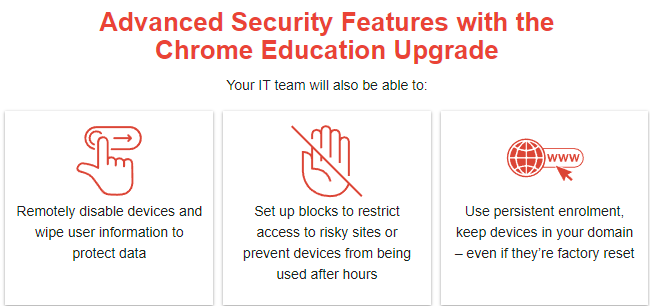
    With over 500 ready-built security and deployment policies, Chromebooks with ChromeOS are easy to secure and manage. The Chrome Education Upgrade adds the Google Admin console to the mix, providing a centralised tool for full fleet oversight wherever devices are being used.

    IT Teams Can Remotely Roll Out Policy Changes and Updates for Every Device at Once

    And, they can manage access without needing to get hands-on with every device, ensuring only verified users can log on – and preventing students from stumbling on restricted sites along the way. Plus, background updates install the latest features and security upgrades every six weeks, minimising the amount of manual updating.

    ChromeOS Flex lends the features and flexibility of a Chromebook to other devices, including PCs, Macs, and even Linux machines. That gives IT teams just one OS to deal with, simplifying policy changes and troubleshooting.

    500+ security and deployment policies are available with a single click, pre-built and ready to protect devices and students.

    – IDC, The Economic Value of Chromebooks for Education

    Easy to Use Across Every Educational Environment

    When you introduce Chromebooks at your school, your students are joining more than 30 million others worldwide who are already benefiting from better educational experiences. Chromebooks, ChromeOS, and Chrome Education Upgrade work together to simplify the technology part of the equation, so your educators and students can focus on teaching and learning.

  • Why Can’t I Access SIMS?

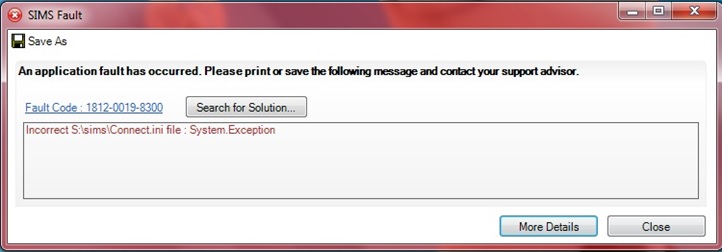
    There are a number of reasons why SIMS may not be working. For SIMS to function, a user must have access to the S drive. If the connection is lost then the following error message is usually shown when attempting to run SIMS:

    SIMS Fault

    How Do I know If I Have Connection to the S Drive?

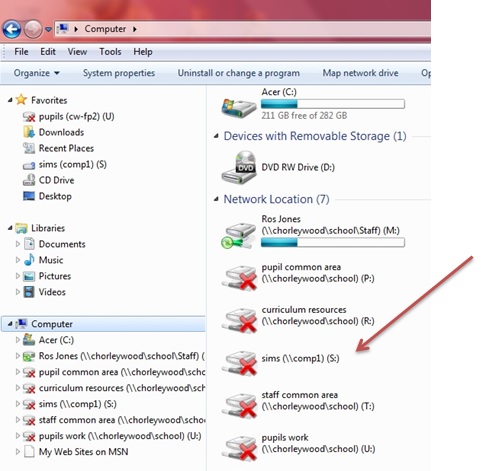
    Click Start > Computer

    You may see that the S drive has a red cross through it

    No S Drive

    How Can I Get Access to the S Drive Again?

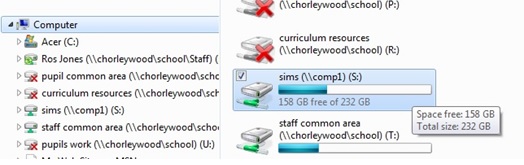
    In most cases, simply double-clicking the S drive will activate it, and SIMS should load up fine.

    S Drive

    I Can’t See the S Drive At All

    If you cannot see the S drive at all, try logging off and back in. Failing that, restarting your machine may solve the issue.

    It is worth checking to see that you have got access to other network drives – if not, then either:

    1. You are not connected to the school network (check wireless switch is turned on and connected to the school’s wireless network, or that the network cable is plugged in)
    2. There is an issue with the school network.

    If you are still experiencing issues, get in touch with Con Ed using the helpdesk.

  • Empower Safer Learning With ChromeOS

    Create Safer Learning Environments With Chromebooks and ChromeOS

    The education sector is experiencing a higher number of cyberattacks and at a higher rate than other sectors. In 2021, it saw a 29% increase in attacks globally. To keep staff and students safe, schools need to take measures to protect themselves from increasingly complex threats, such as data breaches and phishing attacks.

    Google is committed to building EdTech products that provide best-in-class security. Chromebooks are designed to be extremely secure; there’s never been a reported ransomware attack on any business, education or consumer ChromeOS device, ever.

    Let’s explore how ChromeOS devices combine with the Chrome Education Upgrade to protect your school’s data, deliver greater visibility and control, and provide better experiences for your IT teams and students.

    Out-Of-The-Box Security with Chromebooks

    When you deploy Chromebooks for the first time, there’s no long process required to get your security set up. Our devices are secure right out of the box, with no need for extra antivirus software. They’re cloud-based, so your files are automatically backed up to our secure cloud and there’s very little data stored locally, minimising the risk of ransomware attacks.

    And to protect every user, Chromebooks have these built-in security features:

    • Automatic updates – keeping software up to date is the most effective protection against malware
    • Verified Boot – Chromebooks self-check and repair themselves on startup if they detect any system corruption
    • Sandboxing – each webpage and app runs in a restricted environment, so if the device is directed to an infected page the rest of the machine isn’t affected
    • 128-bit data encryption – every Chromebook is protected with a unique username and password for each student

    Get Full Control of Your EdTech

    Your IT team can change settings quickly across your entire network of ChromeOS devices with Chrome Education Upgrade using the Google Admin Console.

    You can choose between more than 500 policies and commands, enabling safe browsing and blocking malicious or inappropriate sites. And you can add users, Chromebooks, printers and more, all from the central console, managing all your devices with ease – whether there are 10 or 10,000.

    This can help when administering digital student assessments, too. Switch to testing mode to disable features such as web browsing, external storage access and screenshots – transforming your Chromebooks into a secure tool for online exams or in-class tests.

    Simplify Compliance and Security

    With robust security, regular third-party audits, and certifications in line with recognised international standards like GDPR and Cloud Security Alliance, Chromebooks help your school stay compliant.

    Even if they’re lost or stolen, you can still ensure your Chromebooks are secure with the ability to:

    • Lock a device and prompt a message about how to return it
    • Apply sign-in restrictions so only school users can access them with their education account

    And when your device is recovered, automatic re-verification during boot will give you peace of mind that it hasn’t been tampered with.

    Secure Student Experience

    With ChromeOS, IT teams have all the visibility and control they need to keep students safe online. But Chromebooks secure your students’ experience in other ways too. Students can share Chromebooks – meaning not every student needs their own device. And with ChromeOS Flex, you can even give new life and security tools to your existing hardware by bringing them into the ChromeOS ecosystem. If multiple users share the same ChromeOS device over the years, every student’s info and work is still private and secure, and easily accessed with their username and password.

    When browsing, students’ data is stored safely, and isn’t used to target ads to individuals. In fact, there are no ads in Google Workspace for Education core services. And when their systems do collect data, it’s only information that’s been completely scrubbed for personal information and used to improve the services they provide.

    Great Security Also Means Reduced Costs and Time

    Best-in-class protection is essential to keep students safe. And when you combine the security of Chromebook hardware with Google Workspace for Education Plus, the benefits span more than just security.

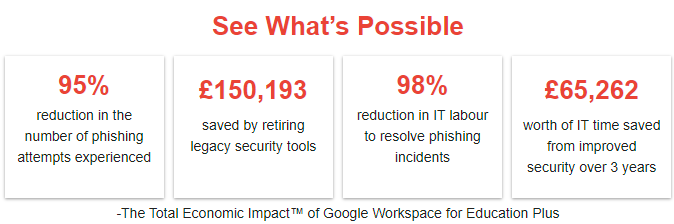
    In The Total Economic Impact of Google Workspace for Education Plus report, Forrester saw improved security help 10 organisations retire their legacy security tools – saving an average of £150,193. And admin staff at those organisations can now produce administrative, educational, and security reports on average up to 80% faster – and that’s just the start.

  • Mindfulness Tech, Tools and Benefits for the Entire School

    Mindfulness is having a major moment in schools. This positive state of being is achieved by simply paying non-judgemental attention to our feelings, thoughts and sensations in the body as they change from moment to moment. In the classroom and beyond, it’s been shown to increase focus on learning, improve overall well-being and reduce stress in students and teachers alike.

    And though the concept has been around for ages, technology has given it a renewed interest. Ironically, mindfulness has also become somewhat of a refuge for the influx of technology in learning and life.

    Curious if it’s worth all the hype? See what regular practice using these techniques and tools could do for your youth.

    What is mindfulness, and why is it important for students?

    Mindfulness deals in the present. The idea is to note, without judgement, the changing experience of this exact moment. That includes one’s emotional and physical state as well as what’s going on around you in your environment. Usually, that involves sitting quietly and intentionally breathing as you simply observe.

    Coming at mindfulness from all angles could be the key to creating a more academically and emotionally healthier school.

    Three apps for students

    At this point, the majority of schools have engaged in some form of remote learning, which has deepened the relationship students have with their devices. Encouraging them to check out these mindfulness apps can help them stay grounded and focused on their schoolwork.

    • Headspace for Kids: As one of the most popular mindfulness apps in the world, Headspace can be accessed on any device and guides users to learn the basics of meditation in just ten-daily, ten-minute lessons. Headspace for Kids is their newest launch designed specifically for younger generations.
    • Buddhify: This guided meditation and mindfulness app deals with everything from intense emotions to sleep. Its optional Buddhify Membership unlocks features like kid-friendly, ‘karaoke-style’ meditations, which can be read aloud, as well as weekly video courses.
    • GoNoodle: A free website that utilises “brain breaks” for elementary and middle school students. Helps kids transition between activities, invite a little movement or simply breathe intentionally. They made getting started easy with this designated teaching guide.

    Tech tools for educators

    The stress of COVID-19 is taking its toll on teacher’s too, “driving many to consider quitting and even self-harm”, according to The Guardian. But these tools may be able to release some of that pressure.

    The meditation and mindfulness app, Calm, provides teachers with a daily dose of guided meditation and inspiration. There are also “sleep stories” to help them get better rest. The best part? It’s free for educators.

    Professional development courses and guides like those offered from Mindful schools provide teachers with a tech solution to increase their mindfulness. There are courses designed to help them build a practice, and teach their students how to do the same.

    Analogue ways to practice mindfulness

    Need some time offscreen? Try these three non-tech tools.

    1. Box breathing. Hold one nostril, slowly breathe in and hold for a few seconds. Close the opposite nostril and slowly breathe out. Repeat for a few minutes.
    2. Body scan. Start at the top of the head and focus on each subsequent muscle group until you reach the toes. Students can do this on their own or as guided by their instructor.
    3. Colouring. As with many forms of art therapy, colouring has been shown to reduce stress and improve focus. It’s great for adults too and can be implemented anytime a mindful break is needed.

    Mindfulness is an essential resource for the modern classroom, one that doesn’t require any additional teaching credentials to master. Simply sit, breathe and be.

  • Learn How to Use Google for Education to Its Full Potential

    Any technology is only as beneficial as the user’s ability to use it effectively. That’s why Google continually works to empower educators and support lifelong learning via free-of-charge online training for the classroom.

    Educators can find an individual trainer or certified professional development partner in their area for in-person or virtual training and support.


    Recordings & Resources

    Check out recordings from these in-depth, hands-on training sessions led by members of the Google Workspace for Education team. In these videos, we demo critical use-cases to help you get the most out of your purchase.

    How to manage your Google Workspace storage effectively

    https://www.youtube.com/embed/up2v8sy2rno?feature=oembed


    Training for Every Google for Education Product

    To fully benefit from Google’s plethora of education products, it’s important to understand the depth of each. These tools allow educators to better manage coursework, meet virtually with students, easily create presentations, and so much more.

    • Classroom
      Manage coursework, organise assignments, boost collaboration, and foster better communication with these resources for Classroom.
      Learn more
    • Forms
      Build surveys, measure student success, administer quizzes, and more with these resources for Google Forms.
      Learn more
    • Docs
      Foster group collaboration, manage syllabuses, and more with these Google Docs tips and tricks.
      Learn more

    Training Designed Specifically for Teachers

    If you’re an educator looking to use Google tools to their full potential, Google also offers a Teacher Center where educators can interact with curriculum specifically built for teachers by teachers.

    The curriculum varies from basic fundamentals training for those new to Google tools to advanced training that’s perfect for educators looking for new strategies for beginning Google in their school.

    Discover the full offering of training sessions and certifications available for educators.

    BROWSE ALL TRAINING SESSIONS

  • Why so Many Schools are Shifting to Zero Trust Security

    Why so Many Schools are Shifting to Zero Trust Security

    The term “zero trust” doesn’t necessarily invoke a positive connotation. However, rephrased as “always verify,” the same principle takes on an entirely different sentiment. Semantics aside, it’s a serious security solution that schools can’t afford to ignore.

    Don’t want to join the millions of institutions who had their network breached from within last year? Perimeter defences are no longer enough to keep your student data safe. Enter: zero trust security.

    What is zero trust security?

    With zero trust, it doesn’t matter whether an individual or device is inside or outside the network; an identity verification is required from anyone looking to access data and applications on your school network.

    Since they don’t rely on network location, zero trust approaches authorise activity only after powerful authentication technology is able to verify a user. From that point, each grantee will only be able to access network resources based on their predetermined permissions. For instance, a technician would have the same access whether working from home or on site at different schools in the area.

    Educational institutions looking to better understand this IT security model may also choose to think of zero trust as a castle-and-moat analogy. In the dark ages, castles relied on moats and walls to keep intruders out. However, they also had watchmen standing guard in case someone were to successfully breach the castle walls. Zero trust works the same way. It doesn’t assume that the moat (firewall) alone will keep out the unwanted or trust everyone inside the gates (like traditional IT network security does). Instead, it employs defences at every level, including those on the inside.

    How does zero trust security apply to the classroom?

    By trusting individuals over networks, zero trust environments are more realistic for the demands of the modern classroom, especially hybrid and online classrooms.

    As Security Boulevard points out, “Zero trust cybersecurity focuses on securing your data rather than just the perimeter of your network. This approach secures your school’s data more effectively, regardless of the network or device a student, teacher or staff member is using. Taking this approach is particularly important for schools that are using remote or hybrid learning. In those environments, you have no way to know whether the networks that your users employ are secure or not.”

    How can schools use zero trust security?

    Said plainly, zero trust security protects schools from users on different networks and ensures educational institutions are prepared for emergencies.

    Presently, that means safeguarding school data regardless of device or end user. Again, Security Boulevard, “You may be in one of the schools that were able to scramble to full 1:1 for the 2020/21 school year. But, it’s impossible for you to know if everyone accessing your school’s Google Workspace [is] using their school-issued devices. It’s not unheard of for a student to leave a device at school, and then log in with their home computer to do homework.”

    Most pressingly, multiple layers of security offer schools peace of mind that their student, faculty and school data are safe. That generally means deploying the following security principles:

    • Continuous monitoring and validation
    • Least privilege
    • Device access control
    • Microsegmentation
    • Preventing lateral movement
    • Multi-factor authentication (MFA)

    Beyond identity and access management, all user activity and endpoints are closely tracked, monitored and flagged for any behavioural abnormalities.

    Like building a castle, constructing a zero trust environment can’t happen overnight. Still, the sooner school’s start laying the foundation for this comprehensive security solution, the safer everyone will be.

  • Selecting the Right Chromebook for Your School, Staff and Students


    Finding the Right Chromebook

    In 2020 the pandemic changed the way schools use Chromebooks. To meet the existing, and new needs of schools, Google developed a wayfinding guide to help you find the right Chromebook for your use case.

    1 Identify the primary use case, or how the device will be used. 2 Map out the device specifications required for these use cases.
    3 Make recommendations for devices that meet these needs. 4 Compare across the device ecosystem and find the right device.

    Discover the right Chromebook for your school, staff and students based on your primary use case

    Basic Classroom Use Learning Anywhere Advanced Use
    Shared student devices – Web browsing, Email, Google Workspace or browser based classwork, Assignments and testing Classroom and distance learning devices – Supports multiple browser tabs, Google Workspace, concurrently with video conferencing with 15+ participants Teachers, staff, higher education, high school devices – Recommended for heavy workloads including content creation/editing, coding, running apps in virtualised environments. Supports heavy multitasking (large video calls with 15+ participants, multiple browser tabs, Google Workspace, external monitors/displays)

    Finding the Right Device

    Identify the specifications you need. Find the right device that matches your required specs and suits your needs.

    Supported peripherals:

    Works With Chromebook is a peripherals certification programme ensuring compatibility across all makes of Chromebook devices. Here is the list of certified peripherals across various categories including Headsets, webcams, mice, external storage, cables & adapters, wall hangers and others.

    AUE: Auto-update expiration:

    You can find information about Auto-update expiration for your devices here. Devices listed on the following pages have AUE of 2026 or more

    Connected devices

    Devices with LTE/5G SKUs have been marked with an icon

    Zero-touch enrollment

    For the most updated list of devices enabled for zero-touch enrollment, reference here

    Devices that support Parallels

    The recommended hardware specifications for Parallels are available here. Devices eligible for Parallels is available to reference here

  • Toolkits & Training to Help Your School Adopt Chromebooks

    Toolkits & Training to Help Your School Adopt Chromebooks

    There is a myriad of reasons why you should transition your school to Chromebooks, including strengthened security, improved collaboration, and simplified classroom management.

    However, introducing new technology to your school community can create a number of challenges. It’s important to educate students, teachers, and admin on what is changing and help them acquire the skills they need to thrive with the new technology.


    How to Adopt Chromebooks for Your School Community

    The Google for Education team has created several educational resources so you can help your community adapt, adopt, and sustain a productive environment for education.

    Among these is their EDU in 90 video series, with each short episode focusing on an important topic for educators, administrators, and school leaders. Topics include product updates, new programs, and helpful resources for the classroom.
    To ensure your staff, educators, and students can easily adopt this new technology, Google has created a proven process called the Chromebook Adoption Framework. The three-step process helps you clearly communicate with your community, educates them on the skills they need to take on the change, and teaches them about other valuable resources.
    Chromebook Adoption Framework

    Excite – Make sure they understand what’s changing and why they should be part of it.


    Get Your Team Excited About Chromebooks

    Before introducing the new technology to your students and staff, create a transition plan. Make a list of everyone who will be using Chromebooks, how this will impact their day-to-day activities, and what skills would most benefit them. Come up with a clear communication plan to generate excitement and to let those impacted know about the change beforehand.

    You’ll need to tailor each device with apps and features that meet the needs of each user group, so starting this process with plenty of time to plan is critical. Think through staff, educators, and students to determine which users will require Chromebooks and which will be allowed to choose their devices.

    Enable – Help them acquire the skills required to take on the change.


    Enable Your Teams to Get Up & Running

    Keeping your teams up to date with best practices and advice that will help familiarise them with their new device is a great way for them to get started. Google for Education has created content such as a Getting Started Guide, Tips & Tricks Guide, and Educator’s Toolkit that can help set your team up for success.

    These tools will allow your school community to be more efficient on their devices by learning various shortcuts and quick how-tos. Be sure to offer the one-page toolkit with your teams so they can access training courses and share FAQs with their own students.

    Extend – Teach them about other Chromebook programs and get up to speed using additional resources.


    Arm Your Teams With Helpful Resources

    Give your teachers everything they need to do in-house repairs to devices in their classroom so there’s never any down time. This also helps the devices stay in service longer, minimising the amount of e-waste.

    Teaching your educators about other Chromebook programs is another way to help them succeed with their new devices.

    Not sure Chromebooks are the right choice for your institution? We want to ensure that you can make an informed decision about your EdTech investment. Contact us to learn more about available test drive options as well as ChromeOS Flex, the free-to-download operating system that allows users to modernise their existing devices and experience the benefits of Chrome OS on PCs and Macs.